

Relevant AdSense Ads
Help Google AdSense distinguish what content is relevant on your website.
Plugin info
Maintenance & Compatibility
Maintenance score
Possibly abandoned • Last updated 5593 days ago
Is Relevant AdSense Ads abandoned?
Possibly abandoned (last update 5593 days ago).
Compatibility
Similar & Alternatives
Explore plugins with similar tags, and compare key metrics like downloads, ratings, updates, support, and WP/PHP compatibility.
Description
Most often Google AdSense place ads on your site that are relevant to your content but sometimes Google gets it wrong. It can also be times where you don’t want Google to put any relevance to a certain text on your site when they crawl it.
An example would be if you write a blog post about that you don’t like poker sites. Then it would be unfortunately if Google showed ads for poker sites on your blog.
With Relevant AdSense Ads there is now an easy way of helping Google distinguish which content that you think is relevant and which content should be ignored.
Remember though that this is only suggestions to Google AdSense and they might ignore it completely. It could also take a while before it take effect on old blog posts because Google must of course crawl it again.
For more information, see Google AdSense help page about section tageting.
Usage
- Go to ‘Relevant AdSense Ads’ under ‘Settings’ menu
- Change the options of your choice
Follow the development of this plugin at FredrikMalmgren.com.
Installation
- Upload the plugin folder to your plugin folder (manually or through ‘Plugins’ / ‘Add new’ menu in WordPress)
- Activate the plugin through the ‘Plugins’ menu in WordPress
Uninstallation
- Deactivate the plugin through the ‘Plugins’ menu in WordPress
- Click on delete which will both delete plugin files and data stored in database
NB: In you uninstall the plugin in any other way you will manually have to remove this entry in the options table:
- rcga_auto
Frequently Asked Questions
Review feed
Screenshots
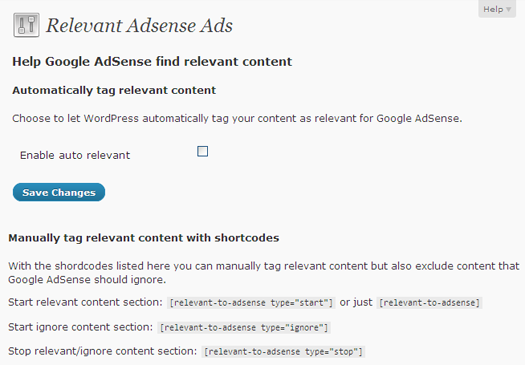
Admin panel for managing the plugin
Changelog
0.1.0
- Initial release