

Search Appearance Toolkit (SEO 44)
A lightweight, feature-packed SEO plugin for meta tags, JSON-LD structured data, XML sitemaps, article jump links, GTM integration and easy migration.
Plugin info
Maintenance & Compatibility
Maintenance score
Maintained • Last updated 125 days ago
Is Search Appearance Toolkit (SEO 44) abandoned?
Likely maintained (last update 125 days ago).
Compatibility
Similar & Alternatives
Explore plugins with similar tags, and compare key metrics like downloads, ratings, updates, support, and WP/PHP compatibility.
Description
Search Appearance Toolkit (SEO 44) is a lightweight and complete SEO plugin for WordPress that improves your site’s search engine visibility with a suite of powerful features and an easy migration path from other popular SEO plugins.
Whether you’re setting up a new site or looking for a lightweight alternative, SEO 44 gives you control over your on-page SEO, social media appearance, Schema.org structured data, XML sitemaps, and article jump links.
The interface is clean and user-friendly. Under the hood, the plugin packs powerful features to scan your content and automatically generate valuable resources for SEO, freeing up more time for you to create great content. Within the block editor, the SEO 44 Jump Links Block scans for headings and generates customizable jump links that enhance user navigation and search results.
Why use SEO 44?
Search Appearance Toolkit (SEO 44) is a fast, no-nonsense SEO plugin for users who want a complete set of powerful, essential SEO features and automated optimization without the performance impact, upsells, and dashboard clutter commonly found in some plugins. SEO 44 features intelligent scanners to generate schema and easy migration tools, making it an excellent choice for users looking to switch from a bloated plugin to a lightweight solution.
Key Features
Use-Friendly Interface
- Tabbed Settings Page: The interface is clean and uncluttered. All plugin settings are organized into six clear, easy-to-navigate tabs: Main Settings, Social Media, Schema, XML Sitemaps, Integrations, and Migration.
- Helpful Tooltips: You will find guidance on different options throughout the settings page.
- Easy to Use Editor Interface: Manage SEO tags with a clean and straightforward metabox in the post editor.
- Search Results Snippet Preview: See a live preview of how your content may look in Google search results.
- Character Counters: Keep your titles and descriptions to the recommended length thanks to character counters that warn you if you exceed safe lengths.
SEO Head Tags
- On-Page SEO Control: Set custom SEO Titles and Meta Descriptions for posts, pages, custom post types, categories, tags, and your homepage.
- Intelligent Fallback: If you don’t fill in one of the SEO tags for post, page, and taxonomy, the plugin won’t output empty SEO tags; instead, it produces useful fallbacks to ensure your site is optimized, even when you don’t fill out SEO fields.
- Optional Support for Meta Keywords: Include keywords if you like them, leave them out if you don’t think they are valuable. The choice is yours
- Customizable Author Tags: Give credit to your writers with a few formats for displaying their names.
Social Media Tags
- Open Graph and Twitter Cards: Enable tags for Facebook (Open Graph) and X / Twitter Cards
- Image Handling: Set a Default Social Image for content that doesn’t have a featured image, and add your Twitter handle and Facebook App ID for better integration.
Schema Types Useds
- WebSite: Schema for your homepage, enabling Google Sitelinks Search Box potential.
- Organization: Comprehensive schema for the Google Knowledge Graph, including deep details like Founder, Founding Date, Professional Credentials, and Service Area.
- Article: Rich schema for posts, with details such as publisher, images, and word count. Features an enhanced author property that links to the author’s profile URL to strengthen entity connection.
- WebPage: Schema for pages and custom post types, including images.
- BreadcrumbList: Schema for all posts, pages, and taxonomy archives to enhance your appearance in search results.
- Other Formats: ImageObject, VideoObject, FAQPage, and HowTo schemas may also be used where appropriate.
Advanced Schema Controls & Tools
- Intelligent Schema Scanner: Scans your site for existing structured data from your theme or other plugins, helping you to prevent conflicts and duplicates before you enable schema.
- Knowledge Graph Control: A dedicated interface to manage your brand’s digital identity. Define your Founder, Founding Date, Contact Info, and professional Credentials to improve E-E-A-T signals.
- Include Images and Videos: A built-in tool automatically finds all images and embedded YouTube videos in your content and adds them to the schema, boosting their appearance in search results.
- FAQ and How-To Detection: Enable a smart scanner to detect patterns in your content for FAQ and How-To sections on your website and incorporate this useful format into the schema.
- Modern Output: All structured data is generated in the modern JSON-LD format preferred by search engines, following the guidelines set by Schema.org.
- Granular Control: Tailor the Schema settings to fit your site’s needs through Enable/disable settings, including on Custom Post Types and Taxonomies.
Comprehensive XML Sitemaps
- Full Content Coverage: Automatically detects all public Custom Post Types and Taxonomies and provides simple checkboxes to let you choose exactly what content to include in your sitemap.
- Image Sitemaps: Includes options to add both Featured Images and images found within your post content to your sitemaps, providing more context to search engines.
- Custom Types: Automatically detects and includes all public Custom Post Types and Custom Taxonomies.
- Performance Conscious: The sitemap is cached for high performance and includes a “Purge Cache” button for manual regeneration. It also automatically pings search engines when you publish new content.
Seamless Migration Tools
- Make the Switch: Easily migrate from other SEO plugins without losing your work. Simply swap in the meta keys used by your old plugin to have SEO 44 pick up using your existing data.
- One-Click Presets: Includes presets for popular plugins like All in One SEO, Yoast SEO, Rank Math, and more, which automatically fill in the correct meta keys for you.
- Database Scanner: Not sure what meta keys your old plugin used? The built-in scanner can analyze your database, find potential SEO meta keys, and suggest the correct ones to use for a seamless transition.
Advanced Jump Links Block
- Instant Jump Links List Creation: Automatically generates a customizable “Table of Contents” block from your page’s headings to improve user navigation and earn rich “Jump to” links in Google search results.
- Full Customization: Features “Viewing” and “Editing” modes right in the editor. In Editing Mode, you can change link text, reorder links with up/down arrows, and exclude specific headings from the list.
- Complete Styling Control: Use the sidebar controls to change the layout (vertical or horizontal), list style (bullets, numbers, or none), font size, and colors. For the horizontal layout, you can also style the link background, border, and border-radius.
- Front-End Interactivity: Includes built-in smooth scrolling and an optional “Show More” button to collapse long link lists elegantly.
- Active Link Indicator (ScrollSpy): As your readers scroll through the content, the table of contents automatically highlights the link for the section they are currently reading, giving them instant context on their progress.
- Sticky Navigation: Optionally, keep the table of contents pinned to the viewport as users scroll, ensuring navigation is always accessible for long articles.
- So Much More: All the other features described in the standalone Jump Links Block (SEO 44) plugin.
- Click Tracking: Want to see which jump links are most popular with your users? Use the plugin’s integration settings to enable event tracking for jump links through Google Tag Manager.
Integrations & Advanced Analytics
The Search Appearance Toolkit serves as a hub for connecting your site to essential third-party services, helping you to create valuable analytics data and site insights.
Site Verification
Verify your site with search engines quickly and easily. Paste your verification codes for Google Search Console and Bing Webmaster Tools into the corresponding fields in the Integrations tab. The plugin handles the rest, adding site verification meta tags to your website’s head. No coding required.
Google Tag Manager (GTM) Integration
Easily integrate with Google Tag Manager by pasting your GTM-XXXXXXX ID into the settings field. The plugin will correctly and safely inject the GTM scripts into your site’s and on every page. No coding required.
Sophisticated GTM Event Tracking
With GTM enabled, you can check four boxes to start gathering important insights about site visitors:
- Rich SEO dataLayer: Push foundational page data (like post category, author, tags, and page type) on every page load, allowing advanced users to create granular analytics triggers in GTM (e.g., “Fire this conversion pixel only on the ‘Products’ category”).
- Scroll Depth Tracking: Find out how much of your content is being viewed by visitors. This feature pushes
scroll_depthevents as users scroll 25%, 50%, 75%, and 100% down a page. - Outbound & Affiliate Link Click Tracking: Measure when users click on links to leave your site, pushing an
external_link_clickevent, conditionally identifying affiliate links (withrel="sponsored") and pushing a separateaffiliate_link_clickevent. - Jump Link Click Tracking: Tracks engagement with your Jump Links Block by pushing a
jump_link_clickevent, letting you see which sections your users are most interested in.
SEO 44’s integration with Google Tag Manager pushes valuable events to the dataLayer for use in Google Analytics. The plugin includes an import file and detailed Instructions for setting up Google Tag Manager and Google Analytics to receive event-tracking data.
For Developers
For advanced theme development, SEO 44 provides four template tags for working with meta tags and schema structured data, as well as two filter hooks for adding custom schema to sites.
Our Notes for Developers page provides more information and examples.
Credits
WordPress.org: The default placeholder favicon used in the “Search Results Snippet Preview” is based on the official WordPress logo. The image file is included locally within the plugin to comply with repository guidelines.
External Services
Search Appearance Toolkit (SEO 44) utilizes a few external, third-party services in order to provide its full range of features. All of these features are optional.
Google Tag Manager (GTM) Integration
- Service Description: This plugin can automatically inject the Google Tag Manager (GTM) container script into your website’s
and. This allows you to manage all your third-party tracking scripts (like Google Analytics) from a single GTM dashboard. - Data Sent and Conditions: This feature is off by default. If you enable the “Enable Google Tag Manager” option in the Integrations tab and provide your GTM Container ID (e.g.,
GTM-XXXXXXX), the plugin will add Google’s official GTM script to every page of your site. This script will then download and run tracking code from Google’s servers. - Service Provider Links:
- Google: Terms of Service, Privacy Policy
Site Verification Tags (Google & Bing)
- Service Description: To prove you own your site to search engines, this plugin allows you to add their required verification meta tags to your site’s
. - Data Sent and Conditions: This feature is off by default. It is only active if you paste a verification code into the “Google Search Console” or “Bing Webmaster Tools” fields in the Integrations tab. The plugin does not actively “send” this data; it simply adds a
tag to your site’s HTML, which Google’s and Bing’s crawlers will look for to verify your ownership. - Service Provider Links:
- Google: Terms of Service, Privacy Policy
- Bing (Microsoft): Microsoft Services Agreement, Microsoft Privacy Statement
Sitemap Ping Services (Google & Bing)
- Service Description: To help your content get indexed faster, this plugin can automatically notify (or “ping”) major search engines when your XML sitemap is updated. This feature uses the public ping services provided by Google and Bing.
- Data Sent and Conditions: This feature is on by default and can be disabled from the “XML Sitemaps” settings tab. If enabled, the plugin will send the URL of your website’s sitemap (e.g.,
https://yourwebsite.com/sitemap.xml) to Google and Bing. This happens automatically only when you publish a new post. No other data is sent. - Service Provider Links:
- Google: Terms of Service, Privacy Policy
- Bing (Microsoft): Microsoft Services Agreement, Microsoft Privacy Statement
You Might Also Like
If you like this plugin, you might also enjoy these WordPress tools:
- Jump Links Block (SEO 44) – A custom block that automatically creates a clickable, customizable Jump Links table of contents from the headings in your post (a standalone version of the block offered in the Search Appearance Toolkit).
- Microdata to JSON-LD Converter – A handy tool to convert your existing Schema.org Microdata into the preferred JSON-LD format, clean up your HTML, and maintain structured data.
- Under The Weather – A lightweight and customizable weather widget, powered by the OpenWeather API, that caches and presents weather data with multiple style options.
Installation
From the WordPress Plugin Directory File
- Log in to your WordPress Admin Dashboard.
- Navigate to Plugins > Add Plugin in the left-hand menu.
- Search for the plugin: Search Appearance Toolkit (SEO 44).
- Install the plugin: Once you locate the correct plugin, click the “Install Now” button next to it.
- Activate the plugin: After the installation is complete, click the “Activate Plugin” button that appears.
From a Zip File
- Download a copy of the plugin, available in the WordPress Plugin Directory Search Appearance Toolkit (SEO 44) webpage.
- Upload the search-appearance-toolkit-seo-44 folder to the
/wp-content/plugins/directory - Activate the plugin through the Plugins menu in WordPress.
- Navigate to Settings -> SEO 44 to configure the plugin.
Frequently Asked Questions
Search Appearance Toolkit (SEO 44) gives you control over the technical, on-page SEO factors that help search engines understand and rank your content. Key benefits include:
* Optimized Snippets: Control how your titles and descriptions appear in search results.
* Rich Results: The advanced Schema.org data helps you earn rich results like FAQs, How-Tos, and breadcrumbs in Google.
* Crawlability: A clean and comprehensive XML sitemap ensures search engines can find and index all of your important content and images.
* User Engagement: The Jump Links Block improves user experience, which is a positive ranking signal, and can help you earn “Jump to” links in search results.
While this plugin handles the crucial on-page technical SEO, it’s important to remember that it cannot control other major ranking factors. These include factors such as the quality and originality of your content, your website’s speed, mobile-friendliness, the number of quality backlinks pointing to your site, and your overall domain authority.
Search Appearance Toolkit (SEO 44) contains effective features for optimizing your content, providing the foundation for a comprehensive SEO strategy. SEO 44 tools, like the Jump Links Block and the scanner for FAQs and How-Tos, reward the creation of thoughtful and organized content.
SEO 44 makes migration as simple as possible. Your previous SEO plugin saved the SEO data you created in your WordPress database. SEO 44 will find and use that data.
Before migrating, please back up your WordPress database, including the postmeta table. Deactivate your previous SEO plugin while using SEO 44.
Go to the Migration tab of the SEO 44 settings page. There you will see three keys where SEO 44 will store and update your SEO titles, descriptions, and keywords. By default, these keys will be seo44_title, seo44_description, and seo44_keywords, but they can be updated to match the locations where your website already manages SEO information.
One Click Migration: The Migration tab includes a list of buttons with the names of popular SEO plugins. With one click, you can replace the seo44 keys with the standard meta keys for that other plugin.
Your old data won’t be copied or duplicated; you will simply pick up right where you left off with your previous SEO plugin.
Two-Click Migration: If you’d like to verify which meta keys appear in your database, click the button to Scan for SEO Meta Keys
The scanner will display a list of potential matching meta keys and provide suggestions for matching title, description, and keyword keys. Click Use Selected Keys and Save to accept the suggestions, telling SEO 44 to use your existing meta keys.
You should now see your previous SEO titles and descriptions when you look at the SEO 44 metabox in your post editor.
Yes, the SEO 44 metabox appears and functions correctly with both the block editor and the classic editor. The advanced schema detection for FAQs and How-Tos works best with the block editor but has a fallback for the classic editor. The SEO 44 Jump Links Block is a custom block for use in the block editor.
SEO 44 helps your content look great when shared on social media platforms. You can enable the automatic generation of Open Graph (og:) tags, which Facebook, LinkedIn, and Pinterest use, and Twitter Card meta tags for when your content appears on X (formerly Twitter). This ensures your posts have the correct title, description, and preview image when shared.
Use the plugin’s Google Tag Manager Integration to facilitate additional connections with soclal media platforms. Use the Organization Schema settings to associate all of your social media profiles with your website.
The featured image of any post or page will automatically be used as the primary og:image and twitter:image tag.
If you need a site-wide default image for pages that don’t have a featured image, you can set a Default Social Image on the plugin’s “Social Media” settings tab. This image will be used as a fallback social media image when a featured image has not been set.
Schema Structured Data is machine-readable code that you add to your website to help search engines like Google better understand your content. Structured data is typically generated in the modern JSON-LD format, following guidelines set by Schema.org, a universal web standard used by over 10 million websites.
Read more about Schema Structured Data and the SEO and GEO benefits of the schema created by this plugin.
No. Using the Schema Scanner, you can detect whether your theme or another plugin is already outputting JSON-LD or Microdata. If the scanner finds existing schema, it will notify you.
Read more about the Schema Scanner and what to do if you find existing schema on your website.
SEO 44 creates a Person schema for the author of each article. To enhance this, it will automatically use the “Website” URL from the author’s WordPress user profile to add url and @id attributes to the schema. This creates a powerful, machine-readable link between your content and its author, which helps search engines like Google build a stronger understanding of your site’s authority and expertise (E-E-A-T).
Read more about the Author Schema created by SEO 44.
The plugin intelligently scans your content for patterns that match question-and-answer formats or step-by-step instructions (when this option is enabled). The plugin locates this content and automatically generates FAQPage or HowTo schema that presents this content within the JSON-LD.
The benefit of this is that Google can use this structured data to display your content in special, highly visible formats in the search results. An FAQ page might appear as a rich snippet with expandable questions, while a How-To article can be featured in a step-by-step guide. Rich snippets make your search results stand out, which can significantly improve your click-through rate (CTR).
Read more about the FAQPage and HowTo Schema created by SEO 44.
SEO 44 builds Organization Schema that is valuable to the Google Knowledge Graph. While many WordPress themes can produce valid Organization schema, this is SEO “thin content” that doesn’t provide search engines and LLMs with any information that isn’t already obvious.
The SEO 44 plugin generates a rich Organization schema that goes far beyond what a theme can provide, displaying valuable information to Google and other search engines, as well as AI search platforms.
Organization schema is the primary data source for the Google Knowledge Panel, which appears in the box on the right side of desktop search results for brand searches.
A rich Organization schema explicitly tells Google:
- “These social profiles belong to us” (via
sameAs). - “This is our official logo” (ensuring the right image appears in the Knowledge Panel).
- “This is how to contact customer service” (via
contactPoint). - “This is when the organization was formed and by whom” (via
foundingDateandfounder) - “This is the business address and service area” and (via
addressandareaServed)
If you leave this to the theme, Google often misses the connection between your website and the associated Twitter/Facebook/LinkedIn profiles.
Read more about Organization Schema and how to deal with existing schema on your website.
First and foremost, you should avoid enabling the SEO schema features while your theme is doing so.
When your website contains existing schema structured data, evaluate whether the structured data added by your theme is helpful for SEO, or whether the schema introduced by your theme merely duplicates labeling for semantic HTML elements that search engines and AI platforms already understand. For example, schema types like WPHeader, WPFooter, and WPSideBar provide no known SEO benefit (or GEO Benefit, for that matter), merely confirming what search engines and AI/LLMs already understand from the HTML structure (e.g., <header> and <footer>).
Themes include these basic structural schemas to be “schema-ready,” relying on Schema Microdata inline with HTML attributes like itemscope and itemtype, which result in slightly more cluttered HTML code that can be harder to manage. In contrast, there are advantages to using a dedicated SEO plugin like SEO 44 to inject high-value schemas via the schema JSON-LD format. Using JSON-LD keeps the structured data separate from the HTML markup, leading to cleaner HTML.
Compare Theme-Generated and SEO 44 Plugin Generated Schema.
Decide when to remove theme-generated schema (and learn how to do it).
The Search Appearance Toolkit (SEO 44) makes this easy. All you need is your Container ID from Google Tag Manager. All you need to do is copy your Container ID (it looks like GTM-XXXXXXX) and paste it into the “Google Tag Manager ID” field on the Settings > SEO 44 > Integrations tab and SEO 44 will automatically add both the required <head> script and <body> <noscript> tag to your entire site.
To add Google Tag Manager integration and learn how to track click events through GTM, follow the clear step-by-step instructions in the How to Set Up Google Tag Manager (GTM) section of the SEO 44 Integrations Setup Guide.
To save you time and eliminate errors, your plugin provides a “GTM Import File.” This recipe contains all the tags, triggers, and variables necessary for GTM to listen for your plugin’s custom events (like jump_link_click and scroll_depth) and send them to Google Analytics.
To complete this two-part process, configuring Google Tag Manager and then configuring Google Analytics, follow the clear step-by-step instructions in the How to Set Up GTM Event Tracking section of the SEO 44 Integrations Setup Guide.
This plugin uses the “HTML tag” verification method, which is the most common and reliable way. All you need to do is copy the site verification code (just the code, not the full tag) provided by Google Search Console and paste it into the “Google Search Console” field on the Settings > SEO 44 > Integrations tab.
To and Google Search Console verification, follow the clear step-by-step instructions in the How to Set Up Site Verification Tags section of the SEO 44 Integrations Setup Guide.
Similar to Google, Bing uses an “HTML meta tag” to verify your site. All you need to do is copy the site verification code (just the code, not the full tag) provided by Bing Webmaster Tools and paste it into the “Bing Webmaster Tools” field on the Settings > SEO 44 > Integrations tab.
To add Bing Webmaster Tools verification, follow the clear step-by-step instructions in the How to Set Up Site Verification Tags section of the SEO 44 Integrations Setup Guide.
You can! The XML sitemap is a code file meant for search engines, so browsers don’t display images directly. To verify that your images are included, go to your sitemap (e.g., yourwebsite.com/sitemap.xml), right-click, and select “View Page Source.” You will see the image URLs listed within tags for each relevant post or page.
This can occur when WordPress has not yet recognized the new sitemap URL. To fix it, go to Settings -> Permalinks in your WordPress admin and click the “Save Changes” button. This will refresh your site’s rewrite rules and make the sitemap visible. The sitemap generator also automatically disables the default WordPress sitemap.
The main Search Appearance Toolkit (SEO 44) plugin is a complete suite of tools that includes meta tag optimization, schema generation, XML sitemaps, and the Jump Links Block. The standalone Jump Links Block (SEO 44) plugin offers only the Jump Links Block functionality for users who don’t need a full SEO suite. You only need one. If you are using the Search Appearance Toolkit (SEO 44) plugin, you do not need the standalone block plugin.
You can save a fully customized Jump Links block as a Block Pattern to easily reuse it across your site. This is a handy WordPress feature. With Block Patterns, you don’t have to repeat the process of manually setting the same style settings for Jump Links blocks on multiple pages. That work is done for you.
Follow these instructions to create a Block Pattern of a Jump Links Block.
Review feed
Screenshots
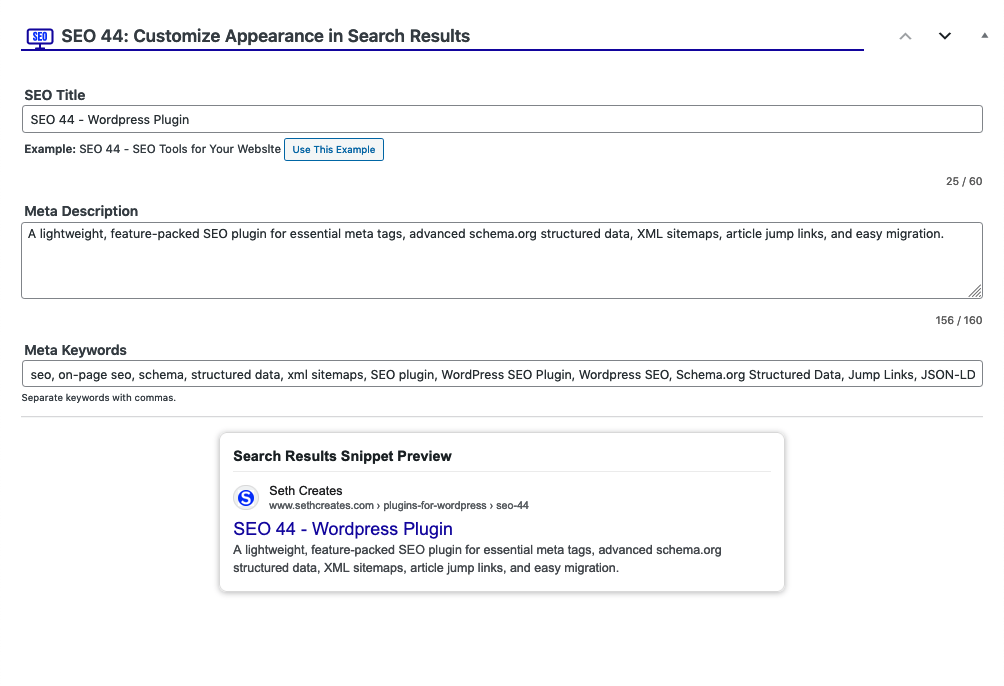
The clean and simple SEO metabox in the post editor, with the live snippet preview.
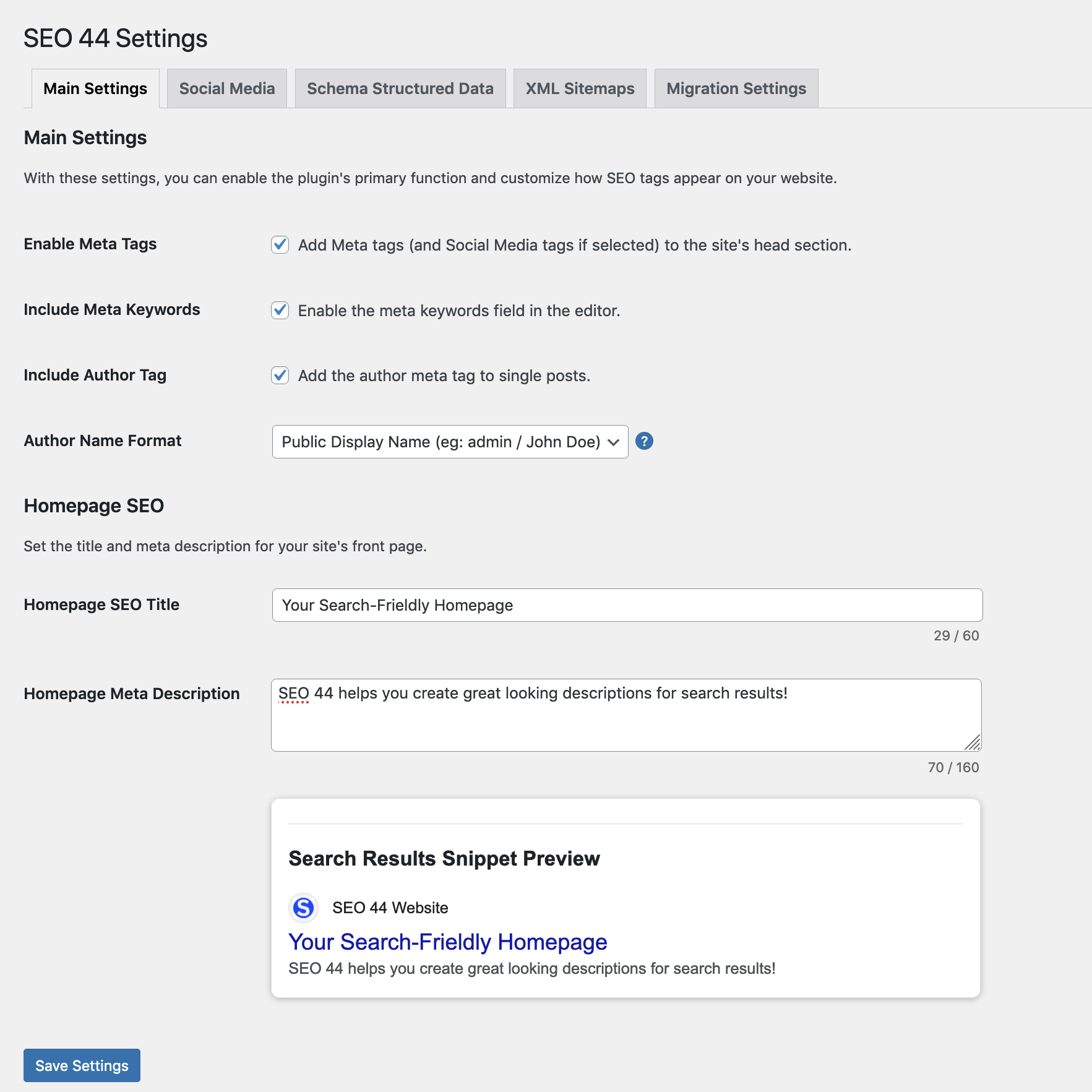
The Main Settings tab, for controlling meta tags and homepage SEO.
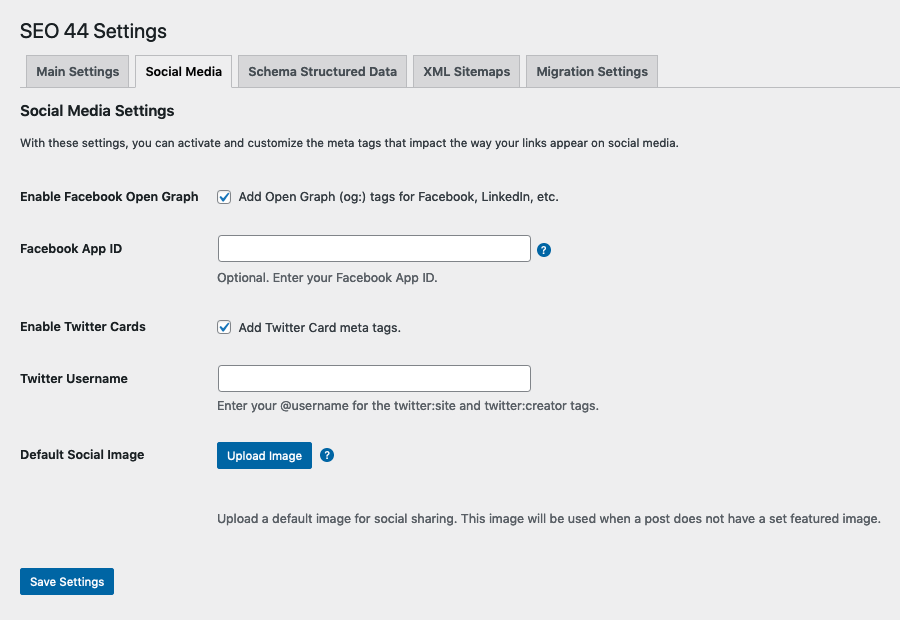
The Social Media settings tab.
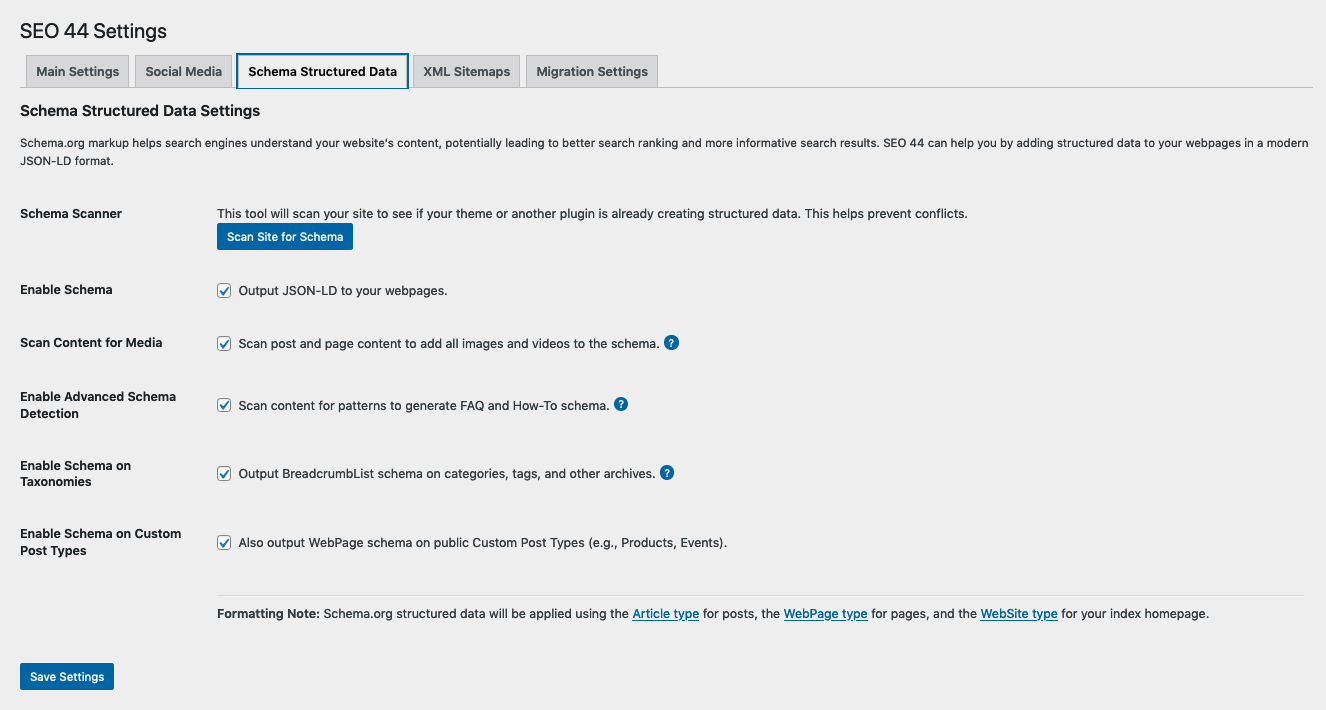
The Schema Structured Data tab.
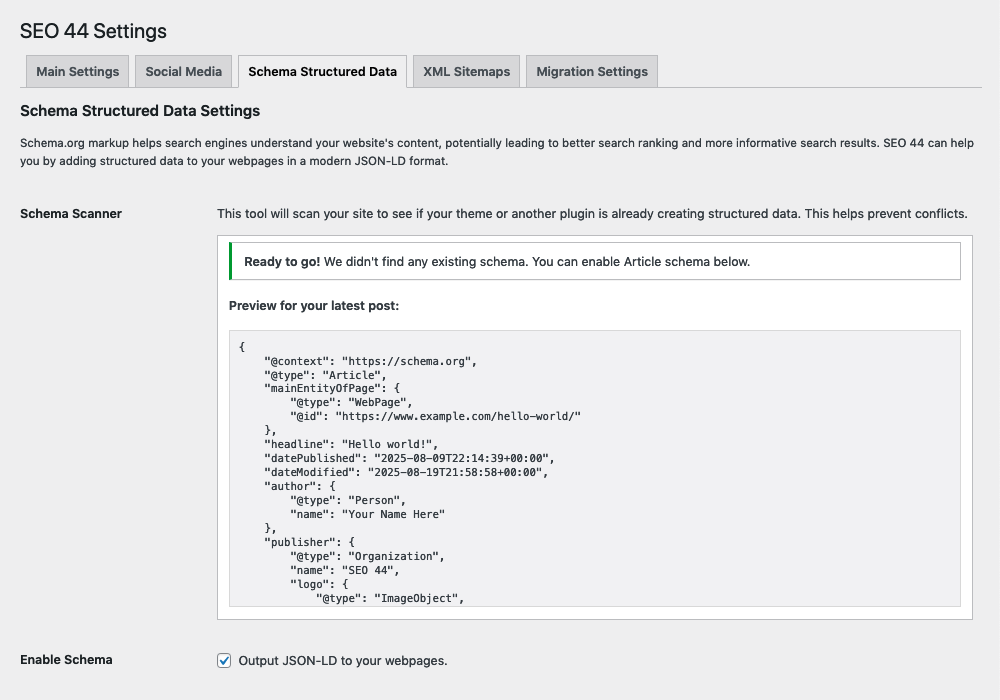
The intelligent Schema Scanner, showing a clean result and a preview, on the Schema Structured Data tab.
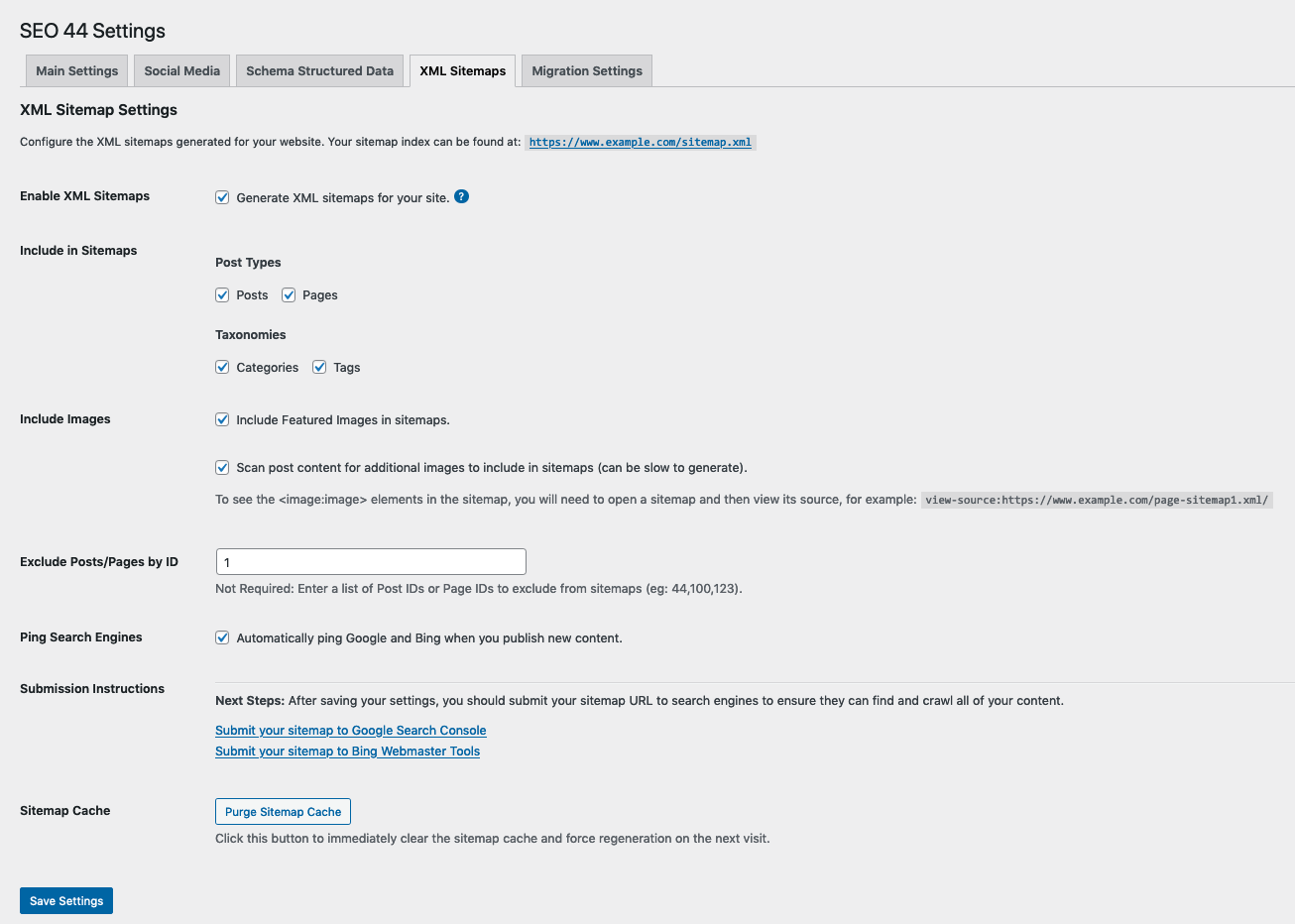
The comprehensive XML Sitemaps tab.
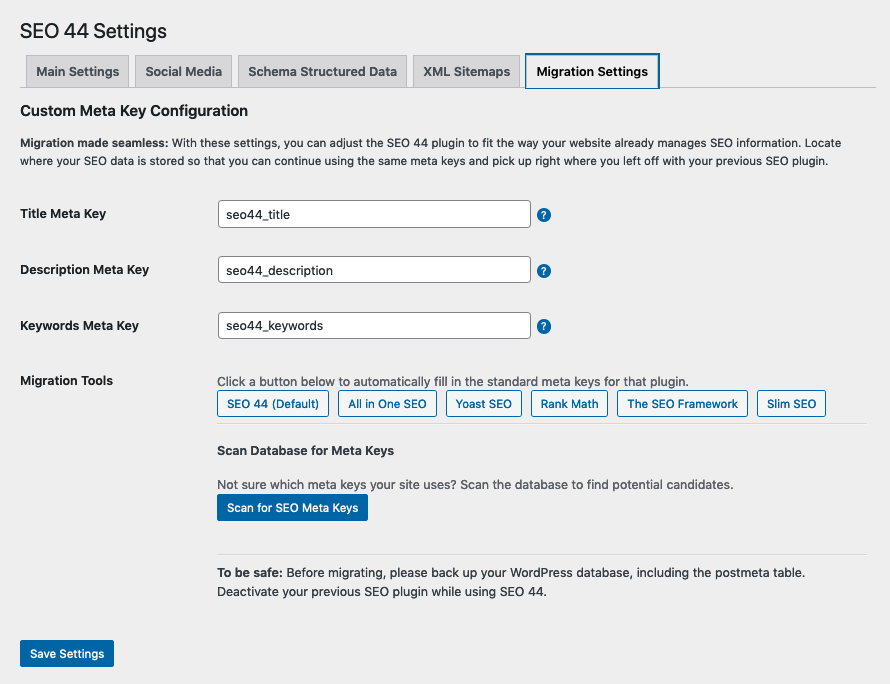
The Migration settings tab.
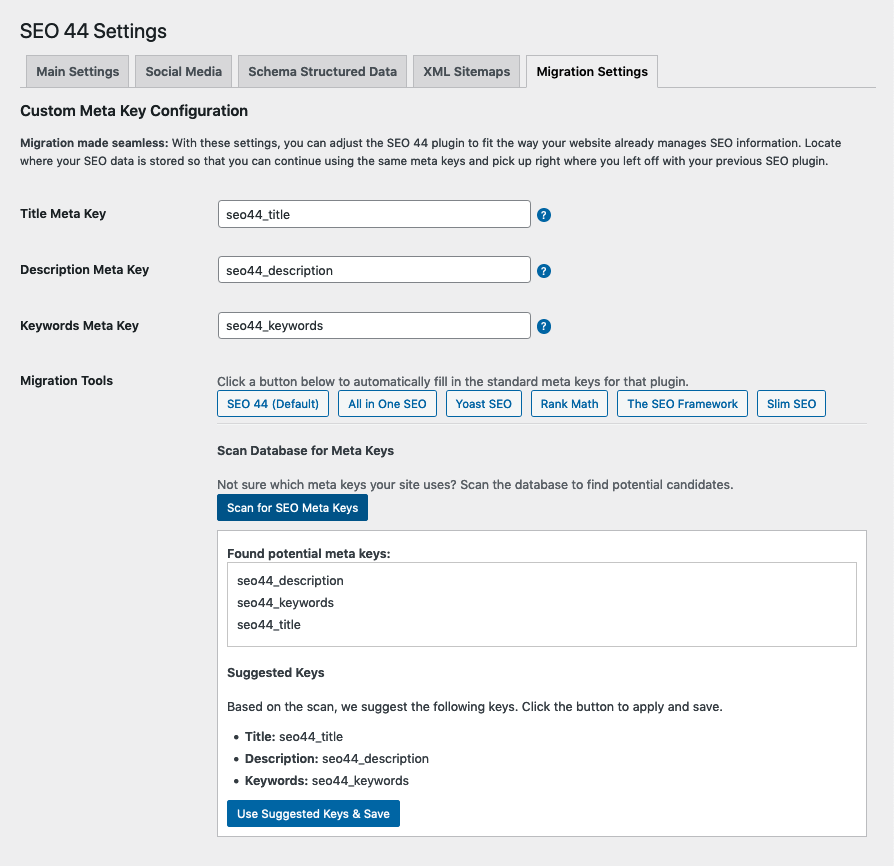
The SEO Meta Keys Scanner, showing the scan on a website with no previous SEO keys, on the Migration Settings tab.
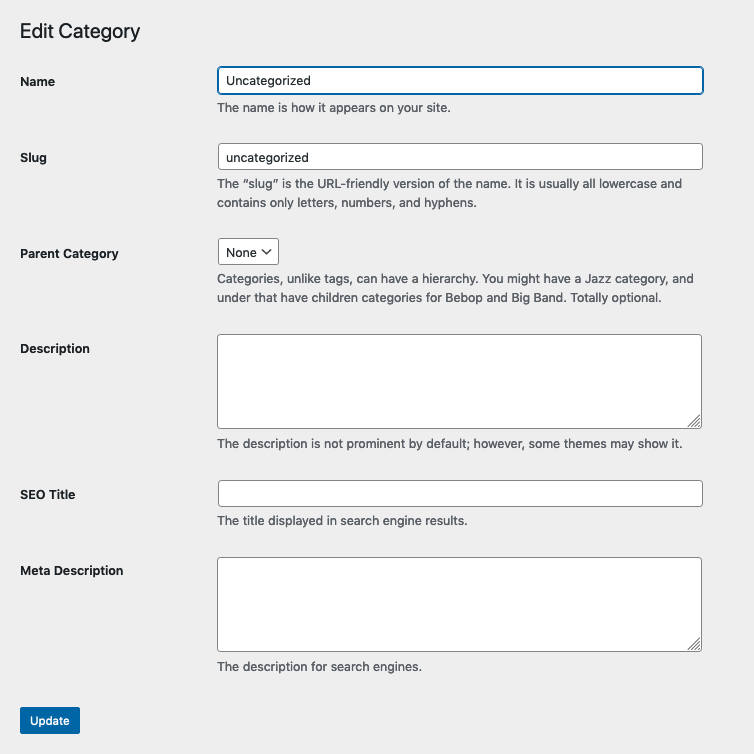
A category edit screen showing the new SEO fields.
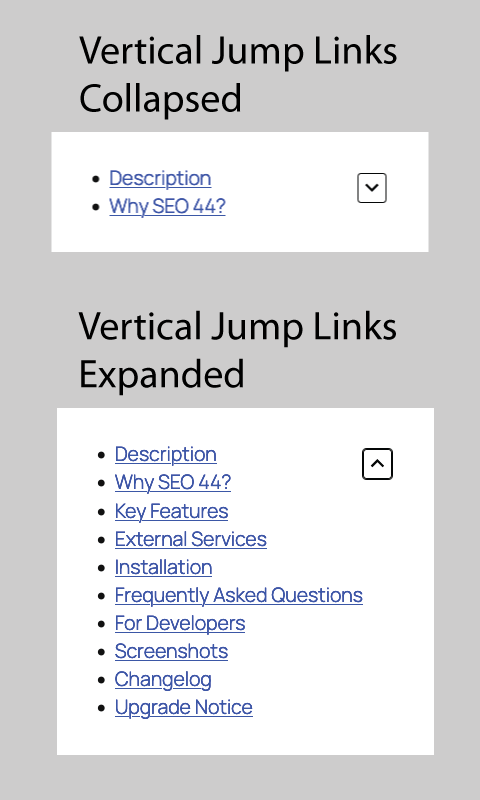
Published Vertical Jump Links, expanded and collapsed.
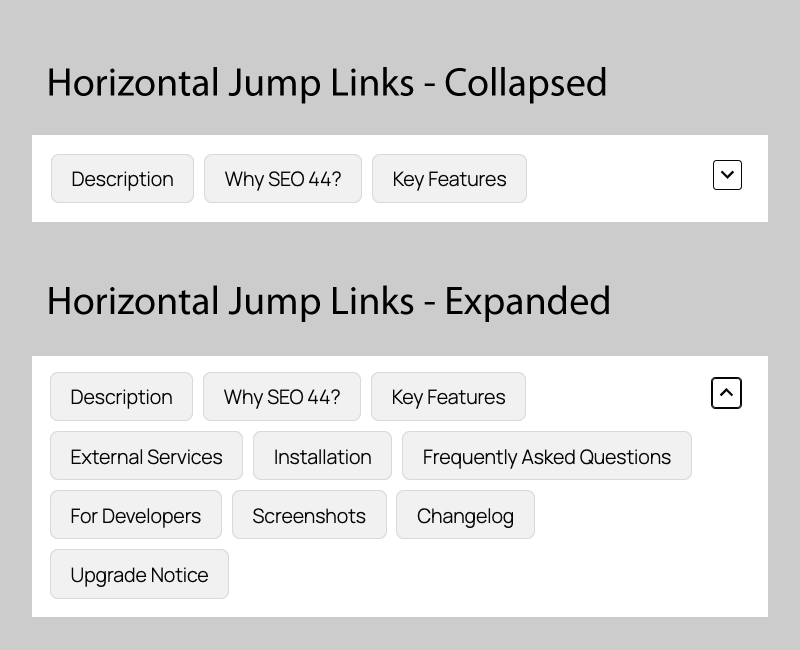
Published Horizontal Jump Links, expanded and collapsed.
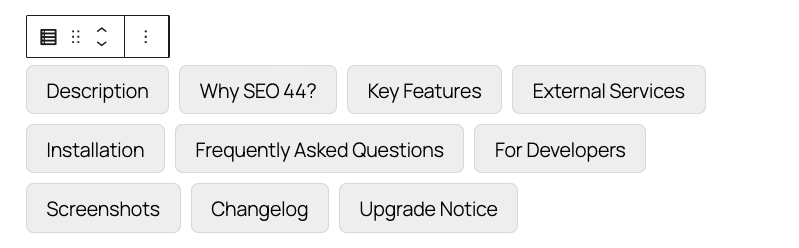
The Jump Links Block in Viewing Mode.
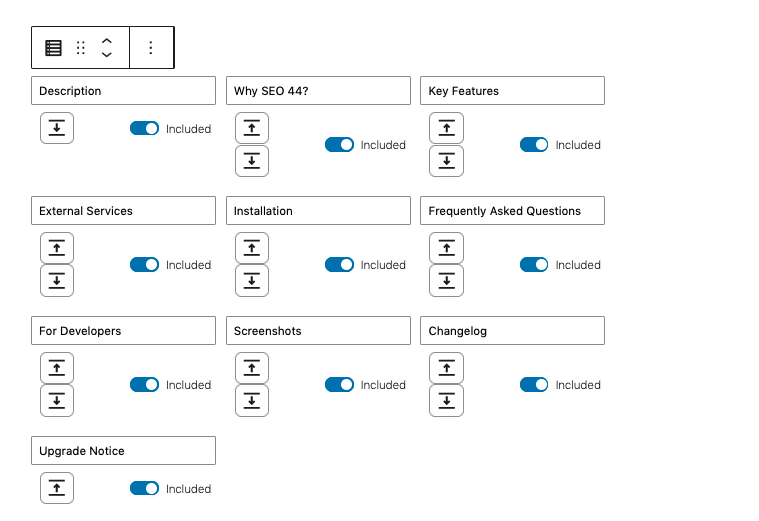
The Jump Links Block in Editing Mode.
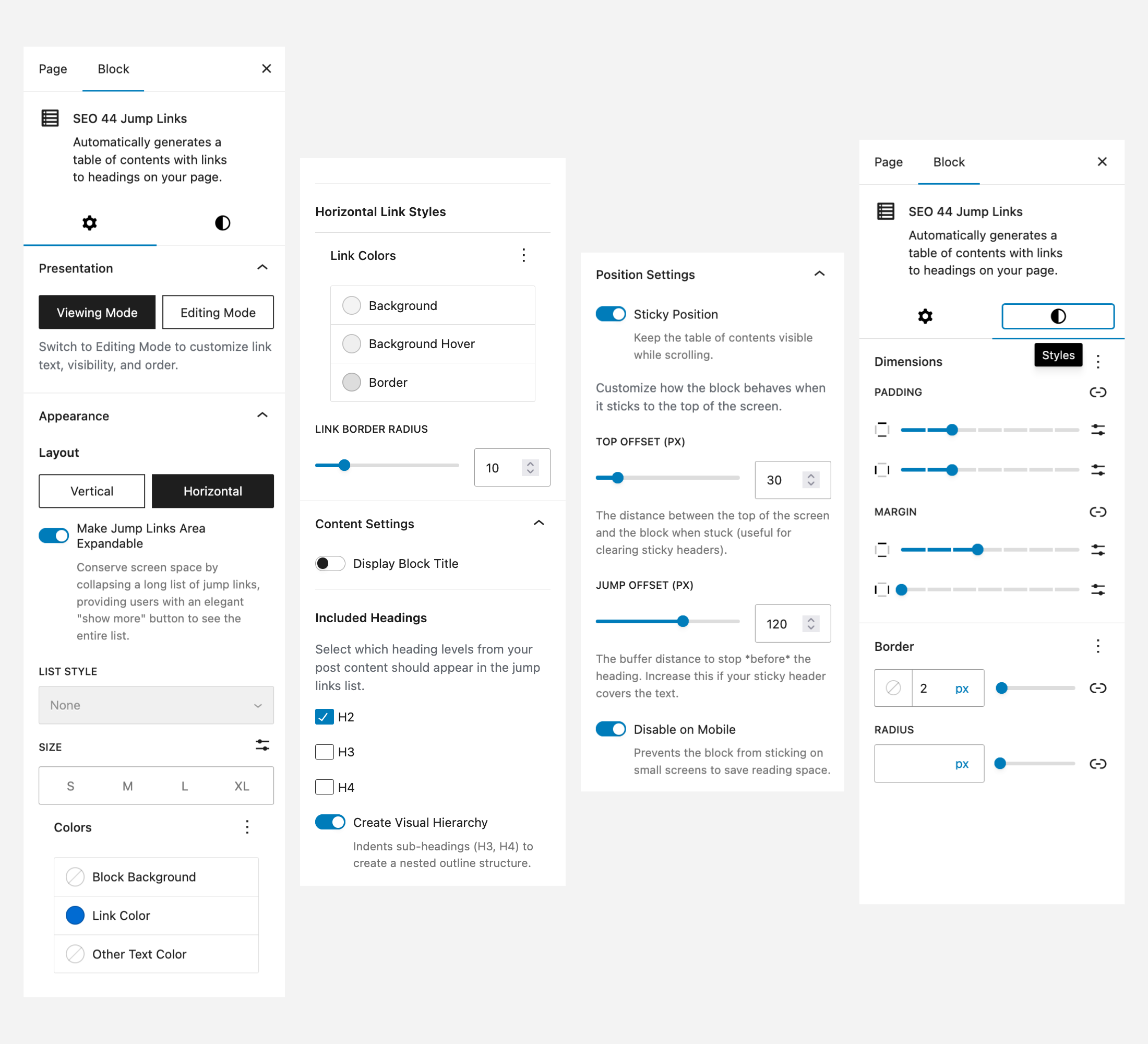
The Sidebar controls for the Jump Links Block.

The Integrations tab with Google Tag Manager and Site Tool settings.

Published Horizontal Jump Links with sticky navigation showing the Active Link Indicator.


Changelog
4.2.0
- FEATURE: Rich Organization Schema: Added a comprehensive settings section to generate Organization structured data for the Knowledge Graph.
- FEATURE: Knowledge Graph Fields: Added support for Identity (Name, Logo, Alternate Name), Authority (Founder, Founding Date), Credentials (License/Certifications), Contact (Phone, Email, Address), and Reach (Service Area).
- FEATURE: Custom Social Profiles: Added an “Additional Social URLs” field to allow linking to any platform (Wikipedia, BlueSky, Threads, etc.) in the ‘sameAs’ schema property.
- FEATURE: Developer Hook: Added
seo44_organization_schemafilter to allow developers to extend or modify organization data programmatically. - UI: Reorganized the Social Media settings tab into distinct sections for “Meta Tags” and “Organization Profiles” for better clarity.
- FIX: Resolved a logic issue where Organization schema could be overwritten on sites using a Static Homepage.
- PERF: Hardened PHP 8 compatibility for date and string processing within schema generation.
- TWEAK: Updated the image uploader JavaScript to support multiple distinct upload buttons on the settings page.
4.1.0
Jump Links Block Updates:
* FEATURE: Sticky Positioning: Keep your table of contents visible while users scroll. Includes a “Top Offset” slider to clear sticky headers, a “Jump Offset” slider to ensure that the sticky header does not cover the heading text, and a “Disable on Mobile” toggle to preserve screen space on small devices.
* FEATURE: Auto-Hide Title: Implemented a smart “sticky state” detection. When the block sticks, the title gently collapses and fades out to keep the interface clean (this occurs when a block title is used alongside sticky positioning).
* FEATURE: Smart Indentation: Added a “Create Visual Hierarchy” toggle. When enabled, H3 and H4 sub-headings are visually indented to create a clear, nested outline structure.
* FEATURE: Block Background: You can now set a background color for the entire block container, perfect for creating “card-style” floating navigation.
* FEATURE: ScrollSpy: Automatically highlights the active link in the table of contents as the user scrolls through the corresponding section of the post.
* FEATURE: Added support for Border and Spacing controls. You can now add borders, rounded corners, margins, and padding to the Jump Links block directly from the editor settings.
* FEATURE: Added a “Title tag” control. You can now choose the specific HTML tag (H2, H3, H4, H5, Paragraph, or Div) for the “On This Page” heading to better match your document structure.
* REFACTOR: Optimized the block’s styling logic to use CSS variables on the parent container instead of inline styles for every link. This reduces the block’s HTML size and improves rendering performance.
* FIX: Resolved an accessibility and HTML validation issue where using multiple Jump Links blocks on a single page created duplicate element IDs. Each block now generates a unique instance ID.
* PERFORMANCE: Refactored the front-end JavaScript to use event delegation for smooth scrolling. This reduces memory usage by attaching a single event listener to the block instead of individual listeners for every link.
* TWEAK: Reorganized the sidebar settings for better clarity between Block Title settings and Content Inclusion settings.
4.0.0
- FEATURE: Added a new “Integrations” tab for third-party services like Google Tag Manager and Webmaster Tools.
- FEATURE: Added Google Tag Manager (GTM) integration. The plugin can now automatically inject the GTM container script into the site’s and based on your ID.
- FEATURE: Added Webmaster Verification. You can now add your Google Search Console and Bing Webmaster Tools verification codes directly from the plugin settings.
- FEATURE: Added automatic GTM event tracking. When enabled, the plugin can push the following events to the dataLayer:
- Rich SEO dataLayer: Pushes page type, category, author, and tags on page load for advanced GTM triggers.
- Scroll Depth Tracking: Pushes ‘scroll_depth’ events at 25%, 50%, 75%, and 100% of the page.
- External & Affiliate Clicks:* Pushes ‘external_link_click’ or ‘affiliate_link_click’ (for
rel="sponsored"links). - Jump Link Clicks: Pushes a ‘jump_link_click’ event when a user clicks a link in the Jump Links Block.
- FEATURE: Added a Google Tag Manager recipe import file (
seo44-gtm-recipe-importer.json) and new FAQ instructions to fully configure GTM and GA4 event tracking. - ENHANCEMENT: Centralized all GTM event tracking into a new, efficient
global-tracker.jsfile that uses event delegation for better performance. - TWEAK: Improved the “Integrations” settings page UI for clarity, adding clarifying tooltips and a file downloader.
For a complete list of changes, please see the full changelog or the changelog.txt file included with the plugin.