

Silverlight Bing Maps
Add an interactive Map in your wordpress posts based on BingMap and Silverlight
Plugin info
Maintenance & Compatibility
Maintenance score
Possibly abandoned • Last updated 5759 days ago
Is Silverlight Bing Maps abandoned?
Possibly abandoned (last update 5759 days ago).
Compatibility
Similar & Alternatives
Explore plugins with similar tags, and compare key metrics like downloads, ratings, updates, support, and WP/PHP compatibility.
Description
This BingMap plugin allows a smooth integration of an interactive map in your WordPress site. The administration section will offer you some parameters to customize the presentation.
Just write use the adminpanel or write a tag like :
[sl-bingmaps background=”transparent” width=”100%” height=”300″ NavigationVisibility=”1″ CopyrightVisibility=”1″ LogoVisibility=”1″ ScaleVisibility=”1″ ZoomLevel=”5″ Mode=”Aerial” StartLocation=”48.8756271_2.3493838″ Pushpin=”48.8756271_2.3493838″ Culture=”fr_FR”]
The plugin offers the following features:
* Width and Height customization - percent value are possible
   //width=400 or 100%
* Display navigation menu or not
   //NavigationVisibility="1"
* Display copyright in the map or not
   //CopyrightVisibility="1"
* Display the Bing logo or not
   //LogoVisibility="1"
* Display Scale indication
   //ScaleVisibility="1"
* Set the zoom level
   //ZoomLevel="5"
* Set the display mode
   //Mode="Aerial" //Aerialwithlabels //road
* Set camera center
   //StartLocation="48.8756271_2.3493838"
* Set point of interest
   //Pushpin="48.8756271_2.3493838"
* Set Culture
   //Culture="fr_FR"
Arbitrary section
A brief Markdown Example
Installation
This section describes how to install the plugin and get it working.
e.g.
- Upload silverlight-bingmap (including all files and directories within) plugin into the /wp-content/plugins/ directory
- Activate the plugin through the ‘Plugins’ menu in WordPress
- Visit the plugin settings at Settings, set the activation key that you will find here
Frequently Asked Questions
How can I can Configure and add a new gallery in my post?
Review feed
Screenshots
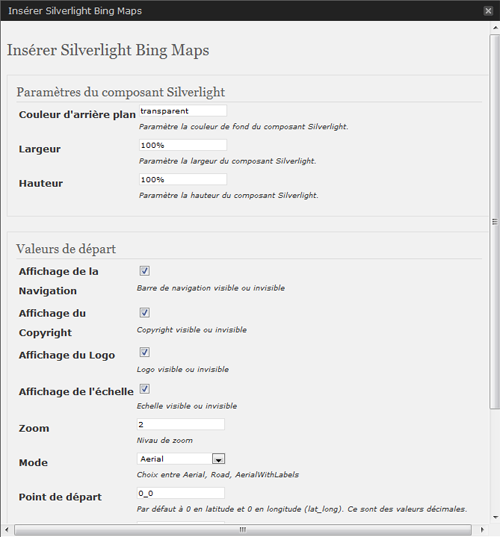
Settings Module

Menu available to insert Silverlight BingMap

An example of the Silverlight BingMap