

Plugin info
Maintenance & Compatibility
Maintenance score
Possibly abandoned • Last updated 2995 days ago • 1 reviews
Is Simple Restaurant Menu abandoned?
Possibly abandoned (last update 2995 days ago).
Compatibility
Similar & Alternatives
Explore plugins with similar tags, and compare key metrics like downloads, ratings, updates, support, and WP/PHP compatibility.
Description
If you are designing a restaurant website using WordPress, you may be struggling with the menu section of your website. The simple restaurant menu plugin offers a simplistic approach to creating menus for restaurants, cafes, and bars.
The plugin offers you the possibility to display menus on pages, posts and in sidebars using a shortcode.
Features:
- Upload your menus
- Upload and categorize your menu items
- Feature your menu item images in a gallery
- Add your own custom CSS
- Copy and paste shortcodes to display your menu wherever you want
Installation
Installation and uninstallation are extremely simple. You can use WordPress’ automatic install or follow the manual instructions below.
Installing:
- Download the package.
- Extract it to the “plugins” folder of your WordPress directory.
- In the Admin Panel, go to “Plugins” and activate it.
- Below the Dashboard admin link, you will notice a “Menus” link
- Create a Menu
- Create your menu items and categorize them
- Copy and paste the menu shortcode where you want to display the menu
Uninstalling:
- In the Admin Panel, go to “Plugins” and deactivate the plugin.
- Go to the “plugins” folder of your WordPress directory and delete the files/folder for this plugin.
Usage:
Using this plugin is very simple. Once it has been activated, navigate to “Menus” and create your first menu!
Frequently Asked Questions
Yes, you can add your own CSS as well as disable the plugin’s CSS.
Yes, visit the settings page of the plugin and you will notice an option to adjust the height and width of your featured images.
Sure you can, visit the settings page and you will notice an option to do just that.
Of course! You can contact me on my personal website fixmysite.com if you need any help or customization.
Review feed
Keeping it simple
Screenshots
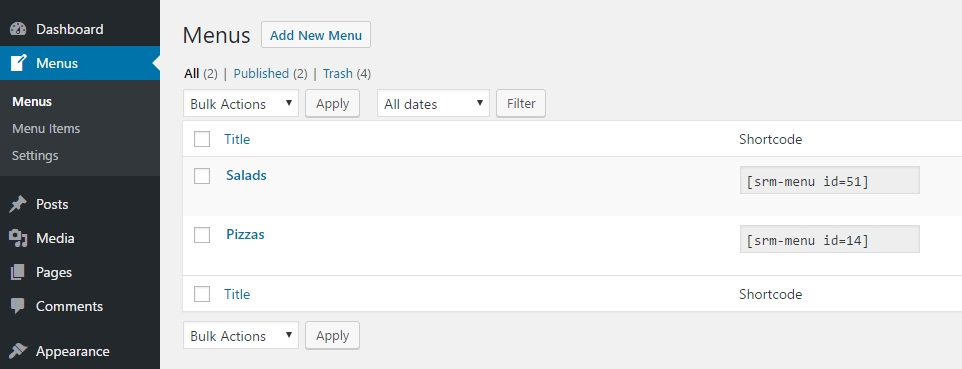
The menu screen. screenshot-1.png
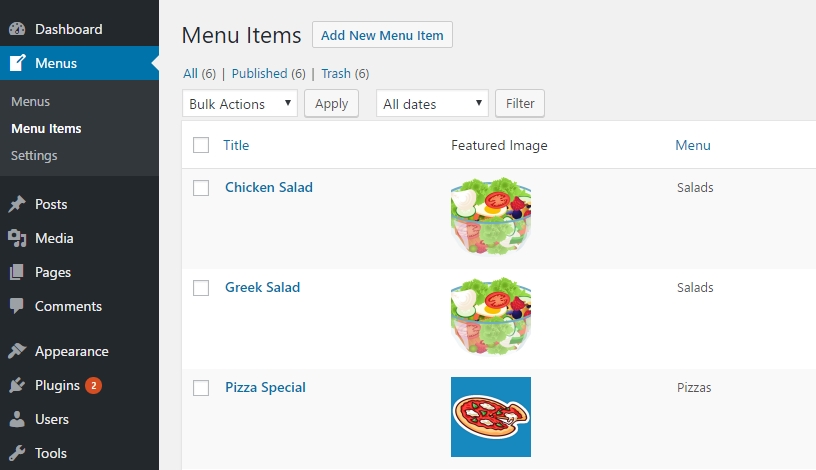
The menu item screen. screenshot-2.png
Changelog
1.0
- First release