

SiteBehaviour Analytics
Easily integrate tracking codes into your website for visitor behavior analytics with SiteBehaviour Analytics.
Plugin info
Maintenance & Compatibility
Maintenance score
Possibly abandoned • Last updated 520 days ago
Is SiteBehaviour Analytics abandoned?
Possibly abandoned (last update 520 days ago).
Compatibility
Similar & Alternatives
Explore plugins with similar tags, and compare key metrics like downloads, ratings, updates, support, and WP/PHP compatibility.
Description
SiteBehaviour Analytics is a simple WordPress plugin that allows you to add your tracking code directly into the section of your website for seamless visitor tracking.
This tool is designed to integrate with SiteBehaviour Analytics, your one-stop solution for website analytics. Once you sign up for an SiteBehaviour Analytics account, you’ll receive a unique tracking code that you can paste into the plugin settings.
Features
- Add a custom tracking code to the section of your website
- Simple interface for pasting and managing your analytics tracking code
- Integrates with your SiteBehaviour Analytics account for real-time visitor data
- Lightweight and optimized for performance
How it works
- Sign up for an SiteBehaviour Analytics account at https://web.sitebehaviour.com.
- Once you’ve created an account, you’ll get a unique tracking code in your workspace’s website settings.
- Paste the tracking code into the SiteBehaviour Analytics plugin settings under Settings > SiteBehaviour Analytics.
- Save your changes, and you’re done! Your website is now being tracked through SiteBehaviour Analytics.
Installation
- Upload the plugin files to the
/wp-content/plugins/SiteBehaviour-analytics/directory, or install the plugin through the WordPress Plugins screen directly. - Activate the plugin through the ‘Plugins’ screen in WordPress.
- Go to Settings > SiteBehaviour Analytics to configure the plugin.
- Paste your SiteBehaviour Analytics tracking code and save the settings.
Frequently Asked Questions
You can sign up for an SiteBehaviour Analytics account by visiting https://web.sitebehaviour.com.
After signing up and logging into your SiteBehaviour Analytics account, you’ll find your tracking code in the Workspace section .
No, SiteBehaviour Analytics is optimized to be lightweight and adds only a minimal amount of JavaScript to your website.
Yes, if you want to stop tracking, simply remove the tracking code from the plugin settings and deactivate or uninstall the plugin.
Review feed
Screenshots
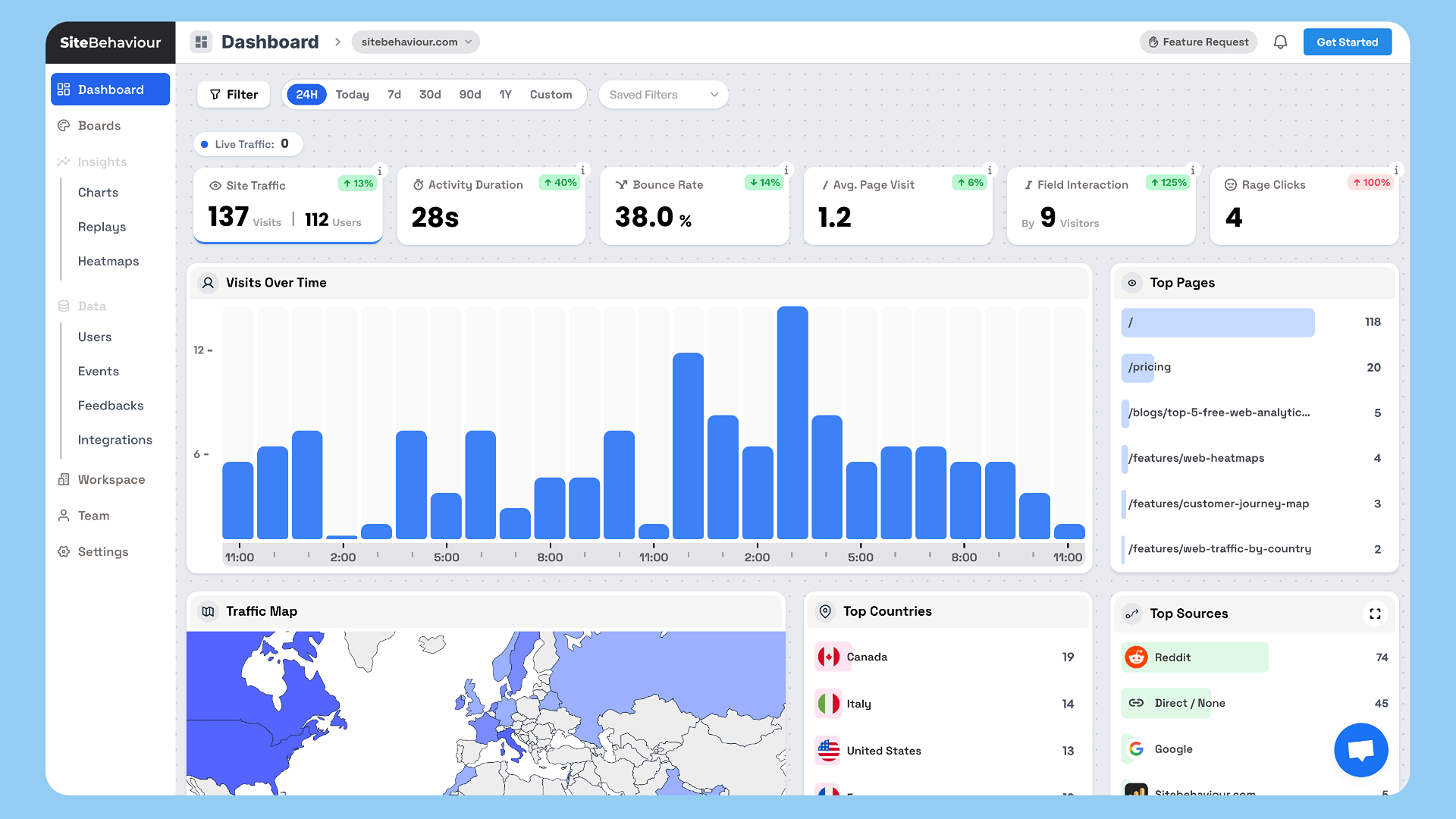
Plugin settings page where you can paste your tracking code.
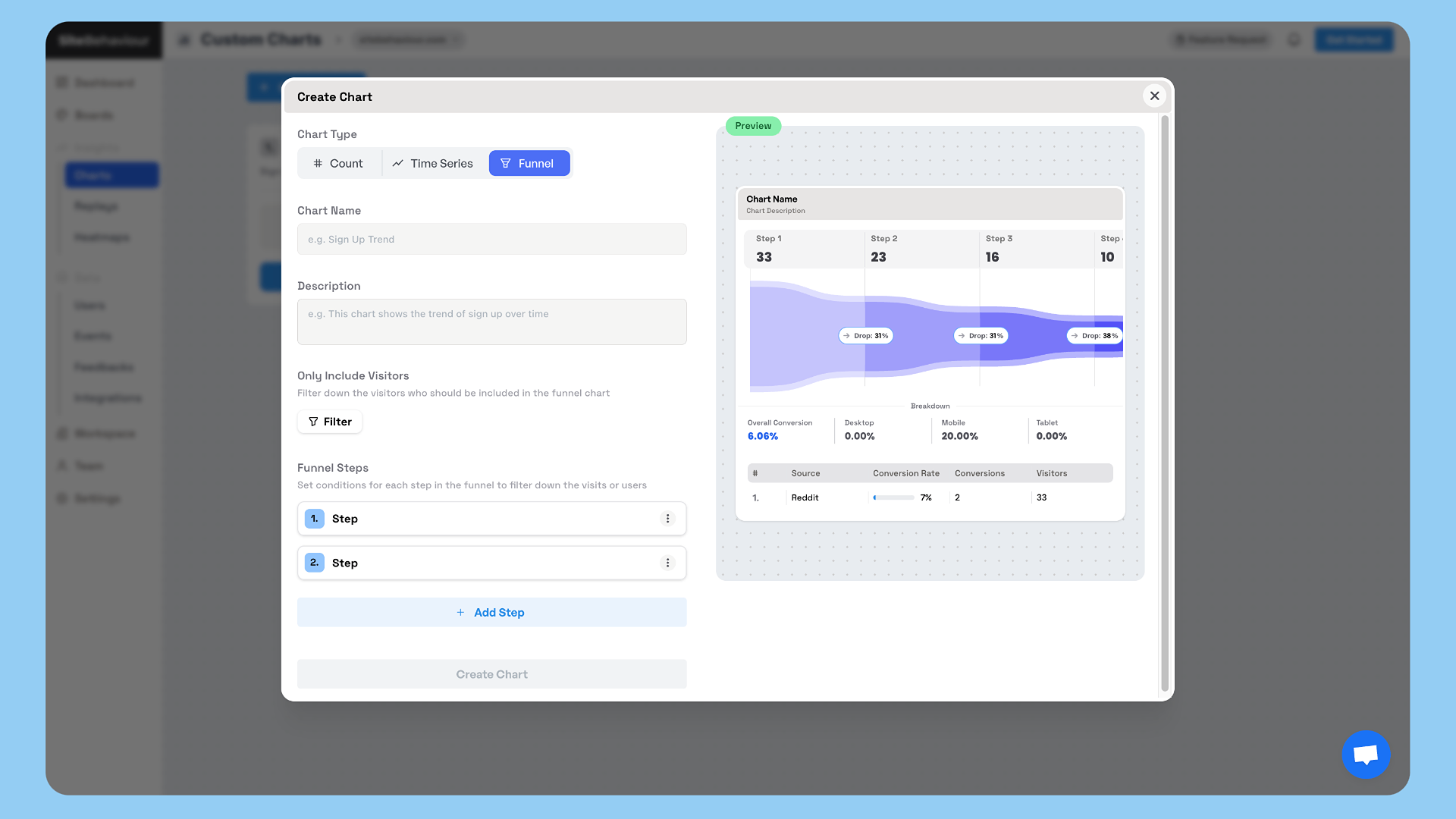
Example of how the tracking code appears in the website's section.
Changelog
1.0.0
- Initial release of SiteBehaviour Analytics.
- Adds a custom tag to the section for tracking.
1.1
- Optimized the Tracking script
1.2
- Optimized the Tracking script