

Sonic Play – MP3 Audio Shortcode Player
Easily embed a beautiful, responsive MP3 audio player with a simple shortcode. The easiest way to add modern HTML5 audio to your posts and pages.
Plugin info
Maintenance & Compatibility
Maintenance score
Maintained • Last updated 151 days ago
Is Sonic Play – MP3 Audio Shortcode Player abandoned?
Likely maintained (last update 151 days ago).
Compatibility
Similar & Alternatives
Explore plugins with similar tags, and compare key metrics like downloads, ratings, updates, support, and WP/PHP compatibility.
Description
Are you looking for an easy and elegant way to add audio to your WordPress site? Sonic Play is the perfect solution for podcasters, musicians, and course creators who need a simple, reliable MP3 audio player.
Forget complicated settings and clunky interfaces. With Sonic Play, you can upload your MP3 files directly to the WordPress media library or link to an external MP3 URL, and then embed a beautiful HTML5 audio player using a simple, click-to-copy shortcode. Our intuitive interface makes managing your audio tracks a breeze.
The player is designed to be modern, responsive, and fit seamlessly into any theme. Whether your audience is on a desktop or a mobile device, they will have a flawless listening experience. Customize the player’s appearance from a clean settings panel—toggle elements like the track title, artist name, custom artwork, skip buttons, and more to match your site’s style perfectly.
Key Features:
- Easy MP3 Upload & Management: Add audio tracks by either uploading them to the WordPress Media Library or by simply pasting an external MP3 file URL.
- Simple Shortcode Embedding: After adding a track, just copy the
[sonic-player id="..."]shortcode and paste it into any post, page, or widget. - Modern & Responsive Player: A clean, stylish HTML5 audio player that looks great and works perfectly on all devices, from desktops to smartphones.
- Full Customization: Control which player elements are visible. Show or hide the track title, artist name, custom artwork, skip buttons, volume control, and time stamps.
- Custom Artwork: Replace the default icon with your own custom logo or album art for a branded look. Just select an image from your media library.
- Light & Dark Themes: Comes with beautiful “Modern” (light) and “Dark” themes to match your website’s design.
- Lightweight & Fast: Built for performance, Sonic Play won’t slow down your website.
Sonic Play is the ultimate audio shortcode player for anyone who wants to share their sound with the world without the hassle.
Installation
Installing Sonic Play is simple. Follow these steps:
From your WordPress Dashboard (easiest method):
- Navigate to Plugins > Add New in your WordPress dashboard.
- In the search box, type “Sonic Play” and press Enter.
- Find the “Sonic Play – MP3 Audio Shortcode Player” plugin and click Install Now.
- After the installation is complete, click Activate.
- You will now see a “Sonic Play” menu in your dashboard. You can start adding tracks!
Manual Installation (FTP):
- Download the plugin zip file from the WordPress.org repository.
- Unzip the file. You will get a folder named
sonic-play. - Upload the
sonic-playfolder to the/wp-content/plugins/directory on your server. - Go to the Plugins page in your WordPress dashboard.
- Find the “Sonic Play” plugin in the list and click Activate.
Once activated, you can navigate to Sonic Play > Add New Track to get started.
Frequently Asked Questions
A: It’s easy!
1. Go to Sonic Play > Add New Track in your WordPress admin menu.
2. Give your track a title (e.g., “My First Podcast Episode”).
3. In the “Audio Track Source” box, choose whether to “Upload MP3” or “Enter URL”.
4. Upload your file or paste the URL.
5. Click the “Publish” button. That’s it!
A: After you publish a track, go to Sonic Play > Manage Tracks. You will see a list of all your audio files. The “Shortcode” column contains the shortcode for each track. Simply click on it to copy it to your clipboard.
A: This plugin is optimized specifically for .mp3 files, as they are the most widely supported format for web streaming. For best results, we recommend using MP3s.
A: You can set these globally for all players.
1. Navigate to Sonic Play > Settings.
2. Under the “Appearance & Customization” section, you can check the “Show Artist” box and enter a default artist name (e.g., “Sonic Play”).
3. You can also check the “Show Artwork” box and use the “Select/Upload Logo” button to choose a default image from your Media Library. This image will be used for all players.
A: This is usually due to one of two reasons:
1. Incorrect Shortcode: Double-check that you have copied the shortcode correctly from the “Manage Tracks” page. It should look like [sonic-player id="123"].
2. Track Not Published: Make sure the audio track is “Published” and not in a “Draft” or “Private” state. The player will only appear for published tracks.
A: Yes! Go to Sonic Play > Themes. You can choose between the default “Modern” (light) theme and the “Dark” theme to better suit your website’s design.
A: You can learn more about the powerful features in the Pro version by visiting the Sonic Play > Upgrade to Pro page in your dashboard.
Review feed
Screenshots
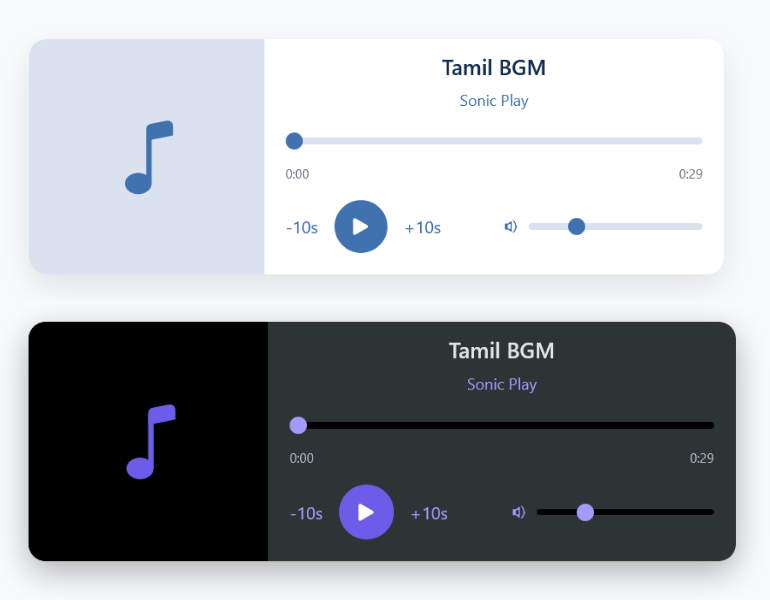
Player Theme: A clean and beautiful Modern Player Theme and a sleek Dark Player Theme embedded in the post.
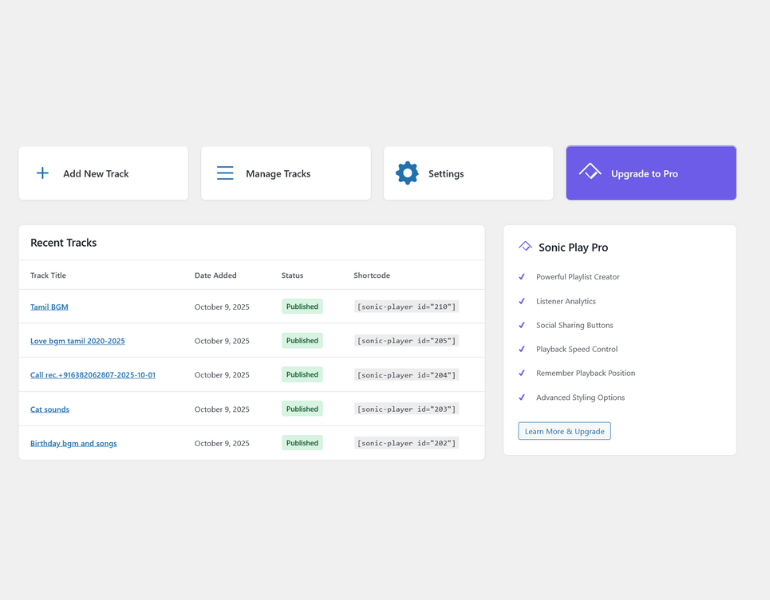
Sonic Play Dashboard: The main dashboard for managing all your audio tracks at a glance.
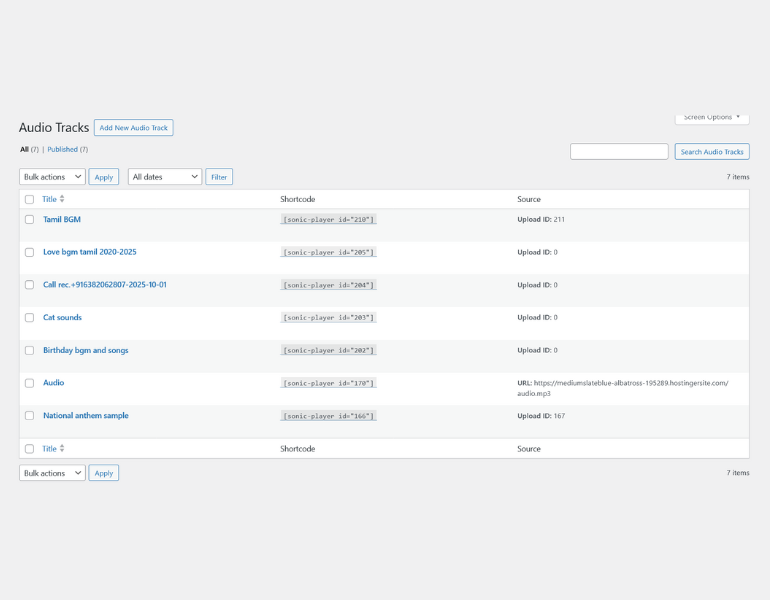
Manage Tracks Screen: Easily view all your audio tracks and copy shortcodes with a single click.
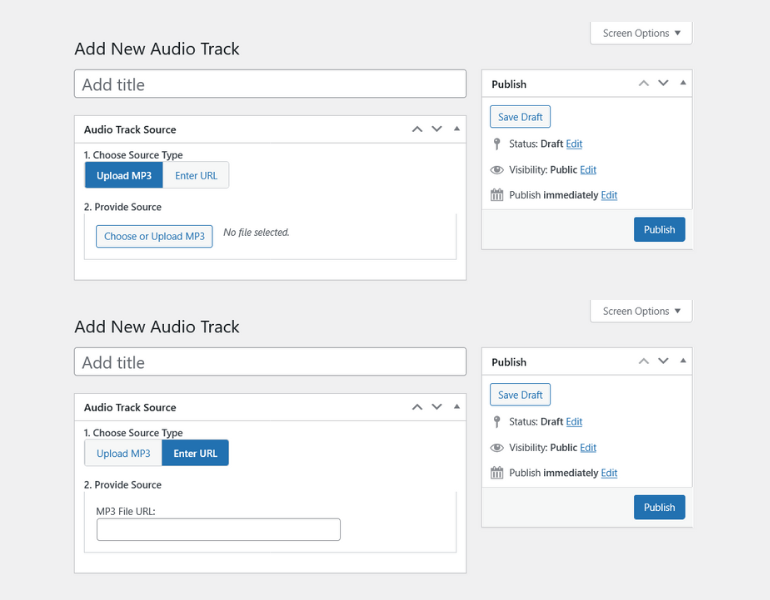
Add New Track Screen: The simple interface for uploading or linking to your MP3 files.
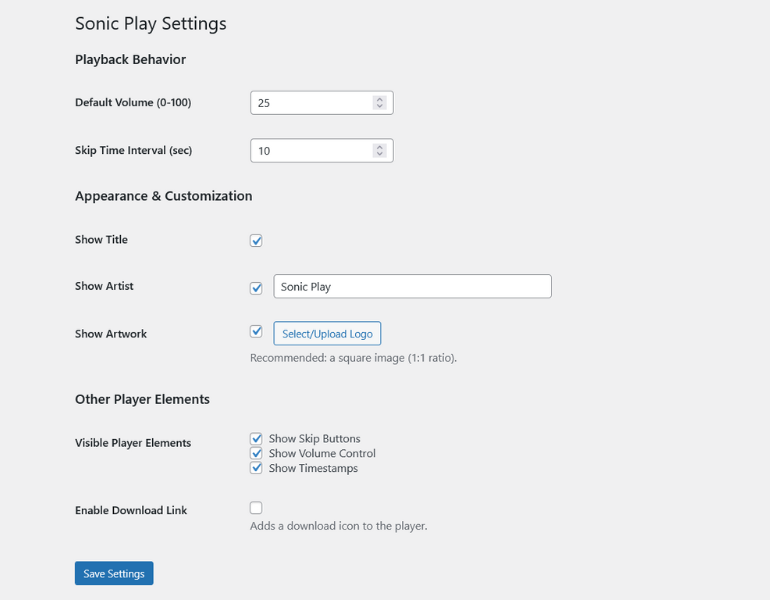
Settings Page: A clear overview of all customization options, including artwork and artist name settings.
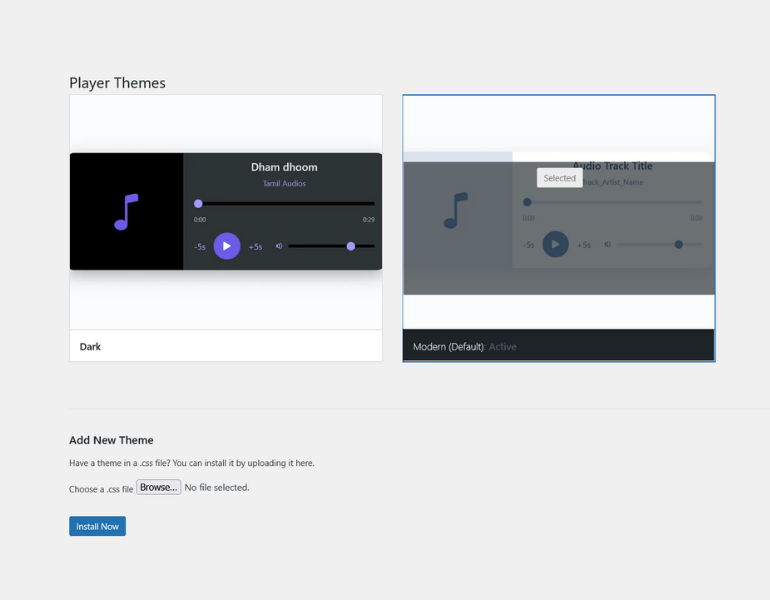
Theme Selector: Visually choose between the available player themes.
Changelog
2.2
- Refactor: Separated shortcode logic into its own file (
shortcode.php) for better organization. - Tweak: Set new default settings on the settings page as per user feedback.
2.1
- Feature: Added new settings to show/hide title, artist, and custom artwork.
- Feature: Added a media uploader to the settings page for custom artwork.
- Tweak: Re-organized the settings page for better usability.
2.0
- Major Refactor: Simplified the plugin’s file structure by removing the
includesfolder and organizing all admin files into a singleadmindirectory. - Tweak: Integrated view files directly into PHP classes to reduce file clutter and prevent activation errors.
- Fix: Ensured the
get_file_datafunction is available on the themes page to prevent fatal errors.
1.1.1
- Initial Release.