

SSO OAuth for Discord by path digital
Discord OAuth for your Website. Hide your website content with Discord SSO and make it only available for your server members.
Plugin info
Maintenance & Compatibility
Maintenance score
Possibly abandoned • Last updated 882 days ago • 9 reviews
Is SSO OAuth for Discord by path digital abandoned?
Possibly abandoned (last update 882 days ago).
Compatibility
Similar & Alternatives
Explore plugins with similar tags, and compare key metrics like downloads, ratings, updates, support, and WP/PHP compatibility.
Description
SSO OAuth for Discord by path digital allows you to hide your website content with Discord SSO and make it only available for your server members.
Installation
From your WordPress dashboard
- Visit
Plugins -> Add New - Search for
SSO OAuth for Discordand Install the plugin by path digital - Activate the plugin from your Plugins page
From WordPress.org
- Download SSO OAuth for Discord by path digital
- Unzip and upload the folder directory to your
/wp-content/plugins/directory - Activate the plugin from your Plugins page
Once Activated
- Go to
Discord OAuth -> OAuth2 Settings, and select the login page you want to show the login button - Create your Discord Application from Applications with the
Redirect URLyou copied fromConfigurepage - Enter Discord Application data in to the
Configurationpage and save settings - Visit your website now, if you are not logged in, the website will ask you to login
Frequently Asked Questions
Visit https://discord.com/developers/applications/ and add a New Application.
Go to your applications and click on the newly created application. Click the OAuth2 tab in the navigation panel, where you can copy both the Client ID and Client Secret.
Click on the newly created application for OAuth2 from applications. Click the Bot tab in the navigation panel and Add Bot to get the Token.
Login to your Discord account, Go to User Settings by clicking on the gear icon next to your username. Go to Advanced Settings in App Settings section and turn ON the Developer Mode. Close the settings page and go to your Discord Dashboard, right click on any server name and Copy ID.
Review feed
Screenshots

OAuth2 settings
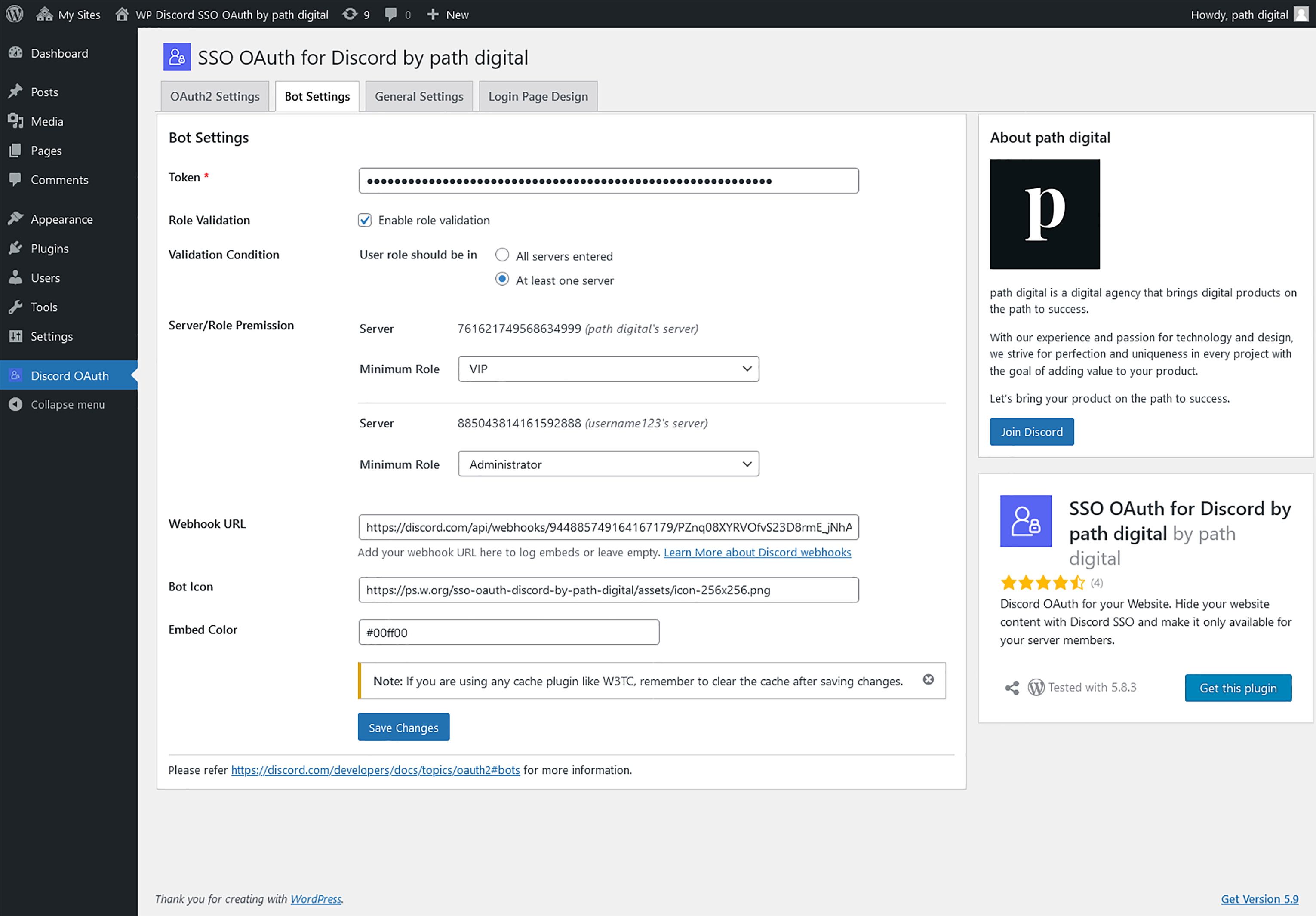
Bot settings
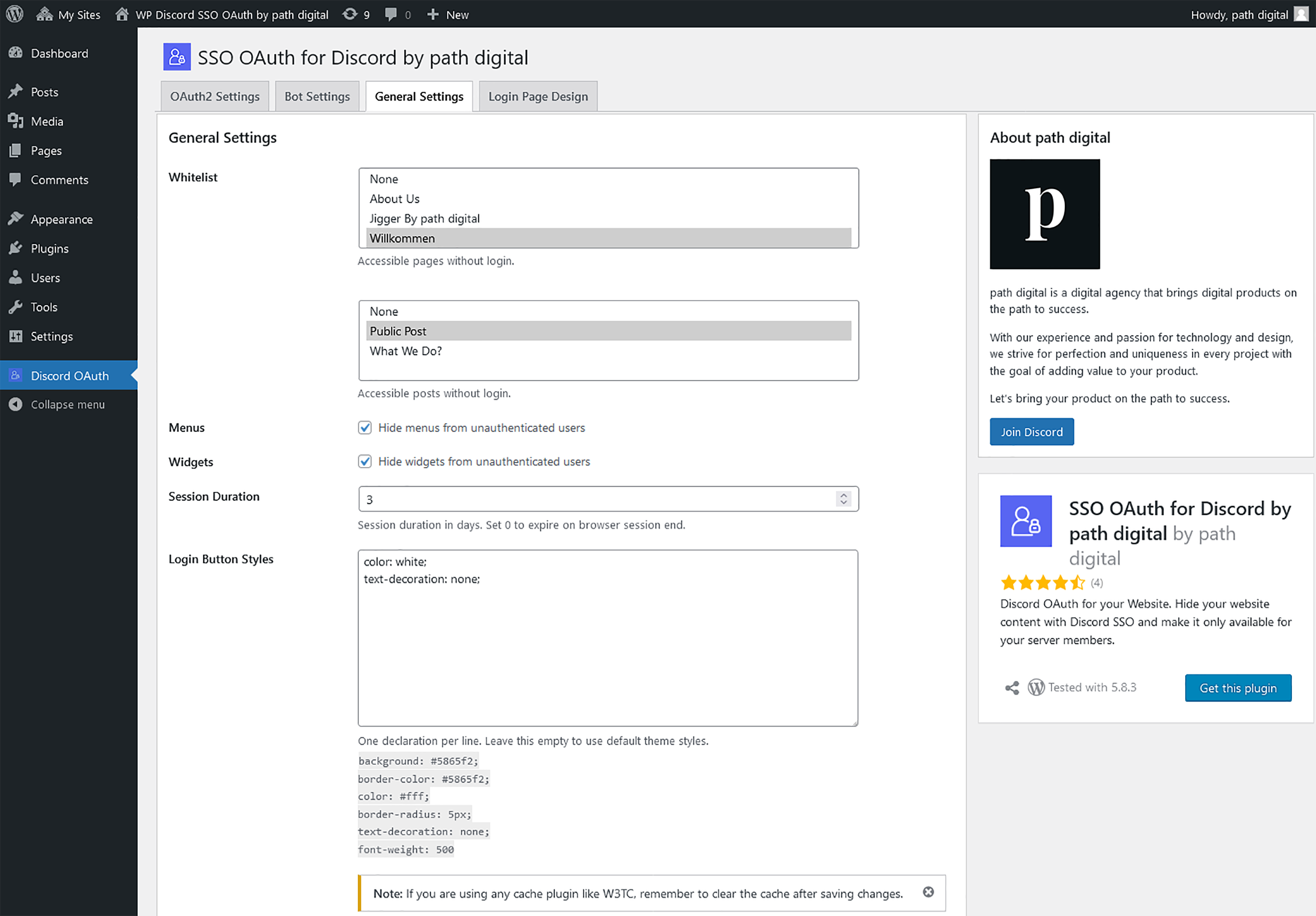
General settings

Custom login page settings

Embed on any page

Custom login page

Login button on a page

Channel embeds via webhook

Maintenance mode settings

Maintenance page

Tools

Manage members
Changelog
3.1.3
- Bug fixes
3.1.2
- Bug fixes
3.1.1
- Fixed typo, “maintenance” to “maintainance” in UI.
3.1.0
-
Added admin option to view all servers the user is in
-
Bug fixes
3.0.5
- Bug fixes
3.0.4
- Bug fixes
3.0.3
- Bug fixes
3.0.2
- Bug fixes
3.0.1
- Bug fixes
3.0.0
- Added maintenance mode page
- Added option to view active user sessions and manage users
- Removed menu items of pages with minimum user role for people that don’t have the minimum role
- Added shortcode to display a logout button
2.5.4
- Bug fixes
2.5.3
- Bug fixes
2.5.2
- Minor code enhancements
2.5.1
- Bug fixes
2.5.0
- Added option to whitelist pages for specific user role(s)
2.4.0
- Added option to whitelist user roles independant from minimum role
- Minor code enhancements
2.3.1
- Bug fixes
2.3.0
- Added option to clear all the active login sessions
- Updated Discord embeds to post whitelisted logins
2.2.0
- Added option to set login errors
- Added option to post failed login attempts embeds on a Discord channel via a Webhook
- Added option to set the redirect page after a successful login
2.1.1
- Bug fixes
2.1.0
- Updated option to hide menus from unauthenticated users
- Updated option to hide widgets from unauthenticated users
2.0.0
- Added option to block users by Discord ID
- Added option to allow user to view specific pages and posts
- Added option to add a custom login page
- Added option to post successful login embeds on a Discord channel via a Webhook
- Disabled admin ajax for non-logged users
- Minor code enhancements
1.5.1
- Bug fixes
1.5.0
- Added option to blacklist servers
1.4.2
- Bug fixes
1.4.1
- Bug fixes
1.4.0
- Added option to set the session duration
- Moved the login error message to the login page
- Security enhancements
1.3.1
- Bug fixes
1.3.0
- Added custom login button styles support
- Added option to show/hide menus in login page
- Added option to show/hide widgets in login page
- Added functionality to auto create and assign the login page
1.2.1
- Added server name next to the Server ID in Bot Settings page
- Added settings link to plugin action links
- Minor visual improvements to admin pages
1.2.0
- Added user role validation support
- Added the ability to enable / disable server validation even if the server list is not empty
1.1.0
- Bug fixes
- Skiped server validation for 5 minutes to limit Discord API calls
1.0.2
- Bug fixes and patches
1.0.1
- Initial Release