

Store Opening Closing Hours Manager
Setup your WooComerce store opening and closing hours to manage your business at ease!
Plugin info
Maintenance & Compatibility
Maintenance score
Stale • Last updated 217 days ago • 5 reviews
Is Store Opening Closing Hours Manager abandoned?
Likely maintained (last update 217 days ago).
Compatibility
Similar & Alternatives
Explore plugins with similar tags, and compare key metrics like downloads, ratings, updates, support, and WP/PHP compatibility.
Description
Let your customers know when your store is open or closed! Take action when store is closed, you can even disable shopping at all! Add a notice that your store is going to close soon!! Customers can also see if store is closed when it will be open again! Enable Widget to show your entire week store opening & closing hours! Plugin Comes with 6 types of notice designs which also has 5 types of countdown timer design!
Features:
- Enable/Disable The Plugin Functionality
- Set The Store Status Close Manually
- Show Store Opening/Closing Hours In A Widget
- Show Store Opening/Closing Hours In Shortcode
[sochm_display_table] - Enable Countdown
- Choose Timer Design From 5 Different Types
- Set Your Store Timezone
- Add Store Closed/Open Notice In WP Admin Area (Admin Bar)
- Choose Notice Design From 6 Different Types
- Add Your Own Store Closed Notice Message
- Enable Store Going To Close Soon Notice
- Add Your Own Store Going To Close Soon Notice Message
- Auto Clear Existed Carts If Store Closed
- Disable The Entire Checkout System If Store Closed
- Remove The Proceed To Checkout Button From Cart Page If Store Closed
- Disable Add To Cart Button If Store Closed
- Remove The Add To Cart Button Entirely If Store Closed
- You Can Even Show A Message To Your Customers If They Click The Add To Cart Button If Store Closed
- Change The Notice Text Color & Background Color
- Templating system for the notice & timer designs.
Overriding Plugin Templates
To override a specific template, copy the desired file from the plugin’s /templates/ directory and place it in your child theme under /templates/sochm/. You can then modify the template as needed.
Example:
If the plugin template is located at:
wp-content/plugins/store-opening-closing-hours-manager/templates/notice-type-single-page.php
You can override it by copying it to:
wp-content/themes/your-theme/templates/sochm/notice-type-single-page.php
Make sure to maintain the same file structure to ensure proper loading.
Compatibity With Cache Plugins
If your site uses page caching, certain dynamic functionalities may not work as expected. This plugin includes built-in support to automatically purge cache when needed, ensuring everything runs smoothly.
It is compatible with the following popular caching plugins:
- Breeze Cache ✅
- Cache Enabler ✅
- GoDaddy Cache ✅
- Kinsta Cache ✅
- LiteSpeed Cache ✅
- NitroPack ✅
- Speed Optimizer ✅
- Super Page Cache ✅
- WP Fastest Cache ✅
- WP Optimize Cache ✅
- WP Super Cache ✅
- W3 Total Cache ✅
- WP Rocket ✅
- WPEngine Cache ✅
Installation
To add a WordPress Plugin using the built-in plugin installer:
Go to Plugins > Add New.
- Type in the name “Store Opening Closing Hours Manager” in Search Plugins box
- Find the “Store Opening Closing Hours Manager” Plugin to install.
- Click Install Now to begin the plugin installation.
- The resulting installation screen will list the installation as successful or note any problems during the install.
If successful, click Activate Plugin to activate it, or Return to Plugin Installer for further actions.
To add a WordPress Plugin from GitHub repo / plugin zip file :
1. Go to WordPress plugin page
2. Click Add New & Upload Plugin
3. Drag / Click upload the plugin zip file
4. The resulting installation screen will list the installation as successful or note any problems during the install.
If successful, click Activate Plugin to activate it, or Return to Plugin Installer for further actions.
Frequently Asked Questions
Just after installing the plugin, go to settings page and set the plugin settings according to your needs.. And then see the magic.. See screenshots.
Review feed
Screenshots
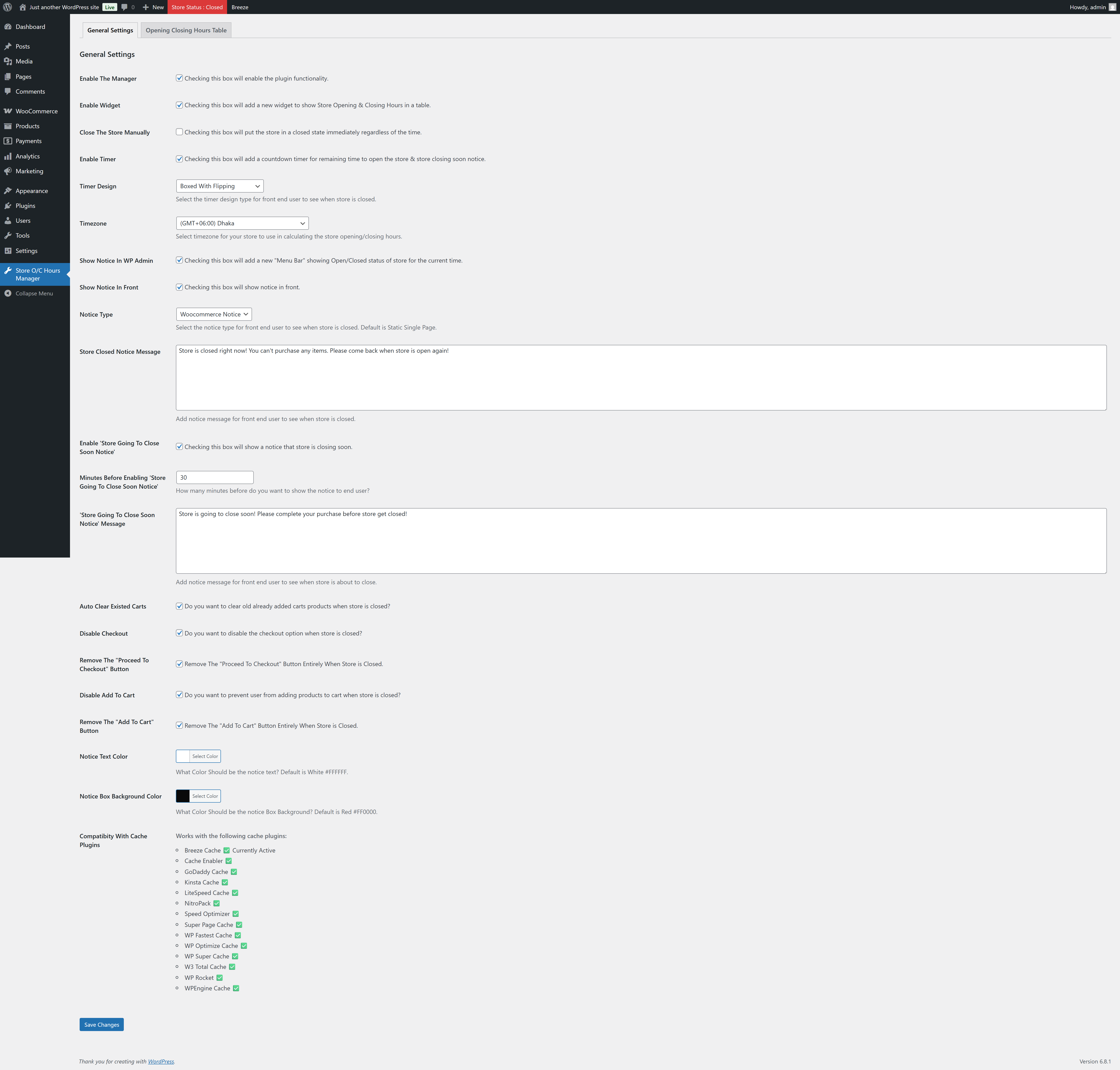
settings

store-closed-notice-single-page-boxed-with-flipping

store-closed-notice-dialog-boxed

store-closed-notice-dialog-boxed-with-flipping

store-closed-notice-dialog-circular-border

store-closed-notice-dialog-circular-border-with-filling

store-closed-notice-dialog-default

store-closed-notice-single-page-boxed

store-closed-notice-single-page-boxed-with-flipping

store-closed-notice-single-page-boxed-with-flipping

store-closed-notice-single-page-circular-border

store-closed-notice-single-page-circular-border-with-filling

store-closed-notice-single-page-default

store-closed-notice-sticky-footer-boxed

store-closed-notice-sticky-footer-boxed-with-flipping

store-closed-notice-sticky-footer-circular-border

store-closed-notice-sticky-footer-circular-border-with-filling

store-closed-notice-sticky-footer-default

store-closed-notice-sticky-header-boxed

store-closed-notice-sticky-header-boxed-with-flipping

store-closed-notice-sticky-header-circular-border

store-closed-notice-sticky-header-circular-border-with-filling

store-closed-notice-sticky-header-default

store-closed-notice-toast-boxed

store-closed-notice-toast-boxed-with-flipping

store-closed-notice-toast-circular-border

store-closed-notice-toast-circular-border-with-filling

store-going-to-close-soon-notice

store-opening-closing-hours-in-widget

table
Changelog
2.0.2
- Added support for localization of week days names.
2.0.1
- Fixed issue: typo giving fatal error
2.0.0
- Checked for latest wp version 6.8, introduced templating system and enabled cache plugin compatibility.
1.0.5
- Compatibility check for wp v6.6
1.0.4
- Compatibility check for wp v6.3
1.0.3
- fixed wc_add_notice fatal error issue happens sometimes.
1.0.2
- Added Shortcode Feature
1.0.1
- Added Manual Store Closing Feature
1.0.0
- Initial release.