

Subscribers & Members Based Pricing
Create discounts for subscribers or members in your shop. Set product prices dynamically based on a user's previous product purchases or the stat …
Plugin info
Maintenance & Compatibility
Maintenance score
Possibly abandoned • Last updated 518 days ago • 1 reviews
Is Subscribers & Members Based Pricing abandoned?
Possibly abandoned (last update 518 days ago).
Compatibility
Similar & Alternatives
Explore plugins with similar tags, and compare key metrics like downloads, ratings, updates, support, and WP/PHP compatibility.
Description
The Subscribers & Members Based Pricing plugin allows WooCommerce store owners to offer special pricing based on user membership or subscription status. It integrates with WooCommerce Subscriptions, giving you the chance to apply discounts or special pricing rules for active subscribers. Membership can be defined by any product in your store (if a user purchases a particular product, then they are considered members).
Establish a Rewarding Membership System
- Offer special discounts and prices to members: Give your customers exclusive discounts and prices when they become members.
- Make premium products exclusive to members: Turn chosen products into special items only for members, giving them membership when bought.
- Work smoothly with WooCommerce Subscriptions: Provide special prices to current subscribers through the WooCommerce Subscriptions plugin.
- Customize pricing strategies: Adjust prices throughout your store, in certain categories, or for specific products, allowing full flexibility.
Features
- Pricing Based on Recent Purchase: Offer tailored prices for customers based on their previous purchases, like memberships.
- Exclusive Subscriber Discounts: Provide special discounts to active subscribers, like a 20% reduction on selected categories for all who have active subscription.
- Pricing Types:
- Flat Price: Users can set a regular and sale price that becomes active when inventory reaches specified levels.
- Percentage Discount: Automatically applies a percentage discount to the current product price based on inventory changes [premium version].
- Members price as Sale price: Can show the price set by pricing rules as a sale price to draw attention and promote sales [premium version].
- Activation Settings: Specify the status required for subscriptions or orders (active, on hold, canceled, etc.) to trigger the rules [premium version].
- Global pricing rules: Easily create bulk pricing rules applicable to entire categories, several categories, or a group of products.
- User role conditions: Implement additional conditions for pricing based on predefined user roles.
- Scenarios for non-logged-in users: When the user’s status (membership or subscription) isn’t defined because they aren’t logged in, you can disable purchases or hide pricing.
- Quantity limitations: Define minimum and maximum purchase quantities and set quantity increments specifically for members and subscribers.
How to use
- Select Activation Settings – configure special pricing rules in the Settings, selecting desired order statuses or subscription states. E.g. only users with Active subscription or with Processed Order will be granted special pricing.
- Create Global Pricing Rule – set universal, category-based, or pricing rules for a bunch of products for members or subscribers. Select what product is counted as subscription or membership and what discounts members and subscribers will be granted.
- Create Product-Specific Rule – define unique pricing conditions for each product, based on membership or subscription criteria. This can be used together with Global Rules or you can only use Product-Specific Rules.
3.1. Define Membership Qualifications – specify products or categories that grant membership status, along with their special pricing and quantity guidelines.
3.2. Define Pricing – set flat (regular + sale price) or percentage-based discounts for users who purchased a membership or have active subscription.
3.3. Add Extra Conditions – add user role as an additional condition for users to be qualified as members or subscribers.
3.4. Add Q-ty Limitations – set minimum and maximum quantities that may be purchased in one order, as well as quantity step.
Subscribers & Members Based Pricing offers dynamic pricing adjustments without complicated user-role settings or separate membership areas. It focuses on straightforward and effective pricing changes, avoiding the complexities of standard membership tools. If you want a simple, customer-focused pricing solution for your Woo store, without the need for complex membership systems, Special Pricing for Subscribers & Members is the ideal choice.
Installation
- Upload the plugin files to the \’/wp-content/plugins/subscribers-members-based-pricing\’ directory, or install the plugin through the WordPress plugins screen directly.
- Activate the plugin through the \’Plugins\’ screen in WordPress
- Use the WooCommerce > Settings > Member based pricing to configure the plugin
- To design global pricing rules rules go to WooCommerce > Member pricing rules
- To create pricing rules separately for each product, go to the product page > Product data > Members\Subscribers based pricing and click “Add pricing rule”.
Frequently Asked Questions
Answer: Yes, the plugin allows you to set global member/subscriber pricing rules that can be applied across multiple products or categories. Additionally, you have the flexibility to create specific rules for individual products or variations.
Answer: In cases where there might be conflicting rules (such as a variation-specific rule and a global rule, or rules for several memberships), Subscribers & Members Based Pricing follows a set hierarchy. Variation-specific rules take the highest priority, followed by parent product rules, and then global rules. In case you have two or more global pricing rules for one product – the one created first will have higher priority.
Review feed
Screenshots

Subscribers & Members Based Pricing

Select activation status (states of order or subscription)
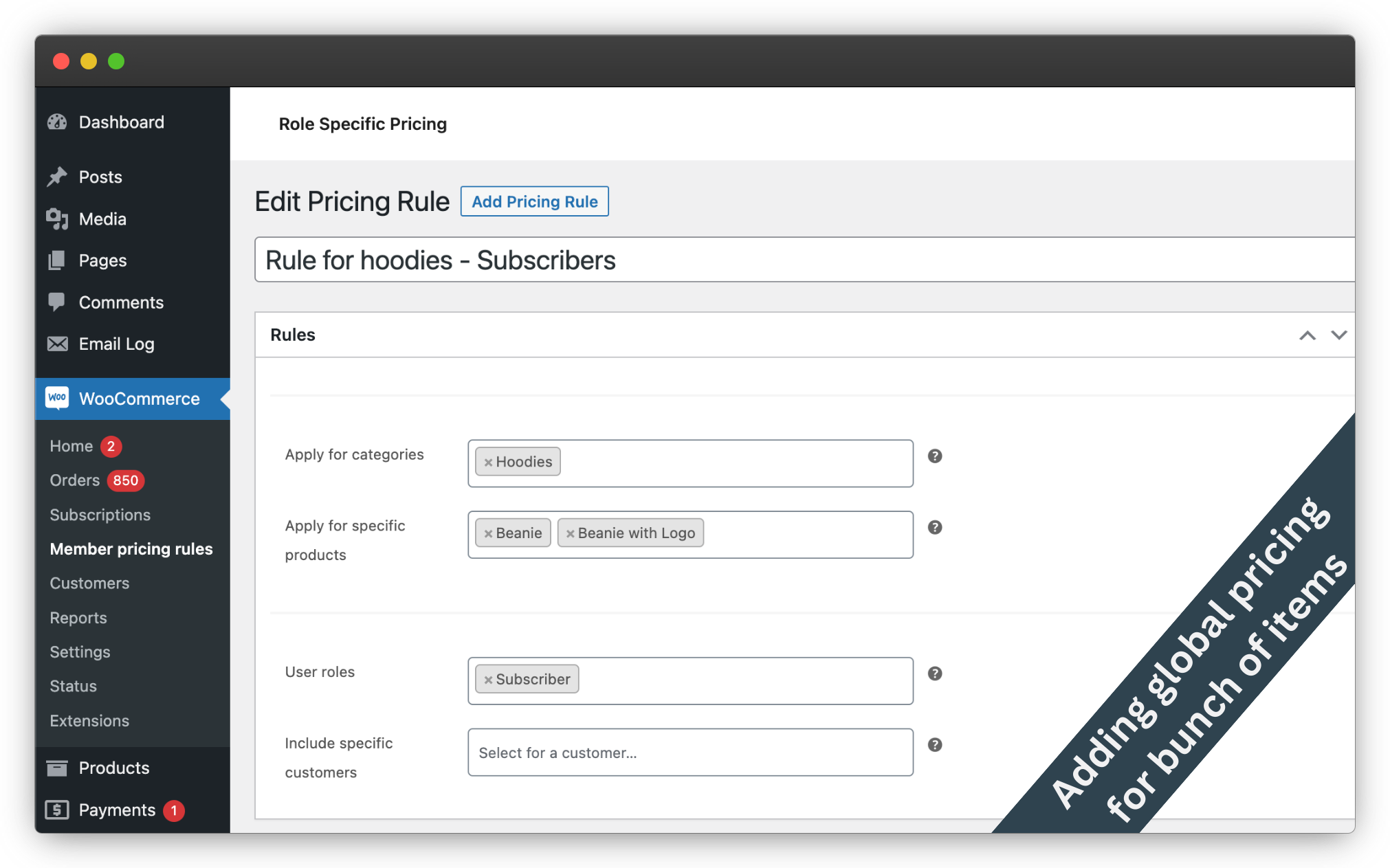
Create global pricing rule - select products and categories

Global pricing rule - set products to be membership or subscription + pricing
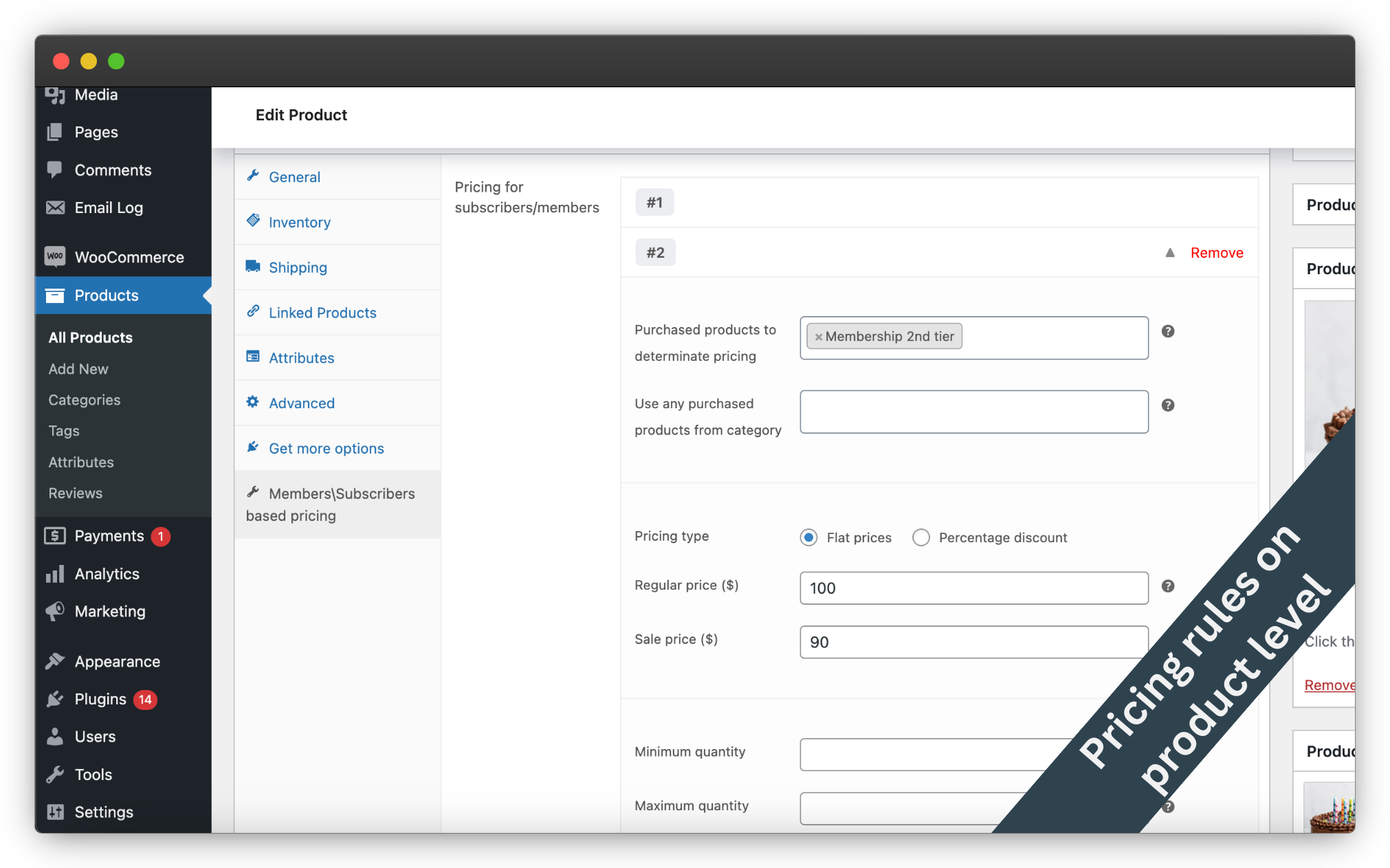
Create pricing rules for members on the product level

How pricing looks for members on the product page

General settings of price display

Global pricing pricing rules table management
Changelog
2024-11-01 – version 1.0.1
* Update: Compatibility with WooCommerce 6.7
* Update: Freemius SDK version 2.9.0
2024-02-12 – version 1.0.0
* Initial release