

Sugoi Tag Inserter: GTM & gtag.js Made Easy
・2 step installation of GTM / gtag.js Plugin to make Google Tag Manager (GTM) & gtag.js(Google Ads / Google Analytics).
Plugin info
Maintenance & Compatibility
Maintenance score
Possibly abandoned • Last updated 2548 days ago • 1 reviews
Is Sugoi Tag Inserter: GTM & gtag.js Made Easy abandoned?
Possibly abandoned (last update 2548 days ago).
Compatibility
Similar & Alternatives
Explore plugins with similar tags, and compare key metrics like downloads, ratings, updates, support, and WP/PHP compatibility.
Description
・2 step installation of GTM / gtag.js
Plugin to make Google Tag Manager (GTM) & gtag.js(Google Ads / Google Analytics).
What users need to do is, only inputting their GTM, Google Ads, or Google Analytics ID.
・Cross Domain Setting
In order to track conversions on Google Ads, or track user behavior throughout multiple domains, you would need to call \”gtag(\’set\’)\” functions.
With this plugin, the cross domain set-up will be done by just typing 2 domains you want to track!
・Custom HTML
Users can also insert their own Custom HTML as well.
1.0.1
first version
Installation
Installation
=
1. From the WP admin panel, click “Plugins” -> “Add new”.
2. In the browser input box, type “Sugoi Tag Inserter”.
3. Click the plugin and click “Install”.
4. Activate the plugin.
5. In \”Setting\”, now you should be able to see the plugin name.
Click the name and got to the Admin page.
6. Type in your GTM / Google Ads / Google Analytics ID, then save.
OR…
- Download the plugin from this page.
- Save the .zip file to a location on your computer.
- Open the WP admin panel, and click “Plugins” -> “Add new”.
- Click “upload”.. then browse to the .zip file downloaded from this page.
- Click “Install”.. and then “Activate plugin”.
(see 5, 6 above then)
Frequently Asked Questions
Review feed
2 step GTM installation
Screenshots
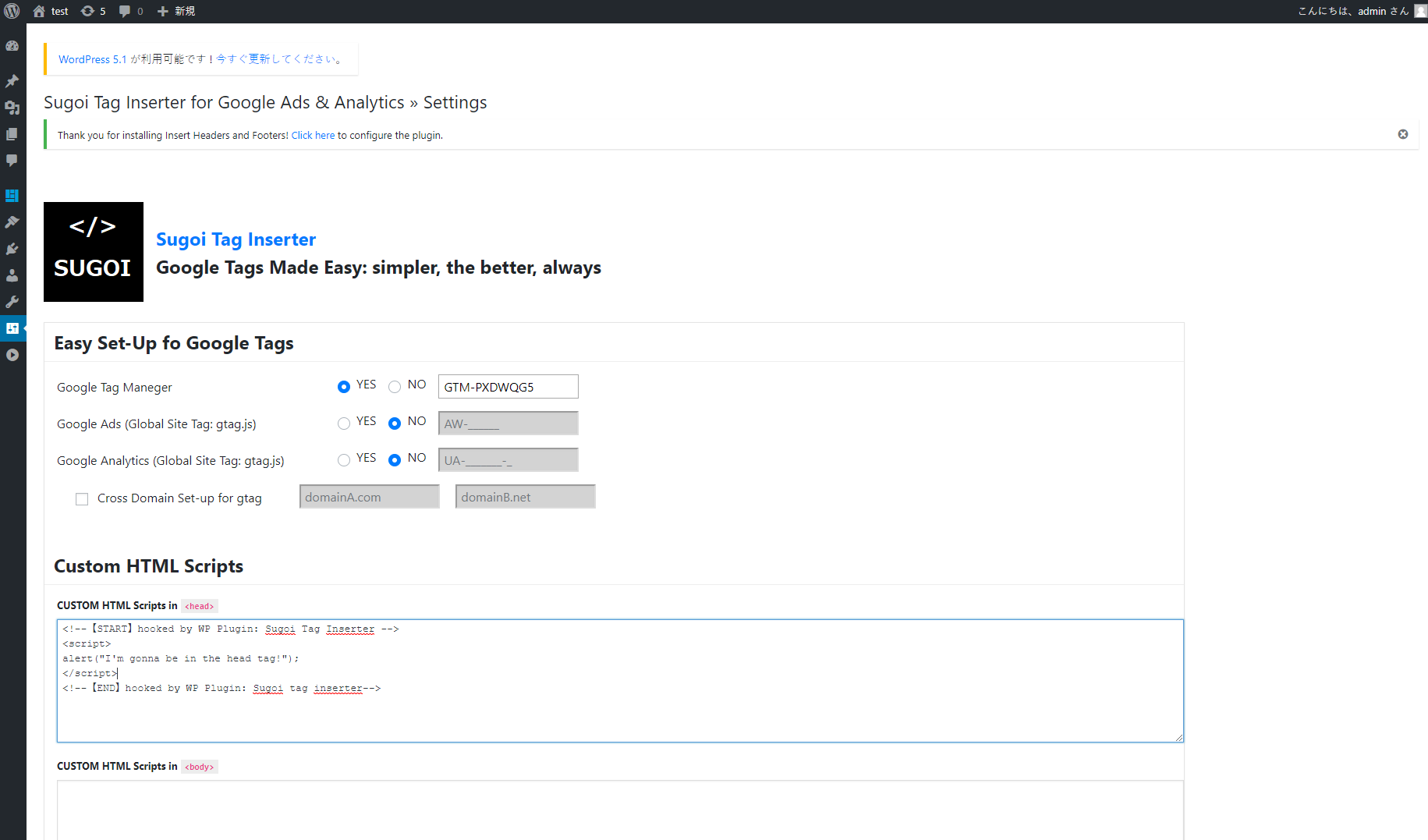
input IDs & Custom HTML