

Plugin info
Maintenance & Compatibility
Maintenance score
Stale • Last updated 271 days ago • 6 reviews
Is SVG Favicon abandoned?
Likely maintained (last update 271 days ago).
Compatibility
Similar & Alternatives
Explore plugins with similar tags, and compare key metrics like downloads, ratings, updates, support, and WP/PHP compatibility.
Description
NOW WITH DARK MODE! Safely add an SVG favicon to your site! Don’t limit your site favicon to the .ico/png/jpg formats! Upload cool vector art from your favorite vector app in seconds! Support is common for SVG favicons in modern browsers. Favicon meta generated by the customizer will not be over-written, giving older browsers a fallback in the event they lack support SVG favicons.
Usage
Before uploading your SVG favicon, make sure the aspect ratio is 1:1. For Safari, create a copy of your SVG and do the following:
- Drop it to a single color (preferably black)
- Merge art onto a single layer
- Place it on a transparent background
- viewBox attribute must be set to “0 0 16 16”
Uploading: Under the SVG Favicon tab, click the “Upload SVG Favicon” field and upload your SVG favicon
Manifest: After uploading your SVG favicon, you can fill out the corresponding manifest. This step is optional. If you already have your site manifest, leave “Use this site manifest” unchecked.
Safari: The upload process for a pinned tab icon is the same as above. Please note that pinned tab icons should be 100% black with a transparent background. The mask icon color will determine the color of the pinned tab icon.
Dark Mode (NEW): Here is an example of how to enable dark mode in your svg favicon using the prefers-color-scheme media query:
Credits
- Artwork by Online Web Fonts – license
- SVG Sanitizer – license
- Tippy.js – license
- Picker – license
Installation
- Install SVG Favicon either via the WordPress.org plugin directory or by uploading the files to your server.
- Activate the plugin through the Plugins menu in WordPress.
- Go to the Appearance > SVG Favicon to upload your SVG favicon.
Frequently Asked Questions
Check SVG favicon browser Compatibility
YES! Here is an example of how to enable dark mode in your svg favicon using the prefers-color-scheme media query:
<svg xmlns="http://www.w3.org/2000/svg" width="16" height="16">
<style>
        path.class-of-path {
            fill: #000;
        }
        @media (prefers-color-scheme: dark) {
            path.class-of-path {
                fill: #fff;
            }
        }
</style>
<path class="class-of-path" fill-rule="evenodd" d="M0 0h16v16H0z"/>
</svg>
If you are running a caching plugin for your WordPress installation, trying emptying the caches. If that doesn’t work, try emptying your browser cache and restarting.
Try the following:
1. Unpin the tab for your site
2. Quit Safari
3. Remove the Template Icons folder in your Home > Library > Safari folder
4. Restart Safari
5. Refresh the page your testing (page with your mask-icon)
6. Re-pin the tab
Review feed
Screenshots
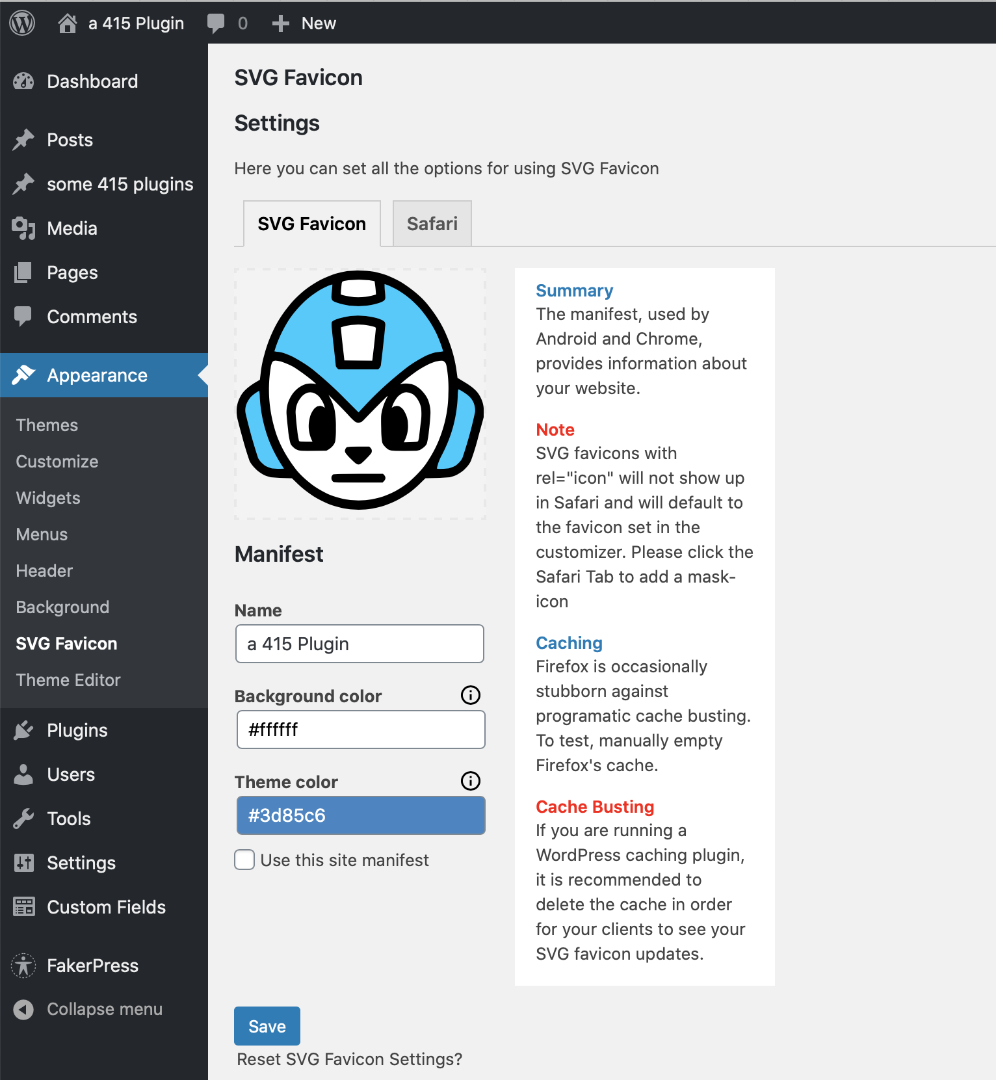
Upload SVG Favicon

Upload Pinned Tab Icon for Safari
Changelog
1.5.5
• Bug Fixes
1.5.2
• Bug Fixes
1.5.1
• Bug Fixes
1.5
• Updated for WP 6.5
• Fully compatible with PHP 8.3
1.2.6
• Updated for WP 6.2
1.2.3
• Updated for WP 6.0
1.2.2
• Fixed typos and updated language file
1.2
• Now with dark mode support
1.0
• Initial Release.