

TimeFly
Control when content appears on your WordPress site with dynamic time-based visibility scheduling.
Plugin info
Maintenance & Compatibility
Maintenance score
Maintained • Last updated 146 days ago
Is TimeFly abandoned?
Likely maintained (last update 146 days ago).
Compatibility
Similar & Alternatives
Explore plugins with similar tags, and compare key metrics like downloads, ratings, updates, support, and WP/PHP compatibility.
Description
TimeFly adds powerful time-based visibility control to WordPress through a custom block that automatically shows or hides content based on your schedule. Perfect for announcements, seasonal promotions, business hours, and any content that should only be visible during specific times.
Key Features
-
Three Visibility Modes:
- Show Until – Content visible now, hidden after specified date/time
- Show From – Content hidden now, visible after specified date/time
- Show Between – Content only visible within specific date/time range
-
Flexible Scheduling:
- One-time schedules for specific dates
- Recurring weekly schedules for business hours or regular events
- Support for complex recurring patterns
-
User-Friendly Interface:
- Real-time visibility status preview in editor
- Site timezone awareness with current time display
- Visual status indicators (visible/hidden/misconfigured)
- Validation to prevent invalid date ranges
-
Developer Features:
- Clean, semantic HTML output
- SEO-friendly (hidden content absent from HTML)
- Works with any WordPress block inside
- Professional code quality and documentation
Use Cases
- Display “We’re Open!” during business hours
- Show seasonal promotions during specific dates
- Hide outdated announcements automatically
- Display event information only until event date
- Show different content for weekdays vs weekends
- Create time-sensitive calls-to-action
How It Works
- Add a TimeFly block to any page or post
- Select your visibility mode (Show Until, Show From, or Show Between)
- Choose one-time or recurring weekly pattern
- Configure your dates and times
- Add your content inside the block
- Publish – content automatically appears/disappears on schedule
All scheduling uses your WordPress site timezone for accurate visibility control.
Technical Details
- Uses WordPress block editor (Gutenberg)
- Server-side rendering for security and performance
- Transient caching for efficient block scanning
- No database tables created
- Lightweight with minimal performance impact
Support
For support, feature requests, or bug reports, please visit the WordPress.org support forum.
Developer Information
TimeFly is built with modern WordPress development practices:
- React-based block editor interface
- Server-side rendering with PHP
- WordPress coding standards compliant
- Comprehensive PHPDoc documentation
- Security-first approach with proper sanitization
- Performance-optimized with transient caching
- Accessibility-ready with ARIA attributes
Source Code
The compiled JavaScript in /build/index.js is built from human-readable source files in the /src directory of the plugin. Source files include block.json, edit.js, save.js, render.php, and SCSS stylesheets. The build process uses @wordpress/scripts. All source code is included in the plugin distribution.
The plugin is open for contributions and feature suggestions. Visit the support forum to participate in development discussions.
Privacy Policy
TimeFly does not collect, store, or transmit any user data. All scheduling information is stored locally in your WordPress database as part of block content. No external services are contacted. No cookies are set. No analytics are tracked.
Credits
Developed by LaughterOnWater with a focus on code quality, user experience, and WordPress best practices.
Installation
Automatic Installation
- Log in to your WordPress admin panel
- Navigate to Plugins > Add New
- Search for “TimeFly”
- Click “Install Now” and then “Activate”
Manual Installation
- Download the plugin zip file
- Log in to your WordPress admin panel
- Navigate to Plugins > Add New > Upload Plugin
- Choose the downloaded zip file and click “Install Now”
- Click “Activate Plugin”
After Activation
- Navigate to Appearance > TimeFly to configure settings
- Add a TimeFly block to any page or post using the block editor
- Configure your visibility schedule in the block sidebar
- Add content inside the block
- Publish and watch it automatically show/hide on schedule
Frequently Asked Questions
TimeFly uses your WordPress site timezone configured in Settings > General. All visibility calculations use this timezone, not your browser’s timezone. The editor displays the current site time so you can accurately configure schedules.
Example: If your site timezone is set to “New York” and you schedule content to show at 9:00 AM, it will appear at 9:00 AM Eastern time regardless of where your visitors are located.
Recurring schedules let you show content on specific days of the week during set hours. Configure which days content should appear (e.g., Monday-Friday), set start and end times for each day (e.g., 9:00 AM – 5:00 PM), and specify when the recurring pattern begins and optionally ends.
Perfect for business hours, weekly events, or regular announcements like displaying “We’re Open!” during business hours or showing weekend promotions every Saturday and Sunday.
Yes! You can use as many TimeFly blocks as needed on a single page. Each block has independent scheduling settings. This is perfect for showing different content at different times, multiple seasonal promotions, or business hours messages alongside after-hours messages.
TimeFly includes a Block Scanner accessible through Appearance > TimeFly > Block Scanner tab. Select which post types to scan (pages, posts, custom post types) and view a complete list of all posts containing TimeFly blocks with direct edit links. The scanner caches results for about an hour to minimize server load.
When content is hidden, it is completely absent from the page HTML—not just hidden with CSS. This means search engines won’t index hidden content, which is the correct behavior for time-sensitive information. When content becomes visible, search engines will see it on their next crawl.
TimeFly performs visibility calculations on the server when the page is generated. If you use caching plugins, pages may be cached with content in a specific visibility state. For truly dynamic visibility with caching, you may need to set cache expiration times that align with your visibility schedule or use cache clearing plugins that can clear cache at scheduled times.
Yes! You can add custom CSS classes to TimeFly blocks using the “Additional CSS class(es)” field in the block’s Advanced panel. The block also supports anchor IDs for linking. The wrapper itself is transparent by default, allowing your inner content styling to show through.
When TimeFly is deactivated or deleted, all content inside TimeFly blocks becomes visible regardless of schedule settings. If you have time-sensitive or private content, move it to draft or private posts before deactivating. Use the Block Scanner (Appearance > TimeFly) to find all TimeFly blocks across your site.
Review feed
Screenshots
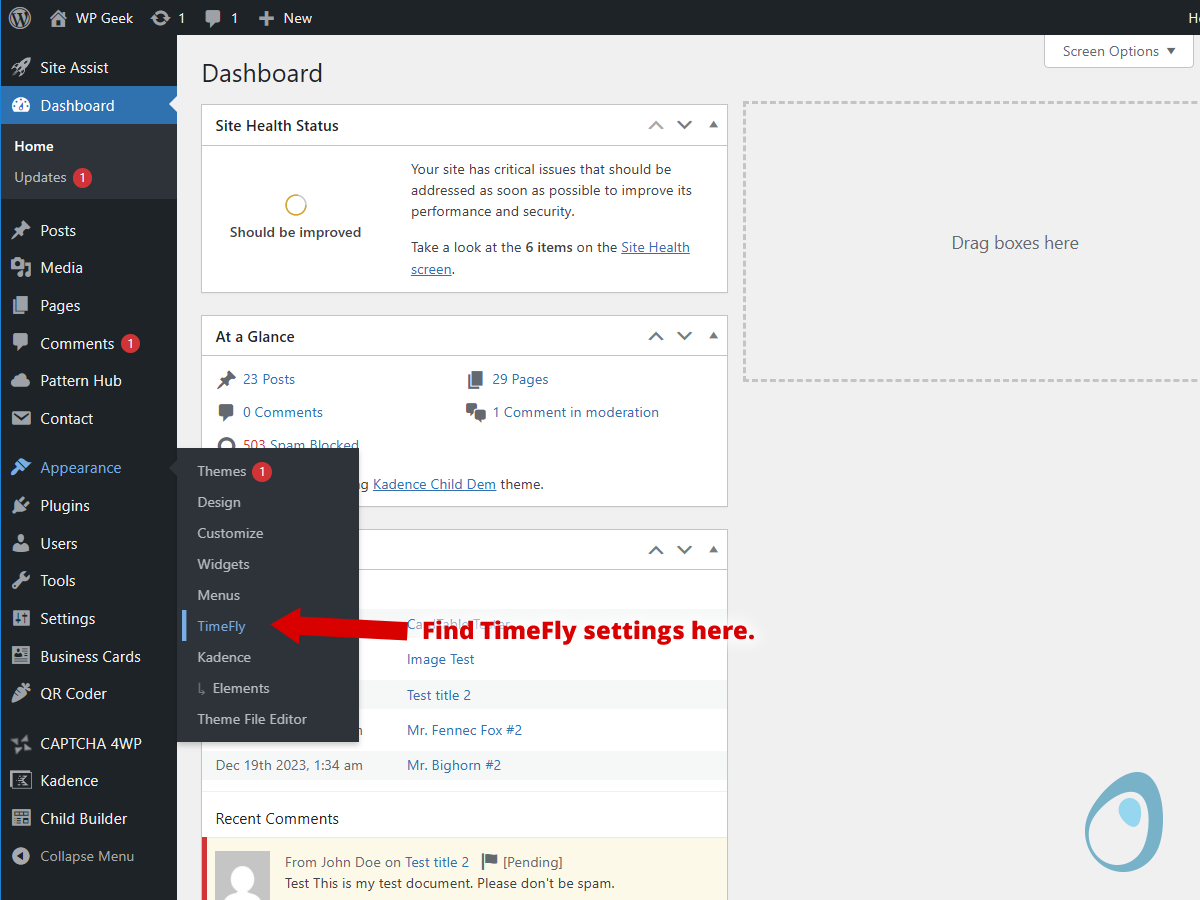
Timefly is available from the Appearance submenu
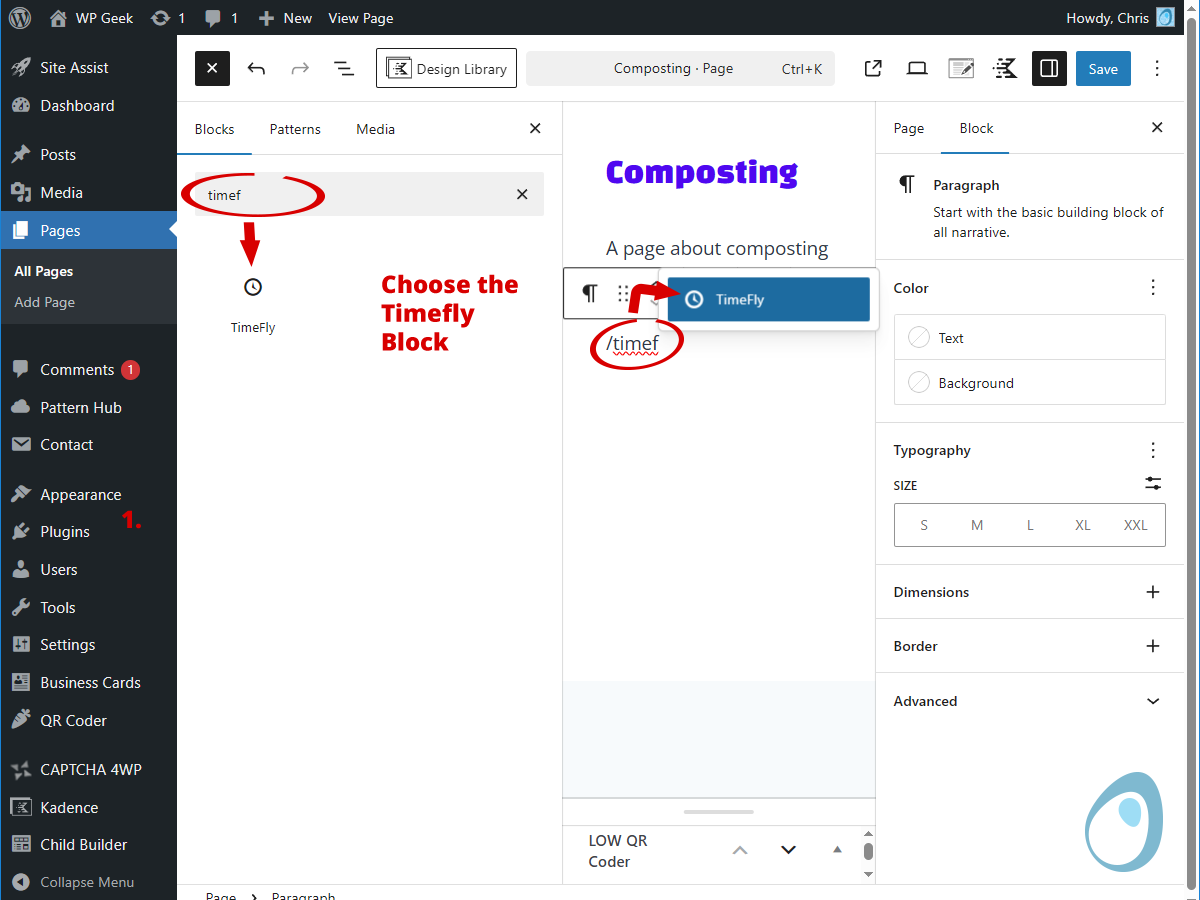
TimeFly block in the editor showing visibility controls and status indicator
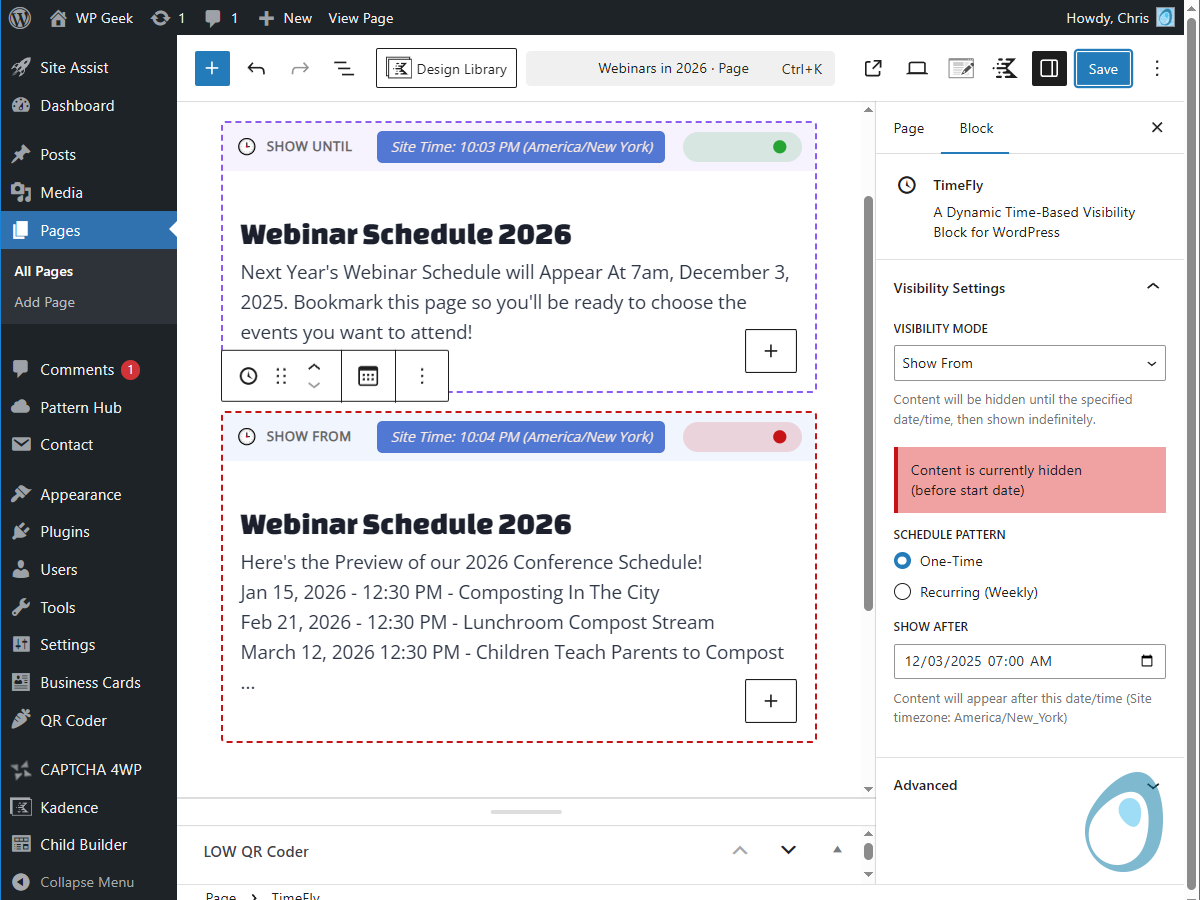
An example use-case with a schedule set to appear at a specific date and time.
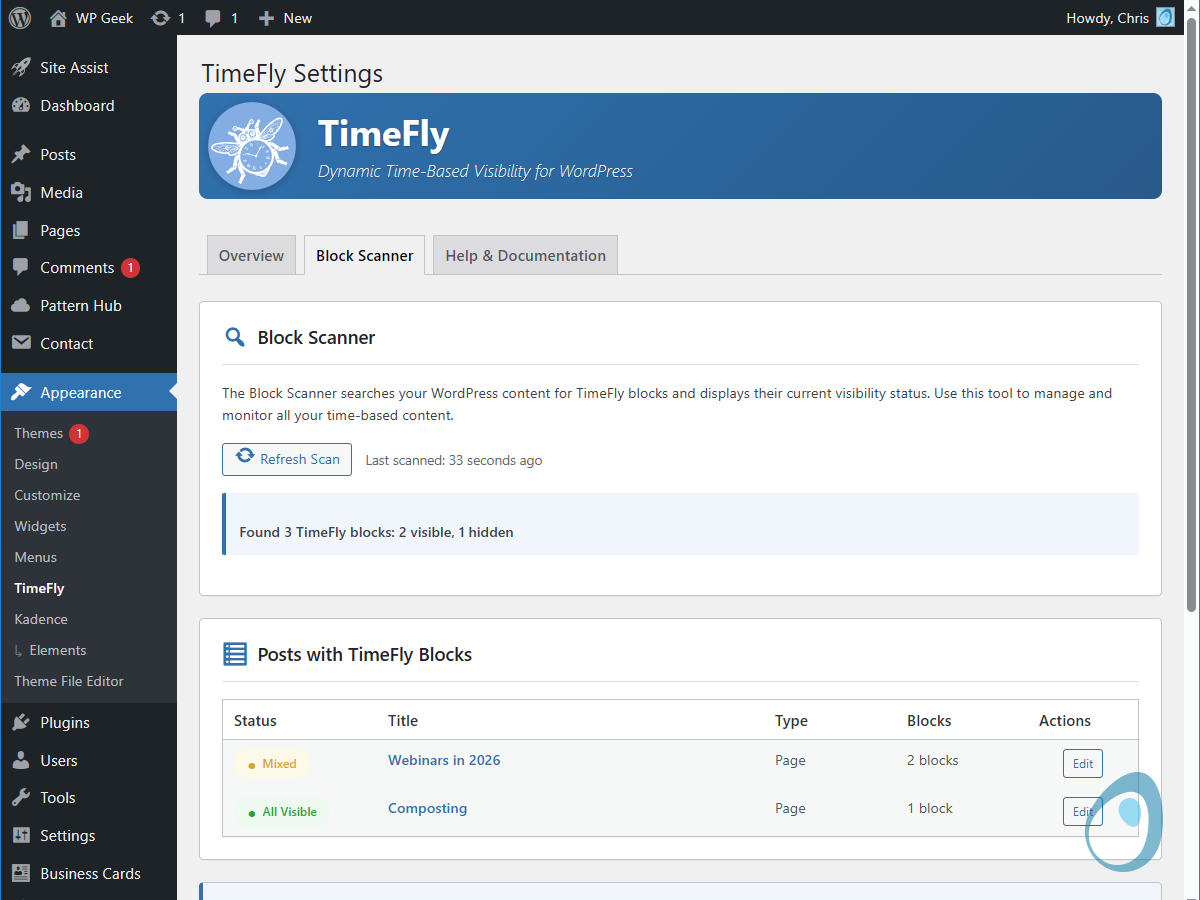
Block Scanner showing all TimeFly blocks across your site with visibility status

Settings page with uninstall behavior configuration
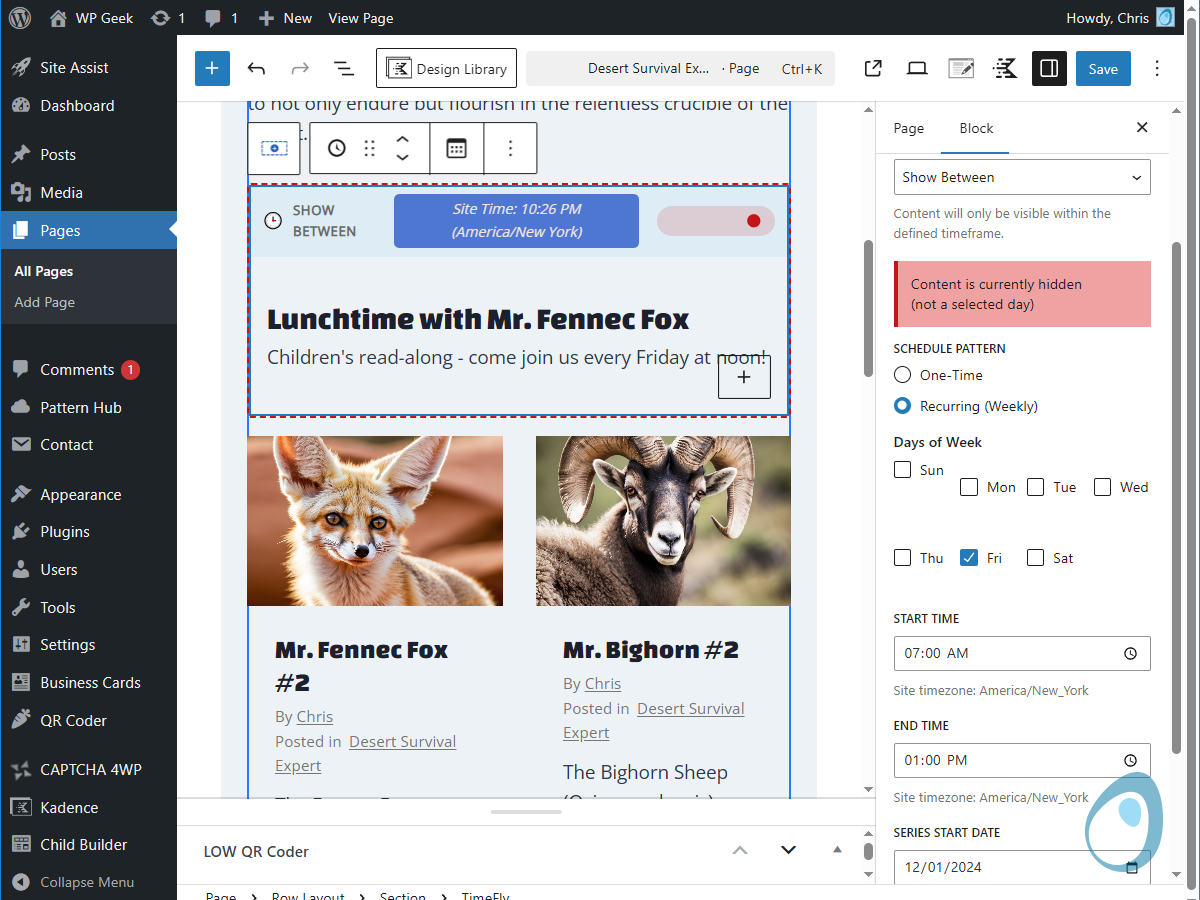
Recurring weekly schedule configuration for business hours
Changelog
0.2.1 – 2025-11-07
- Revised readme.txt
- Added language files
0.2.0 – 2025-11-07
- Initial release
- Three visibility modes: Show Until, Show From, Show Between
- One-time scheduling with specific date/time ranges
- Recurring weekly schedules with day and time selection
- Site timezone awareness with real-time preview
- Block scanner to find and manage all TimeFly blocks
- Settings page with uninstall behavior configuration
- Block-to-Group conversion on uninstall (optional)
- Complete WordPress.org code quality standards
- Comprehensive help documentation and FAQ