

Plugin info
Maintenance & Compatibility
Maintenance score
Possibly abandoned • Last updated 3995 days ago • 8 reviews
Is Tipso abandoned?
Possibly abandoned (last update 3995 days ago).
Compatibility
Similar & Alternatives
Explore plugins with similar tags, and compare key metrics like downloads, ratings, updates, support, and WP/PHP compatibility.
Description
Tipso is a simple WordPress tooltip plugin that displays a responsive, animated, fully customizable tooltip when the visitor hovers over the matched element.
Usage
The plugin adds a button in the editor. On click it opens a modal window where you can enter the tooltip content. It generates a shortcode and inserts it in the editor.
The shortcode
[tipso tip=”Tooltip content”]Hover me[/tipso]
You can also manually add the shortcode in the editor, or you can assing the tooltip functionality to any element simply by adding a class tipso and for the content add a data-tipso=”Tooltip content”
For making changes to the default tooltip options (background color, content color etc.) go to “Settings/Tipso Settings”
Check the demo
Installation
- Unzip the plugin and upload it to your site\’s “/wp-content/plugins/” folder.
- Activate the plugin through the \’Plugins\’ menu in WordPress.
- Modify the plugin’s option settings
- Check out your new button in the content editor.
Frequently Asked Questions
For any question feel free to contact me 🙂
Review feed
Thank you
Screenshots
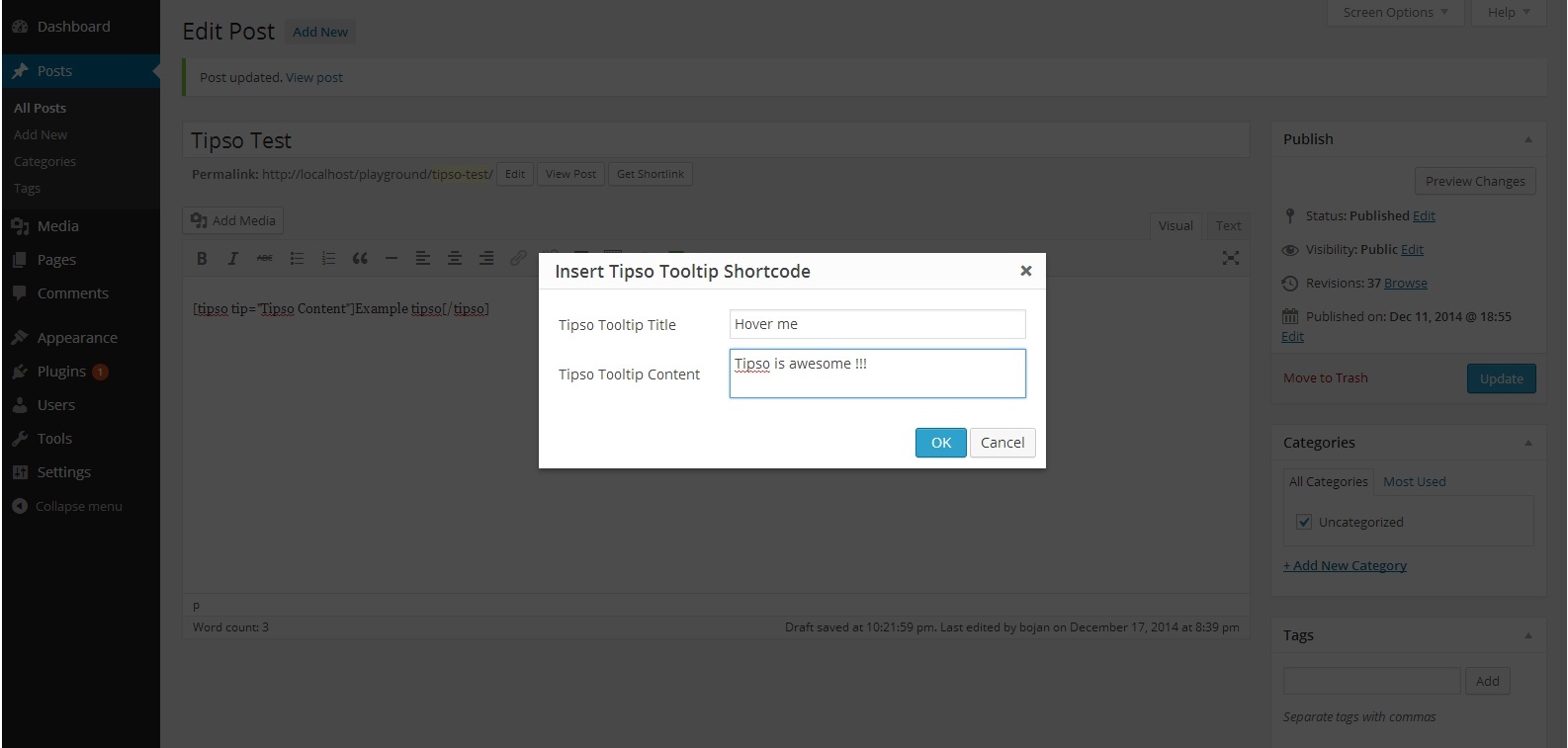
Editor

In Action

Settings Page
Changelog
1.0.0
- Initial release