

True Factor Auth
Secure any action or page on your site with one-time password (SMS or Authenticator App), add phone number confirmation during registration, enable tw …
Plugin info
Maintenance & Compatibility
Maintenance score
Possibly abandoned • Last updated 1889 days ago
Is True Factor Auth abandoned?
Possibly abandoned (last update 1889 days ago).
Compatibility
Similar & Alternatives
Explore plugins with similar tags, and compare key metrics like downloads, ratings, updates, support, and WP/PHP compatibility.
Description
Secure any action or page on your site with one-time password (SMS or Authenticator App), add phone number confirmation during registration, enable two-factor authorisation.
- Protect any pages and forms with password, SMS or Authenticator App
- Two-factor login with SMS and Authenticator App
- Phone number confirmation during registration and on different forms (e.g profile pages)
Installation
Frequently Asked Questions
- Enable the Two-Factor Login module in True Factor Auth / Modules section in admin panel.
- Adjust settings in True Factor Auth / Two-Factor Login section in admin panel.
- Two-factor login popup will be automatically added to the default login form (/wp-login.php). If you have any custom login forms, you’ll need to add corresponding selectors. See hints under form fields.
- Enable the Phone Number Confirmation module in True Factor Auth / Modules section in admin panel.
- Optional. If you want user phone number to be stored with certain meta key, navigate to True Factor Auth / SMS Settings section in admin panel and enter desired meta key in Phone Number Meta Key field. By default, phone number is stored with
_tfa_telmeta key in the usermeta table. - Navigate to True Factor Auth / Phone Number Confirmation section in admin panel.
- Check the Require Phone Number Verification on Registration checkbox
- Phone number verification will be added automatically on the default registration form (/wp-login.php?action=register). If you have a custom registration form, add corresponding selectors in the Registration Forms Selectors field.
True Factor Auth offers three separate user settings widgets:
- Verification methods settings. Allows user to enable/disable verification methods in their account. Add short-code
[true-factor-auth-methods]on target page to display this widget. - Login verification method. Displayed by
[true-factor-login-settings]shortcode. - Custom Actions settings. Allow user to choose verifications methods separately for actions defined in Access Rules. Add
[true-factor-action-settings]shortcode on target page to display this widget.
- Open True Factor Auth / Access Rules page in the admin panel.
- Click “Add new” button next to page title.
- Fill required parameters for back-end. This is necessary to ensure that request is captured and filtered by True Factor on server side. Use Developer Tools in your browser to find out the request parameters of the form.
- Fill required parameters for front-end. They are needed to display the verification popup in browser. The Trigger selector is a CSS selector of a form which needs to be protected. Make sure to provide a selector that matches only target form. Do not use vague selectors like
body form. - Fill the rest of parameters according to your needs and save the rule.
- Test your rule.
For more detailed instructions please see this article
We designed our plugin in the way that, generally, it can be used with other plugins without special measures. However, since there are thousands of different plugins, we did not test for compatibility with all of them. If you faced a compatibility issue (or any other issue), please let us know and we’ll do our best to fix it.
If you defined wrong rules and got blocked from your site, you can temporarily disable True Factor Auth security check. You will need access to wp-config.php.
- Connect to your server via SSH or FTP
- Open wp-config.php in your site root directory
-
Add the following code after the first line:
define(‘TRUE_FACTOR_DISABLE’, 1);
-
Save the file
- Login and fix plugin settings via admin panel
- Don’t forget to remove previously added line from wp-config.php to re-enable True Factor
First, you can customise the popup templates and button captions via admin panel.
See 2FA Verification / Settings page. The Custom Templates module must be activated.
Plugin uses Mustache engine for templates.
Also, you can override some plugin templates by copying files under ./templates folder to /<your-theme-folder>/templates/true-factor-auth/ folder and editing them.
Review feed
Screenshots

Example verification popup

Google Authenticator Activation popup
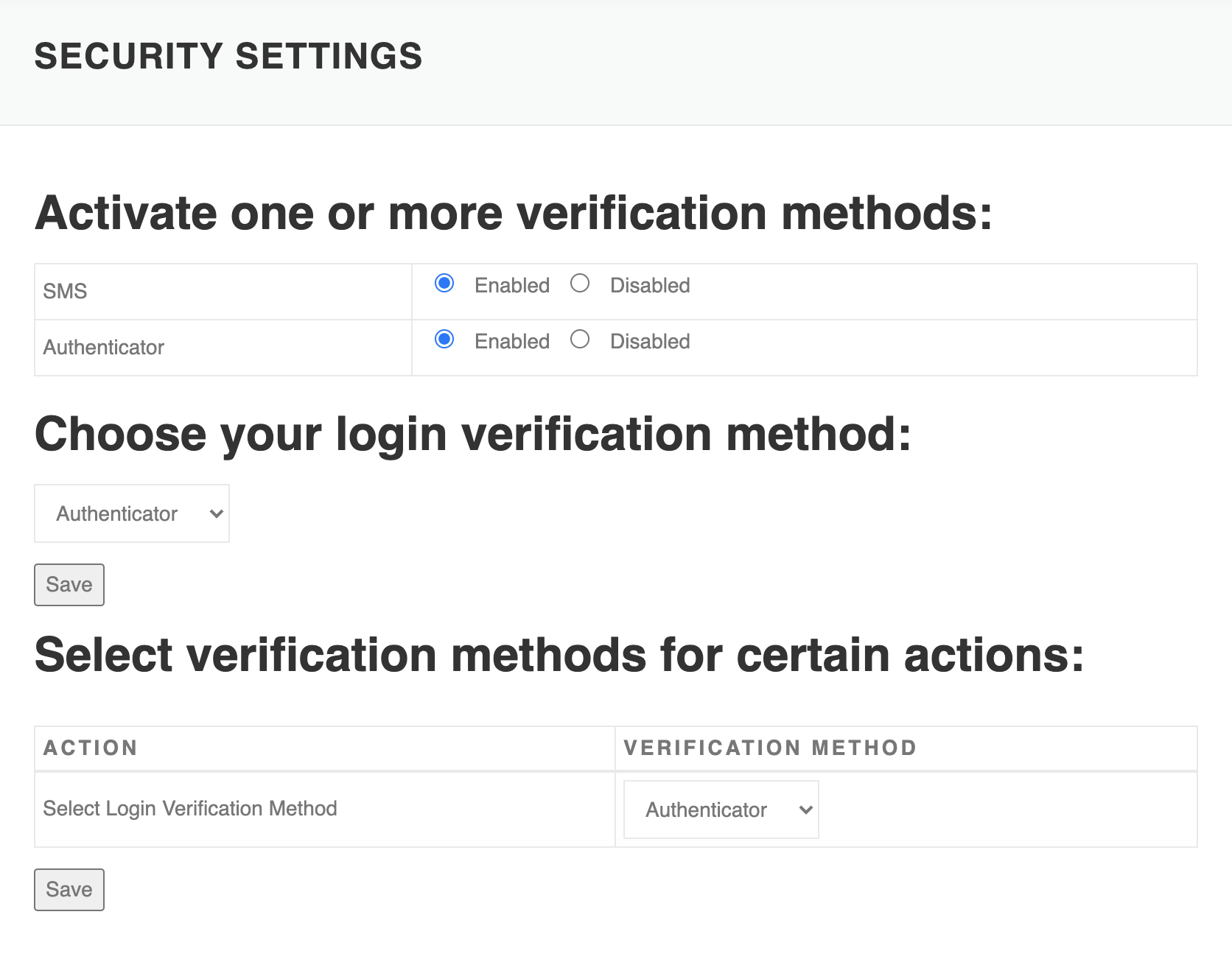
User Settings interface
Changelog
Initial release.