

SpecFit-Virtual Try On Woocommerce
Vitual EyeWear Try-On SpecFit allows customers to virtually try eye wears products on their face before buying it.
Plugin info
Maintenance & Compatibility
Maintenance score
Maintained • Last updated 119 days ago • 17 reviews
Is SpecFit-Virtual Try On Woocommerce abandoned?
Likely maintained (last update 119 days ago).
Compatibility
Similar & Alternatives
Explore plugins with similar tags, and compare key metrics like downloads, ratings, updates, support, and WP/PHP compatibility.
Description
Vitual EyeWear Try-On SpecFit allows customers to virtually try eye wears products on their face before buying it.
Premium Features
- Demo at SpecFit
- Automatic Eye Detection
- Live Try On via webcam or mobile camera
- Fully responsive design. Works well on any device.
- Upload Unlimited Eyewears
- Multiple try on images based on color
- Free Setup of 10 eyewears
Installation
- Upload
try-on-for-woocommerce.zipto the/wp-content/plugins/directory - Activate the plugin through the ‘Plugins’ menu in WordPress
- Purchase your trail/lifetime access key from SpecFit
- Add your access key and email id at SpecFit page on your admin console.
- Go to products page.
- Edit the Eye wear product.
- Scroll down and click on Add try on image.
- Select a transparent front image of eye wear.
- View Product.
- A try on button will be there.
- Click on the button and thats it.
Frequently Asked Questions
Yes.
Our Development team’s main focus was to make this plugin more easy to use and customize.So we have designed this plugin in a way that only one step can reach your requirements.You just have to go to product page->Edit->Set try on image. That’s it. It will automatically render a try on button on that product.
To render try on button on any product detail page you will have to set a try on image via product edit page or create new product page.This try on image is a simple front facing view of your eyewear product.This should be a transparent image.Image dimensions and guide to make a perfect Try On image is available at Product edit page only.
No,For every product you will have to upload a Try On image which will be rendered on try on pop up.This image should be transparent background image.
Review feed
Screenshots
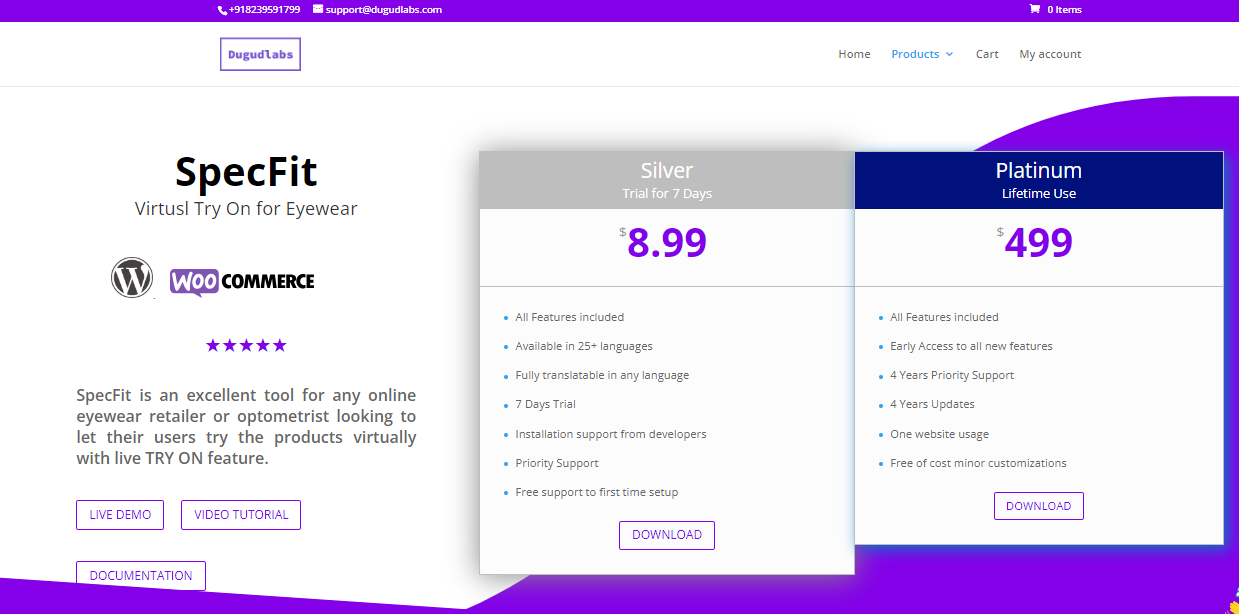
Frontend Page: Plans Available
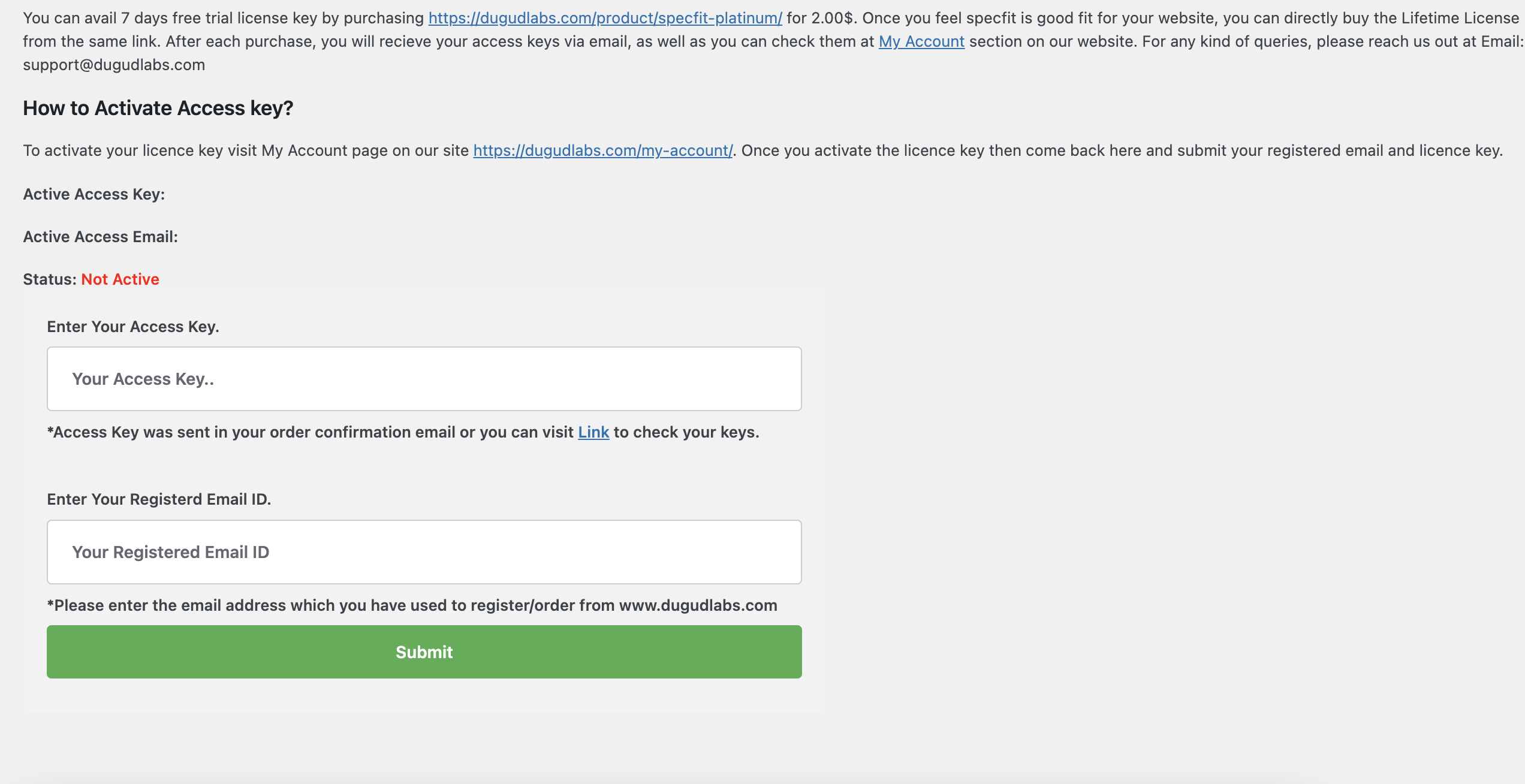
Admin Page: Admin page to validate license key
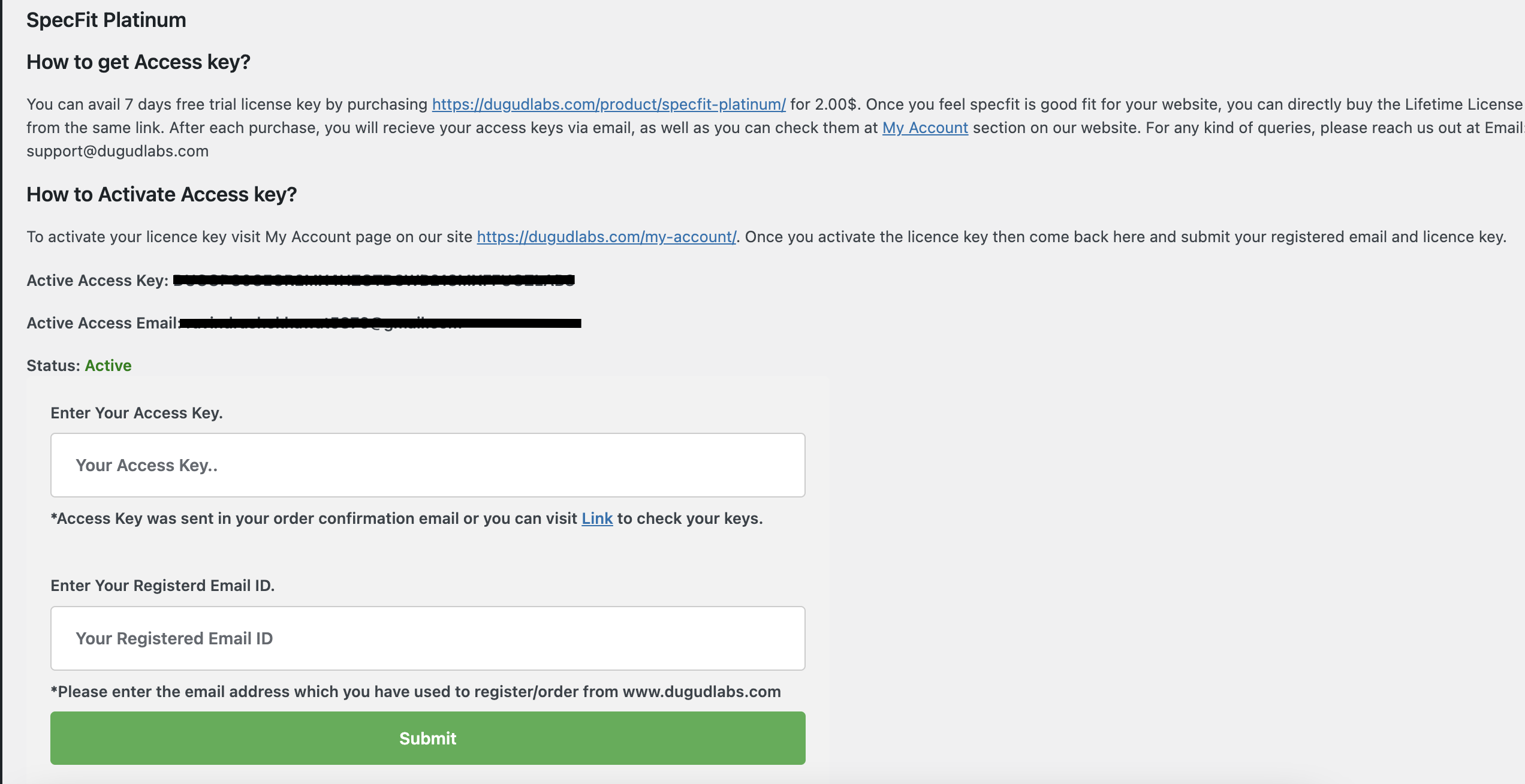
Admin Page: License key validated successfully
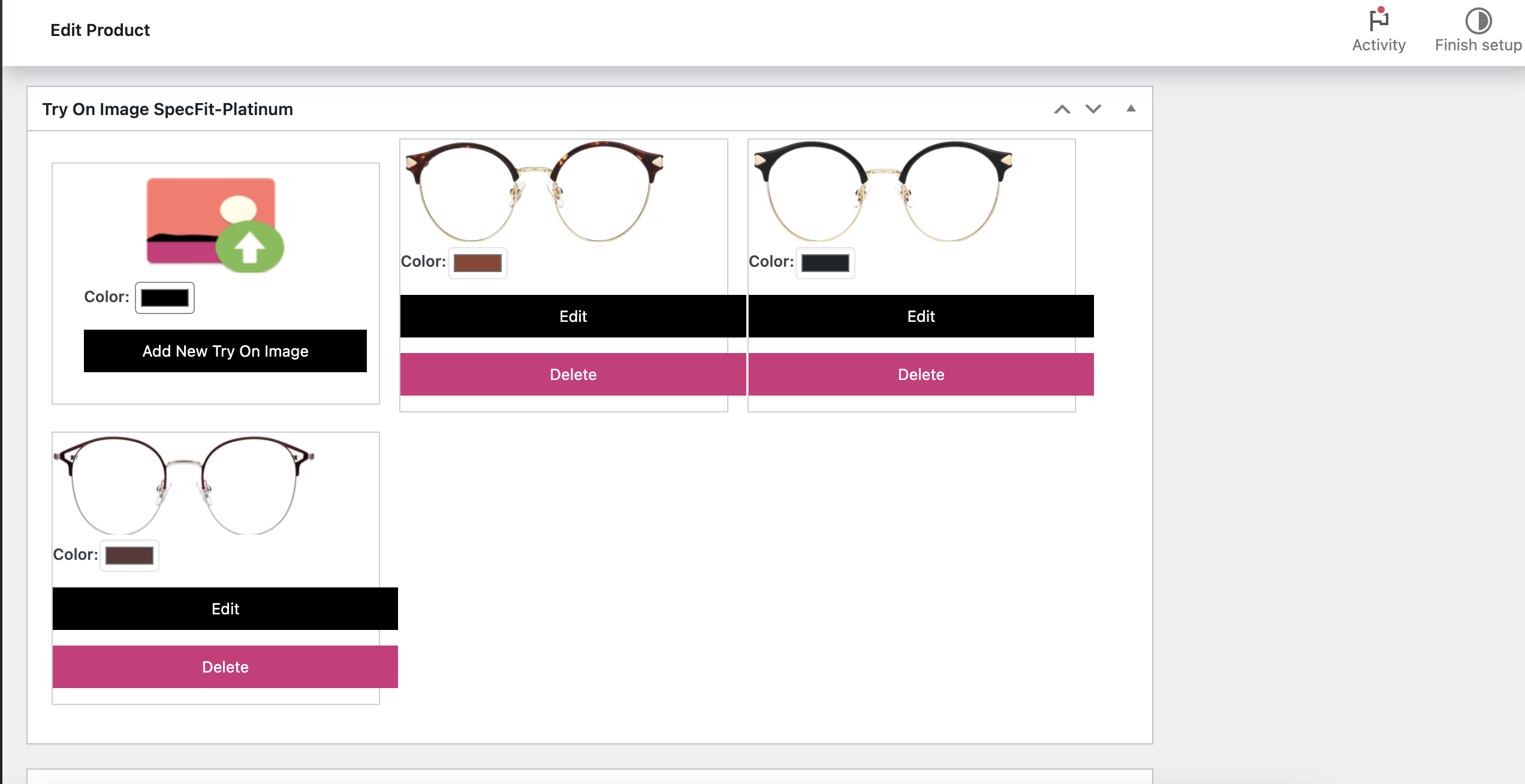
Admin Page: Add Try in images for product
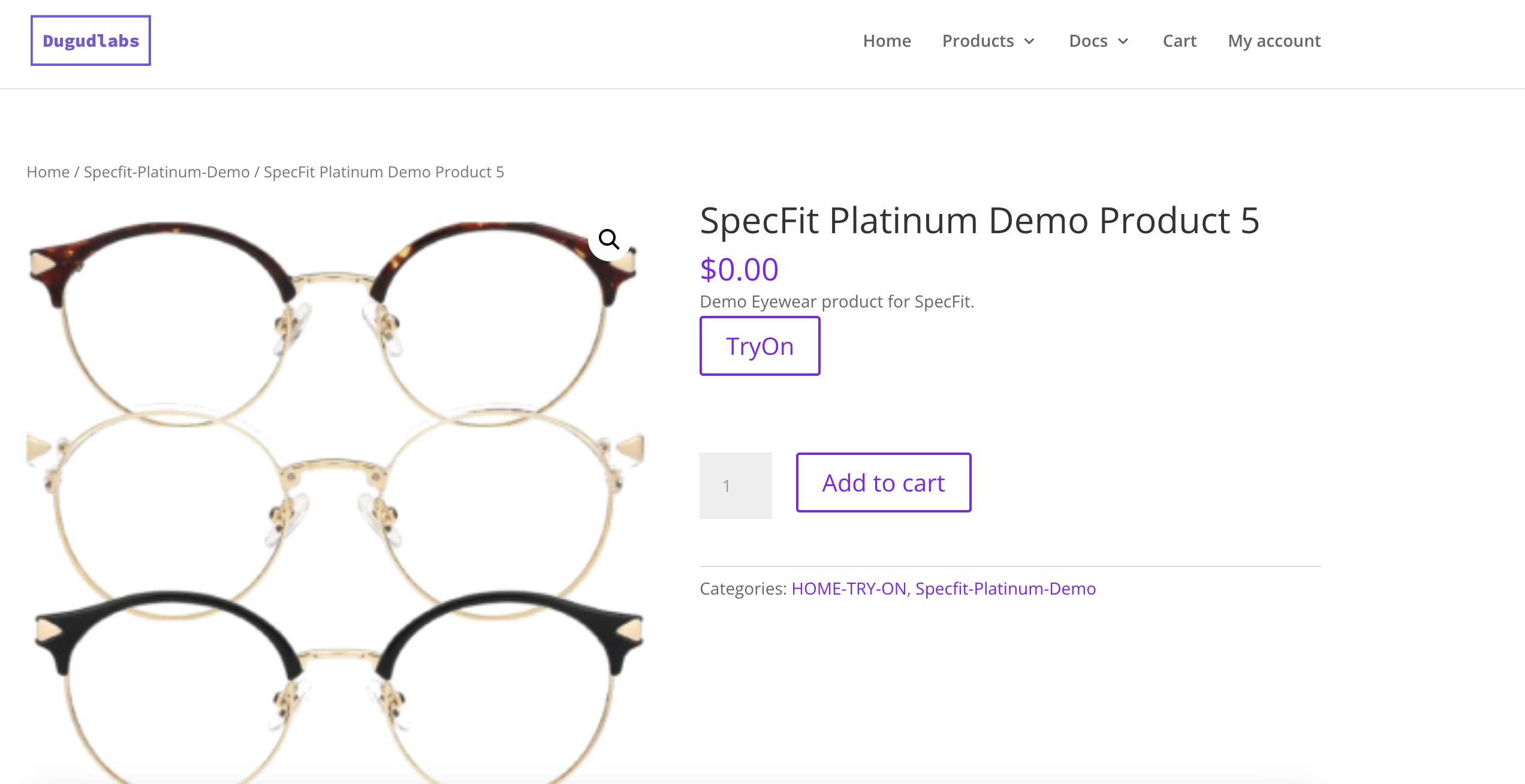
AdmFrontendin Page: Try On button shown o fornt end
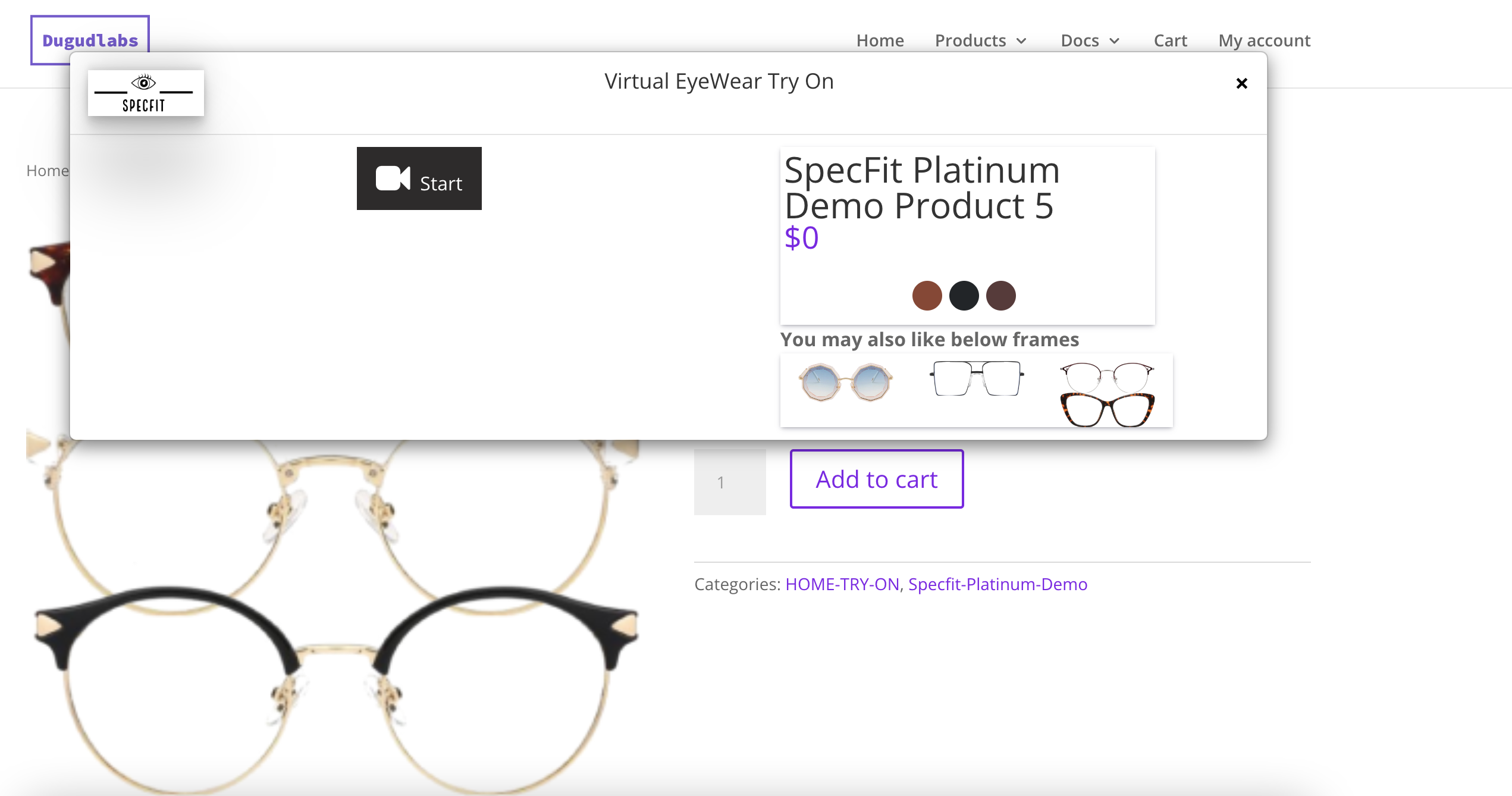
Frontend Page: Try on Popup open
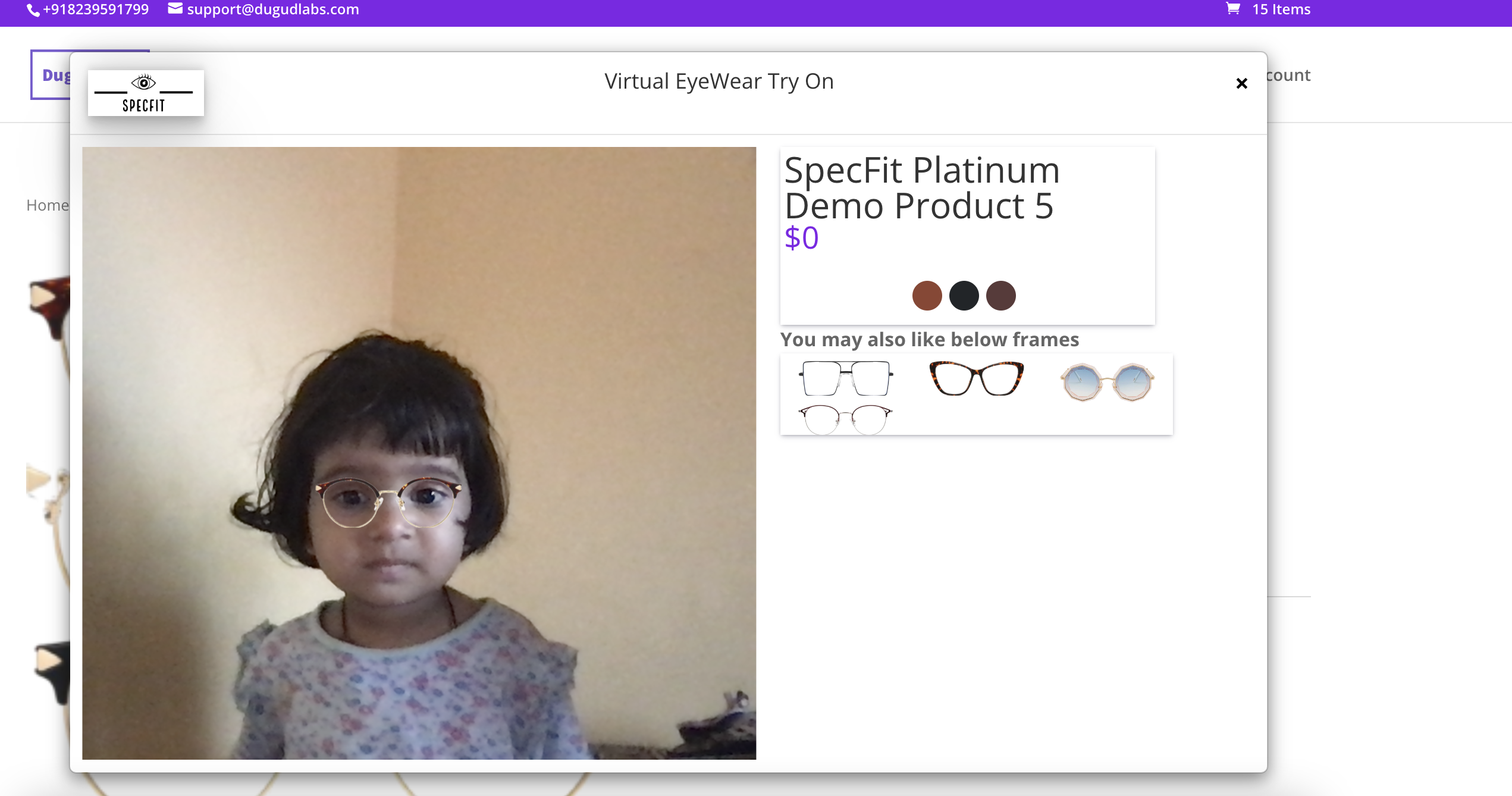
Try On pop up
Changelog
- Major Stabality Fixes.
- Option to troubleshoot