

Plugin info
Maintenance & Compatibility
Maintenance score
Possibly abandoned • Last updated 4097 days ago • 2 reviews
Is WP UniformJS abandoned?
Possibly abandoned (last update 4097 days ago).
Compatibility
Similar & Alternatives
Explore plugins with similar tags, and compare key metrics like downloads, ratings, updates, support, and WP/PHP compatibility.
Description
If you are fed up with trying to style your form elements to look the same in all browsers, this is the plugin you need.
It implements the jQuery plugin UniformJS to any form element you choose. Includes 3 styles to choose from and you have the ability to make your own styles as well.
Works with:
Arbitrary section
A brief Markdown Example
Installation
- Upload
uniform-js.zipto the/wp-content/plugins/directory - Activate the plugin through the ‘Plugins’ menu in WordPress
- Visit Settings > UniformJS, and enter your form selectors you want to have styled
Frequently Asked Questions
What is UniformJS?
UniformJS is a jQuery plugin that handles styling of form elements across browsers.
You can read the complete documentation here.
Review feed
Screenshots
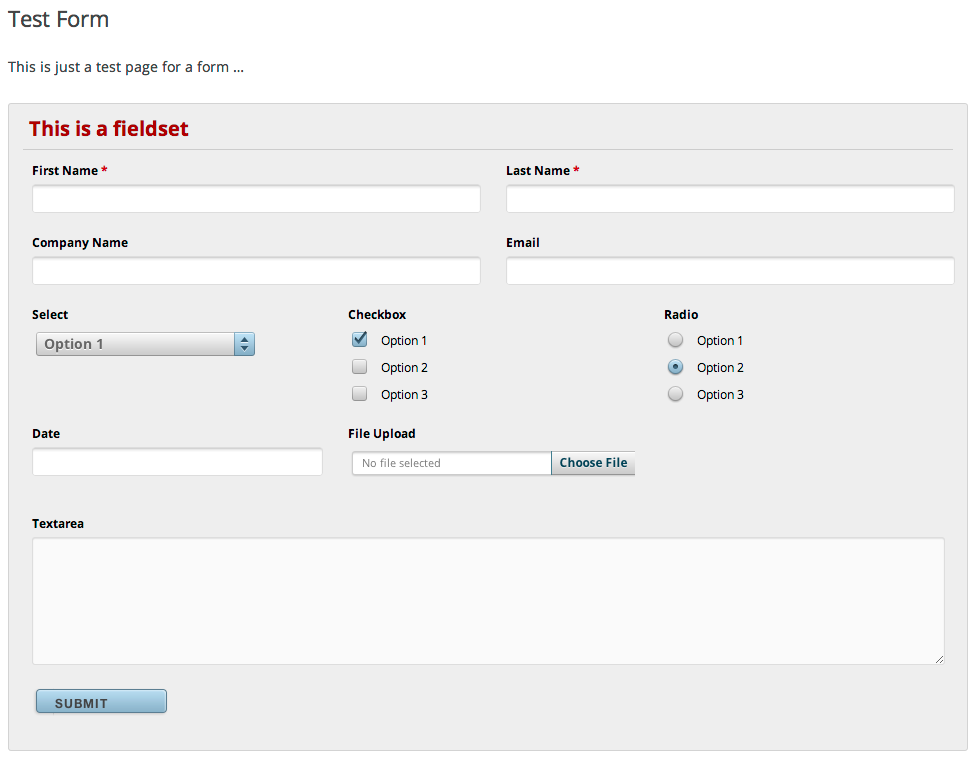
This screen shot description corresponds to screenshot-1.(png|jpg|jpeg|gif). Note that the screenshot is taken from the /assets directory or the directory that contains the stable readme.txt (tags or trunk). Screenshots in the /assets directory take precedence. For example,
/assets/screenshot-1.pngwould win over/tags/4.3/screenshot-1.png(or jpg, jpeg, gif).
This is the second screen shot

Changelog
1.0
- Stable version.