

WP Sticky Button – Click to Chat
Display the beautiful WhatsApp Sticky Button on the WordPress frontend.
Plugin info
Maintenance & Compatibility
Maintenance score
Stale • Last updated 231 days ago • 5 reviews
Is WP Sticky Button – Click to Chat abandoned?
Likely maintained (last update 231 days ago).
Compatibility
Similar & Alternatives
Explore plugins with similar tags, and compare key metrics like downloads, ratings, updates, support, and WP/PHP compatibility.
Description
WP Sticky Button is a Free & Light Weight WordPress plugin that displays the beautiful WhatsApp Sticky Button on the WordPress frontend.
After clicking on the WhatsApp Sticky Button, It will bring you to the WhatsApp application or WhatsApp website.
- It will bring you to the WhatsApp application if WhatsApp application installed on your device
- It will bring you to the WhatsApp website if WhatsApp application is not installed on your device
Admin Setting Panel
- WhatsApp Sticky Button – Settings
- Activate/Deactivate WhatsApp Sticky Button
- Customize “Display on” functionality for the Mobile, Tablet & Desktop Devices
- Change the Position of WhatsApp Sticky Button to Top-Left/Top-Right/Bottom-Left/Bottom-Right
- Add WhatsApp Number
- Add WhatsApp Default Message
- Customize Icon Width
- Customize Icon Height
- Customize Icon Margin
- Change Icon Type to Default WhatsApp Icon/Custom Icon Image
- Select Custom Icon
- Save & Enjoy!!!
Installation
- Just log into your WordPress admin dashboard
- Visit Dashboard > Sidebar > Plugins > Add New
- Search for “WP Sticky Button”
- Install and Activate the “WP Sticky Button” plugin
- Visit Dashboard > Sidebar > WhatsApp
- Activate the WhatsApp Sticky Button to display on frontend (Mandatory)
- Add a valid WhatsApp number & default message (Mandatory)
- Set “Display on” functionality for the Mobile, Tablet & Desktop devices
- Customize the Position, Width, Height, Margin, Type and Image of Icon (Optional)
- Use & Enjoy!!!
Frequently Asked Questions
You can set WhatsApp number like that 919806886806
(with country code but without any plus, preceding zero, hyphen, brackets, space)
Sure, feel free to contact me at [email protected]
Review feed
Screenshots
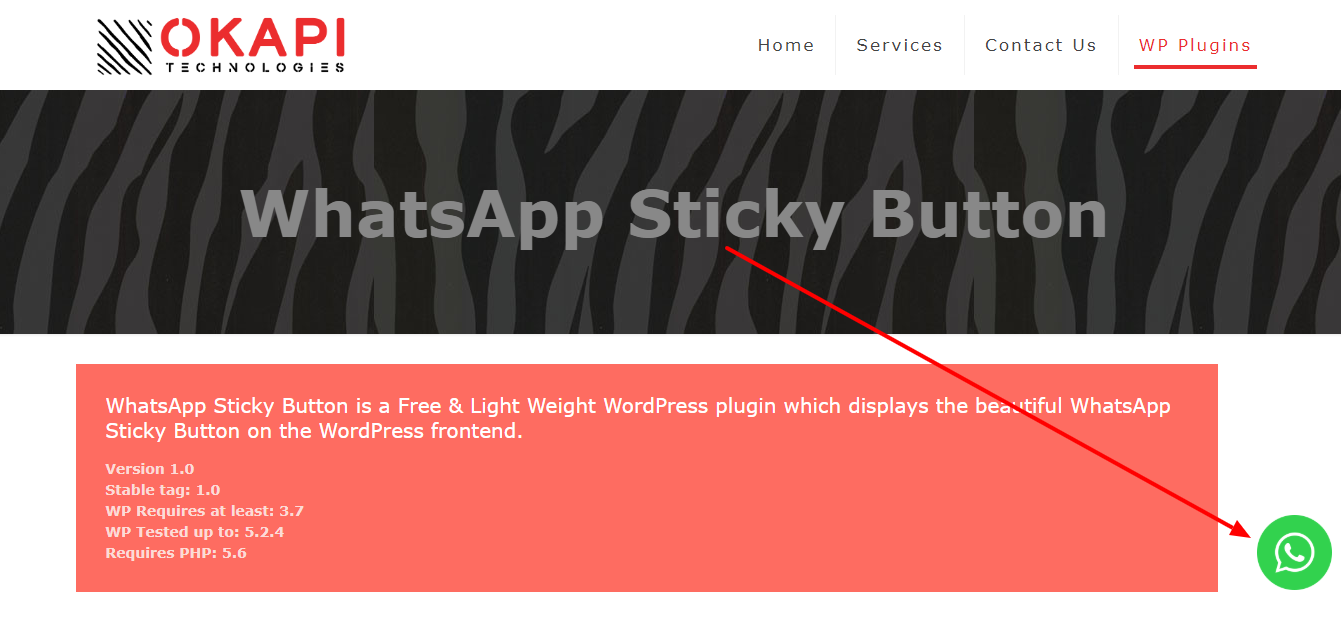
screenshot-1.png - WhatsApp Sticky Button Visualization

screenshot-2.png - WhatsApp Sticky Button Settings

screenshot-3.png - Open in WhatsApp Web for Desktop Devices

screenshot-4.png - Open in WhatsApp Application for Mobile Devices
Changelog
1.2
- Make WhatsApp default message optional.
1.1
- Add functionality to display button on specific devices (Mobile, Tablet & Desktop).
- Add WhatsApp default message.
1.0
- First version of the plugin released.