

Wishlist with hearts
Click on heart(icon)/button to add/delete the product in wishlist in a Woocommerce store
Plugin info
Maintenance & Compatibility
Maintenance score
Possibly abandoned • Last updated 1620 days ago
Is Wishlist with hearts abandoned?
Possibly abandoned (last update 1620 days ago).
Compatibility
Similar & Alternatives
Explore plugins with similar tags, and compare key metrics like downloads, ratings, updates, support, and WP/PHP compatibility.
Description
- User can click on heart(icon) to add or delete the product in wishlist in a Woocommerce store
(i) on product page (ii) on shop page - Heart icon can be placed in any corner of the image.
- Or the heart icon can be placed below / besides the image using left & top corrections.
- Wish List Buttons can also be placed before or after the cart button.
- Heart icon can be placed anywhere using shortcode [wlwh_showheart].
- Wish List Buttons can also be placed anywhere using shortcode [wlwh_showbutton]
with optional parameter: label of button
For eg [wlwh_showbutton btnlabel=”Add to Shortlist”]. - Both the heart icons & buttons are optional.
- If the user is logged in then it will create an entry for that particular user_id.
- If however user is not logged in it would create a COOKIE to store wished products.
- Wish List can be assigned to any existing Page i.e. Create any page say WishList & choose this page in the admin page
- Wish List can be placed anywhere using shortcode [wlwh_the_wishlist].
- Admin can view the wishlist of all the users and can email them through “All Users” tab.
- The list appears on the admin dashboard with latest wishlisted product at the top.
- Email content can be specified via Email settings page & edited before sending.
Installation
- Upload the plugin files to the
/wp-content/plugins/plugin-namedirectory, or install the plugin through the WordPress plugins screen directly. - Activate the plugin through the ‘Plugins’ screen in WordPress.
- Use the Settings->Plugin Name screen to configure the plugin.
Frequently Asked Questions
From the Wish Settings , Choose top-left , top-right ,bottom-left or bottom-right
to place the icon in the corner , or besides / below the images which ever position
the admin prefers.
Admin can move the icon left or right using Left-Correction box.
Input negative numbers to move it left and positive numbers to move it right.
Admin can also move the icon top or bottom using Top-Correction box.
Input negative numbers to move it Up and positive numbers to move it down.
Please input values in left-correction or top-correction boxes to adjust the place of icon.
If some value are not filled , defaults may be taken.
Please note localhost maynot send mail but actual server may,
as plugin uses inbuilt wp_mail() function.
You may also need to check server settings or use any SMTP
Please note that as per the name Wishlist with hearts , atleast one heart icon is needed.
If you don’t need it you can add a hidden heart with shortcode
[wlwh_showheart visibility=”hidden” ] near the wishlist button.
Just add background-color: none; to the wish-button class to use it as a link
Target these classes for additional styles
1) wishbox -> .wish-box
2) heart icons -> .wish-box .fa-heart & .wish-box .fa-heart-o
3) Button -> .wish-button
Review feed
Screenshots

Wish Settings page 1

Wish Settings page 2

The heart icon & Add to WishList Button on Single Product Page

Sending e-mail to clients for promotion
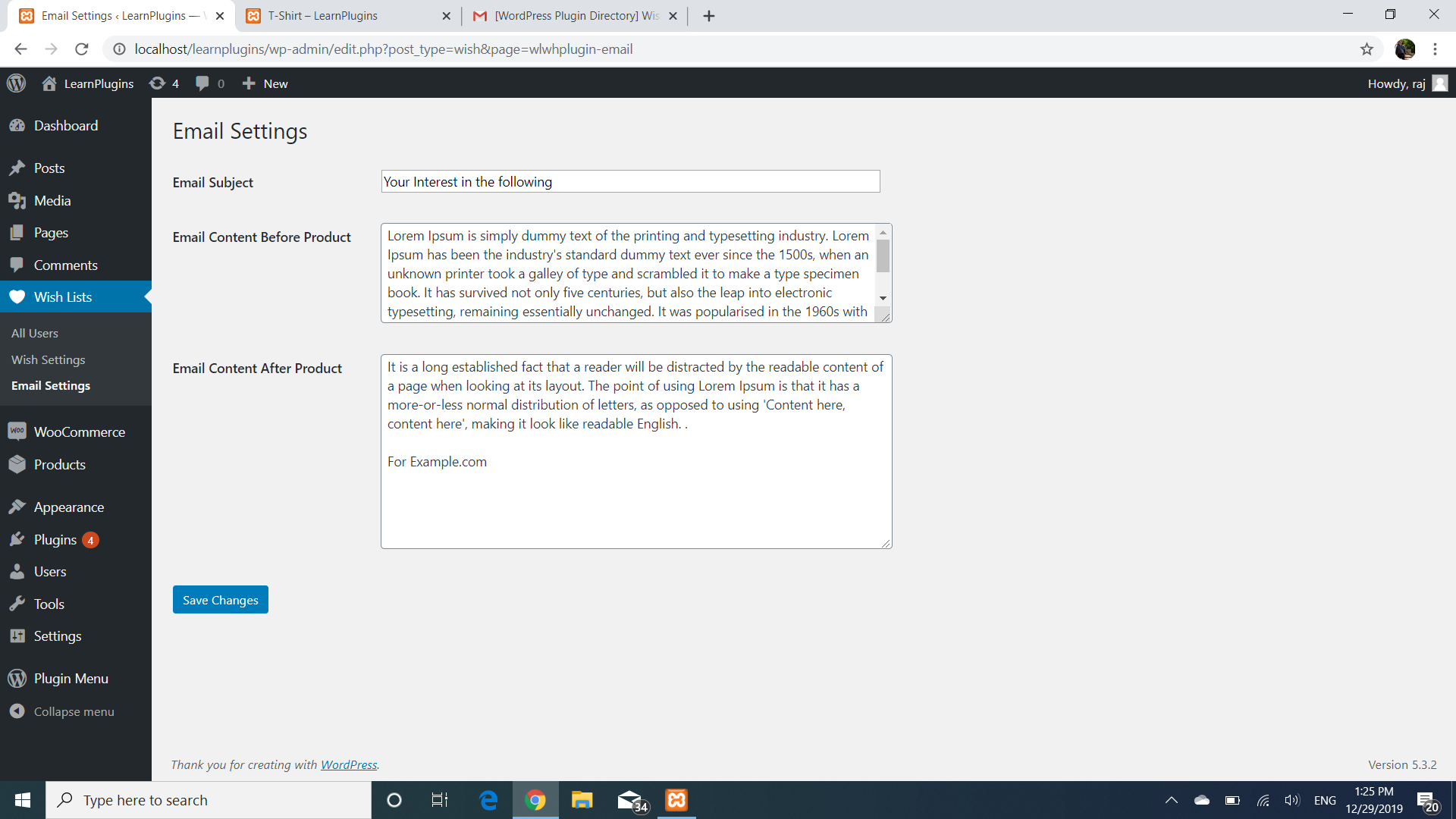
Email settings Place

Example e-mail

Placing heart icon anywhere without border
Changelog
version 2.1