

WooCommerce Category Banner
Place a custom banner and link at the top of your product category pages. Easily update the image through your product category edit page.
Plugin info
Maintenance & Compatibility
Maintenance score
Possibly abandoned • Last updated 4124 days ago • 14 reviews
Is WooCommerce Category Banner abandoned?
Possibly abandoned (last update 4124 days ago).
Compatibility
Similar & Alternatives
Explore plugins with similar tags, and compare key metrics like downloads, ratings, updates, support, and WP/PHP compatibility.
Description
Place a custom banner and link at the top of your product category pages. Easily update the image through your product category edit page.
Features:
- No configuration needed, just install and start using
- Supports an image for each category
- Custom product category positions with a template tag for including the image in a custom area in your custom product category template.
- Support a link for each category / banner image
Getting Started:
- From the sidebar click ‘Products’ -> ‘Categories’
- Select an individual category from your list
- Paste the url of the banner you’d like to use into the “Banner Image Url” field
- That’s it, your banner should now be displaying on your category archive page.
- Remove image by deleting the url from the edit category page.
You can hide the automatic image placement by unchecking “Automatically insert banner above main content”
You can then place the template tag wcb_show_category_banner() in your custom category template to customize the position of the image in your markup. Note – this tag must be placed on category templates – not product templates.
Installation
Automatic WordPress Installation
- Log-in to your WordPress Site
- Under the plugin sidebar tab, click ‘Add New’
- Search for ‘WooCommerce Category Banner’
- Install and Activate the Plugin
- Start uploading a banner image from ‘Products’ -> ‘Categories’ -> (Select category)
Manual Installation
- Download the latest version of the plugin from WordPress page
- Uncompress the file
- Upload the uncompressed directory to ‘/wp-content/plugins/’ via FTP
- Active the plugin from your WordPress backend ‘Plugins -> Installed Plugins’
- Start uploading a banner image from ‘Products’ -> ‘Categories’ -> (Select category)
Frequently Asked Questions
Review feed
Not working. Replacing original "Category Thumbnail"
dd banner slider in woocommerce category
Screenshots
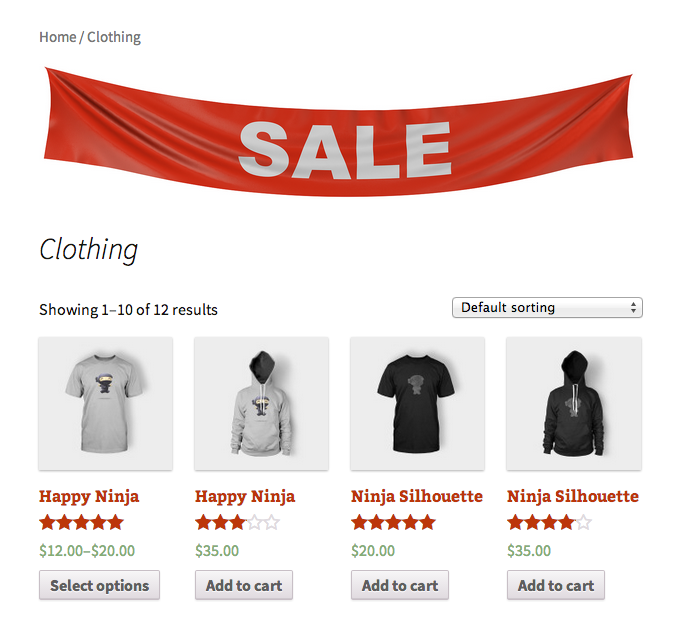
Category page where banner will be presented.

Category edit page, upload your image here.
Changelog
1.1.2
- Bug fix, notice was appearing with WP DEBUG set to true
1.1.1
- Adding Template tag for custom banner position for custom product category templates.
1.1.0
- Added image upload button
- Added banner link
1.0.0
- Initial Commit