

WP Chords
WP Chords allows you to format and display the chords on your blog including mobile friendly interface and AMP functionality.
Plugin info
Maintenance & Compatibility
Maintenance score
Possibly abandoned • Last updated 1789 days ago • 6 reviews
Is WP Chords abandoned?
Possibly abandoned (last update 1789 days ago).
Compatibility
Similar & Alternatives
Explore plugins with similar tags, and compare key metrics like downloads, ratings, updates, support, and WP/PHP compatibility.
Description
WP Chords allows you to format and display the chords on your blog. You can set font sizes, enable transposing chords especially in your posts. Compatible with Google AMP (Accelerated Mobile Pages). It’s fully supported different devices such as tablets, mobile phones and most of web browsers.
Eazy Real Time Demo
As soon as you install the WP Chords plugin, you will find live demo playground under Settings->WP Chords. You even don’t need to create a post or a record in your database!
Please follow How can I test it? directions in FAQ page.
Formatting
You can define your chords at the correct positions in your song using chord shortcodes. 187 codes are available in below. On your final post view your chords will be automatically placed in their correct positions. You can configure formatting with some options such as below
Formatting Features
- Display with monospace font.
- Display with alternating chords.
Transposing
On your final post view, visitors can adjust chord transposing as they wish with 17 half tones. On the transpose bar, the first chord in the song will be automatically selected as default tone.
Transposing Features
- Tones are: Ab, A, A#, Bb, B, C, C#, Db, D, D#, Db, E, F, F#, Gb, G, G#.
- Transposing can be turned off.
Font Sizing
Your visitor can adjust font size for the song, while playing it.
Font Sizing Features
- It can be turned off
Printing
Your visitor can print the chord itself for using outside.
Printing Features
- It can be turned off
- Footer text can be adjusted
- Font size applies
- Transpose applies
Supported Chords:
Ab, Abm, Ab6, Ab7, Ab9, Abm6, Abm7, Abmaj7, Abdim, Ab+, Absus, A, Am, A6, A7, A9, Am6, Am7, Amaj7, Adim, A+, Asus, A#, A#m, A#6, A#7, A#9, A#m6, A#m7, A#maj7, A#dim, A#+, A#sus, Bb, Bbm, Bb6, Bb7, Bb9, Bbm6, Bbm7, Bbmaj7, Bbdim, Bb+, Bbsus, B, Bm, B6, B7, B9, Bm6, Bm7, Bmaj7, Bdim, B+, Bsus, C, Cm, C6, C7, C9, Cm6, Cm7, Cmaj7, Cdim, C+, Csus, C#, C#m, C#6, C#7, C#9, C#m6, C#m7, C#maj7, C#dim, C#+, C#sus, Db, Dbm, Db6, Db7, Db9, Dbm6, Dbm7, Dbmaj7, Dbdim, Db+, Dbsus, D, Dm, D6, D7, D9, Dm6, Dm7, Dmaj7, Ddim, D+, Dsus, D#, D#m, D#6, D#7, D#9, D#m6, D#m7, D#maj7, D#dim, D#+, D#sus, Eb, Ebm, Eb6, Eb7, Eb9, Ebm6, Ebm7, Ebmaj7, Ebdim, Eb+, Ebsus, E, Em, E6, E7, E9, Em6, Em7, Emaj7, Edim, E+, Esus, F, Fm, F6, F7, F9, Fm6, Fm7, Fmaj7, Fdim, F+, Fsus, F#, F#m, F#6, F#7, F#9, F#m6, F#m7, F#maj7, F#dim, F#+, F#sus, Gb, Gbm, Gb6, Gb7, Gb9, Gbm6, Gbm7, Gbmaj7, Gbdim, Gb+, Gbsus, G, Gm, G6, G7, G9, Gm6, Gm7, Gmaj7, Gdim, G+, Gsus, G#, G#m, G#6, G#7, G#9, G#m6, G#m7, G#maj7, G#dim, G#+, G#sus
Installation
- Upload the zipped file to your sites ‘/wp-content/plugins/’ directory
- Activate the plugin through the ‘Plugins’ menu in WordPress
- Use the Settings->WP Chords screen to configure the plugin
Frequently Asked Questions
After you installed/activated the plugin. You need to cover a content (like a song) with ‘[wpchords][/wpchords]’ shortcode.
Place chord codes inside your songs to correct positions.
Available chord codes are: [Ab], [Abm], [Ab6], [Ab7], [Ab9], [Abm6], [Abm7], [Abmaj7], [Abdim], [Ab+], [Absus], [A], [Am], [A6], [A7], [A9], [Am6], [Am7], [Amaj7], [Adim], [A+], [Asus], [A#], [A#m], [A#6], [A#7], [A#9], [A#m6], [A#m7], [A#maj7], [A#dim], [A#+], [A#sus], [Bb], [Bbm], [Bb6], [Bb7], [Bb9], [Bbm6], [Bbm7], [Bbmaj7], [Bbdim], [Bb+], [Bbsus], [B], [Bm], [B6], [B7], [B9], [Bm6], [Bm7], [Bmaj7], [Bdim], [B+], [Bsus], [C], [Cm], [C6], [C7], [C9], [Cm6], [Cm7], [Cmaj7], [Cdim], [C+], [Csus], [C#], [C#m], [C#6], [C#7], [C#9], [C#m6], [C#m7], [C#maj7], [C#dim], [C#+], [C#sus], [Db], [Dbm], [Db6], [Db7], [Db9], [Dbm6], [Dbm7], [Dbmaj7], [Dbdim], [Db+], [Dbsus], [D], [Dm], [D6], [D7], [D9], [Dm6], [Dm7], [Dmaj7], [Ddim], [D+], [Dsus], [D#], [D#m], [D#6], [D#7], [D#9], [D#m6], [D#m7], [D#maj7], [D#dim], [D#+], [D#sus], [Eb], [Ebm], [Eb6], [Eb7], [Eb9], [Ebm6], [Ebm7], [Ebmaj7], [Ebdim], [Eb+], [Ebsus], [E], [Em], [E6], [E7], [E9], [Em6], [Em7], [Emaj7], [Edim], [E+], [Esus], [F], [Fm], [F6], [F7], [F9], [Fm6], [Fm7], [Fmaj7], [Fdim], [F+], [Fsus], [F#], [F#m], [F#6], [F#7], [F#9], [F#m6], [F#m7], [F#maj7], [F#dim], [F#+], [F#sus], [Gb], [Gbm], [Gb6], [Gb7], [Gb9], [Gbm6], [Gbm7], [Gbmaj7], [Gbdim], [Gb+], [Gbsus], [G], [Gm], [G6], [G7], [G9], [Gm6], [Gm7], [Gmaj7], [Gdim], [G+], [Gsus], [G#], [G#m], [G#6], [G#7], [G#9], [G#m6], [G#m7], [G#maj7], [G#dim], [G#+], [G#sus].
- Go Settings->WP Chords screen.
- Find the “Settings with realtime demo” field.
- Fill “Source” text area with the “How can I use WP chords?” directions.
- In the “Result” section your song will be formatted with your configurations simultaneously.
- Install AMP plugin.
- It will be automatically detected while you are in AMP view. Redirection link will be automatically placed over your song.
- Go Settings->WP Chords screen to configure the plugin.
- Check “Hide Font Size Changer”.
- Go Settings->WP Chords screen to configure the plugin.
- Check “Hide Transpose”.
- Go Settings->WP Chords screen to configure the plugin.
- Check “Hide Print Button”.
- Go Settings->WP Chords screen to configure the plugin.
- Check “Display with Alternating Chords”.
- Go Settings->WP Chords screen to configure the plugin.
- Check “Display with monospace font”.
- Go Settings->WP Chords screen to configure the plugin.
- Fill “De-Amp Link Text (if amp is enabled)” area with your desired text.
- Go Settings->WP Chords screen to configure the plugin.
- Fill “Footer Text for Printing” area with your desired text.
Review feed
Screenshots
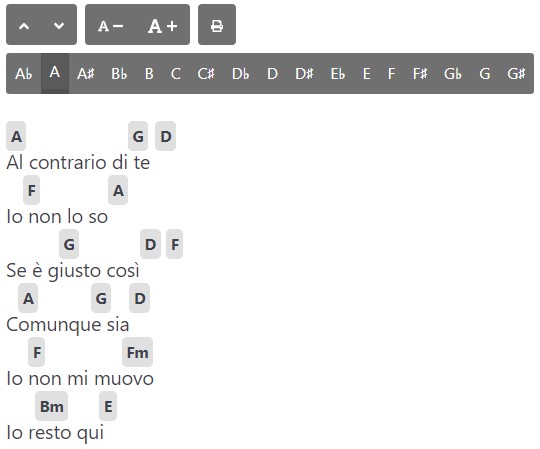
Final render.

Your source code in the editor.

Print preparation.
Changelog
1.0.0
- Initial release.
1.0.1
- Early Fix
1.0.2
- Icons Fix
- Added gray boxes around chords
1.0.3
- Performance fix
1.0.4
- 187 chords are available now!
- Added AMP availability (requires AMP plugin!)
- Added original chord visualizer
1.0.5
- Improved mobile interface
1.0.6
- Improved mobile interface
1.0.7
- Improved mobile interface
1.0.8
- Mobile Interface fix
1.0.9
- Mobile Interface fix
1.1.0
- Semi Tones fix
- Amp fix
- Add print feature