

WP Contact Form7 Email Spam Blocker
Contact Form 7 Email Spam Blocker is an easy-to-use plugin to block all those spammers who manually fill out forms on your website.
Plugin info
Maintenance & Compatibility
Maintenance score
Possibly abandoned • Last updated 489 days ago • 4 reviews
Is WP Contact Form7 Email Spam Blocker abandoned?
Possibly abandoned (last update 489 days ago).
Compatibility
Similar & Alternatives
Explore plugins with similar tags, and compare key metrics like downloads, ratings, updates, support, and WP/PHP compatibility.
Description
Contact Form 7 Email Spam Blocker is an easy-to-use plugin to block all those spammers who manually fill out forms on your website. It provides with an extra tab on each Contact Form 7 (CF7) edit screen where you can add email and email’s domain which you want to block. Spammer usually can be identified with the continuous, unwanted contact form submission on your website who include some sort of marketing text in their message, e-mail is usually from the same domain. Each time you find a new spammer irritating you, just add those emails in the block settings and show them a harsh spam message.
A brief Markdown Example
Ordered list:
- Manually email block
- Email domain block
- Mannully email domain block
- Email block
Installation
Step #1: Edit any CF7 form and click on Block Email’s/Email’s Domain tab.
Step #2: Add the emails or email’s domain that you want to block
Step #3: Enter the message to be shown to the spammer in ‘Set your error message’ field
Step #4: Enter the emails and email’s domain be blocked, comma seperated and just Save it.
OR
- Upload
contact-form-7-email-spam-blockerto the/wp-content/plugins/directory. - Activate the plugin through the ‘Plugins’ menu in WordPress.
- Goto contact tab and Edit any CF7 form and click on Block Email’s/Email’s Domain tab.
- Add the emails or email’s domain that you want to block
- Enter the message to be shown to the spammer in ‘Set your error message’ field
- Enter the emails and email’s domain be blocked, comma seperated and just Save it.
Frequently Asked Questions
We have allowed spam blocking on email and email domain fields of Contact Form 7 (CF7). For the sake of ease few field types (select, checkbox, radio, captcha, number) are not enabled.
Review feed
Screenshots

Spam email and email domain setting in contact form 7
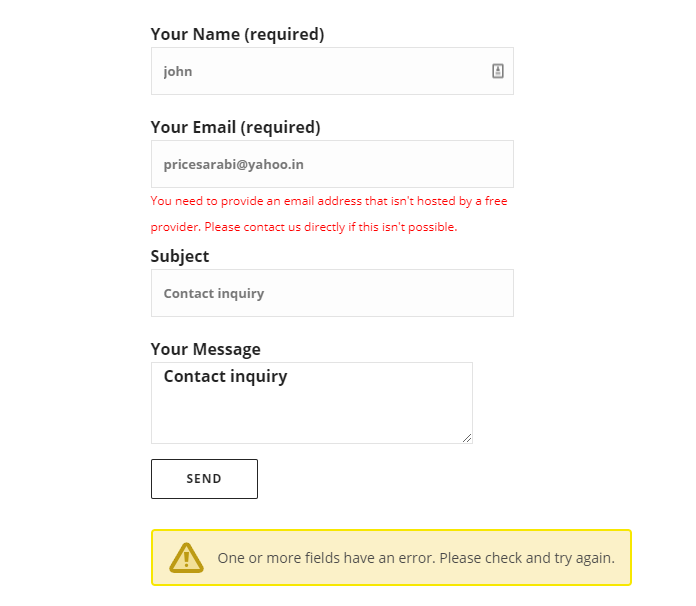
Restrict spam user to submit the form
Changelog
1.0
Launched