

WP e-Commerce Product Showroom
Description:A categorized product list multi widget/shortcodes.Works with the WP e-commerce(tested on 3.8.6 version). You can choose the number of pro …
Plugin info
Maintenance & Compatibility
Maintenance score
Possibly abandoned • Last updated 5306 days ago
Is WP e-Commerce Product Showroom abandoned?
Possibly abandoned (last update 5306 days ago).
Compatibility
Similar & Alternatives
Explore plugins with similar tags, and compare key metrics like downloads, ratings, updates, support, and WP/PHP compatibility.
Description
Description:A categorized product list multi widget/shortcodes.Works with the WP e-commerce(tested on 3.8.6 version). You can choose the number of products, the image size, category, change its css properties, use shortcodes.
Based on Sample Hello World Plugin 2 (http://lonewolf-online.net/) by Tim Trott(http://lonewolf-online.net/)
and WP e-Commerce Featured Product by Zorgbargle | Phenomenoodle http://www.phenomenoodle.com
More info about the plugin: http://www.wpworking.com/
Arbitrary section
Important notes:
It was tested on WP-ecommerce 3.8.6. For older versions, check version 1.0.0 of this plugin, that works only for WP-ecommerce 3.6 or lower;
It works only for sites databases with wp_ tables prefix(default WordPress prefix);
If you have any questions, please let me know [email protected]
This readme file were validated at https://wordpress.org/extend/plugins/about/validator/
Installation
Important notes:
It was tested on WP-ecommerce 3.8.6 requires WordPress 2.8 or higher. For older versions, check version 1.0.0 of this plugin, that works only for WP-ecommerce 3.6 or lower. See the last part of this topic to make it work with shortcodes.
It works only for sites databases with wp_ tables prefix(default WordPress prefix);
- After the steps bellow, go to the permalink settings page and update it without changing, it flushes
WordPress permalink settings and make the product permalink work.
- Upload
wp_e_showrpfolder to the/wp-content/plugins/directory - Activate the plugin through the ‘Plugins’ menu in WordPress
- Go to the permalink settings page and update it without changing
- Configure the widgets on your wp-admin pannel and save(see screenshot 1)
- As the result div uses a css class(showrpdiv), you can play with it and make the product list look like you want. Check the example bellow. If you put this on the same page you call the plugin, the list will change.
/*
.showrpdiv{
float:left;
}
.showrpdiv ul a{
color:red;
}
.showrpdiv li{list-style: none;}
*/
7. Go to the permalink settings page and update it without changing
To use shotcodes, go like that [wpeshow prodnr=”9″ tbwid=100 catg=” rndw=’true’]
just paste it on wp-admin post/page editor
/*
parameters:
prodnr : default = 9 number of products;
tbwid : default = 100 width of thumbnail;
catg : default = ” products category id;
rndw : default = ‘false’ random product order;
*/
Frequently Asked Questions
If you have any questions, please let me know [email protected]
Get free price quotes for plugin custom hacks on http://www.wpworking.com/consulting/
Review feed
Screenshots
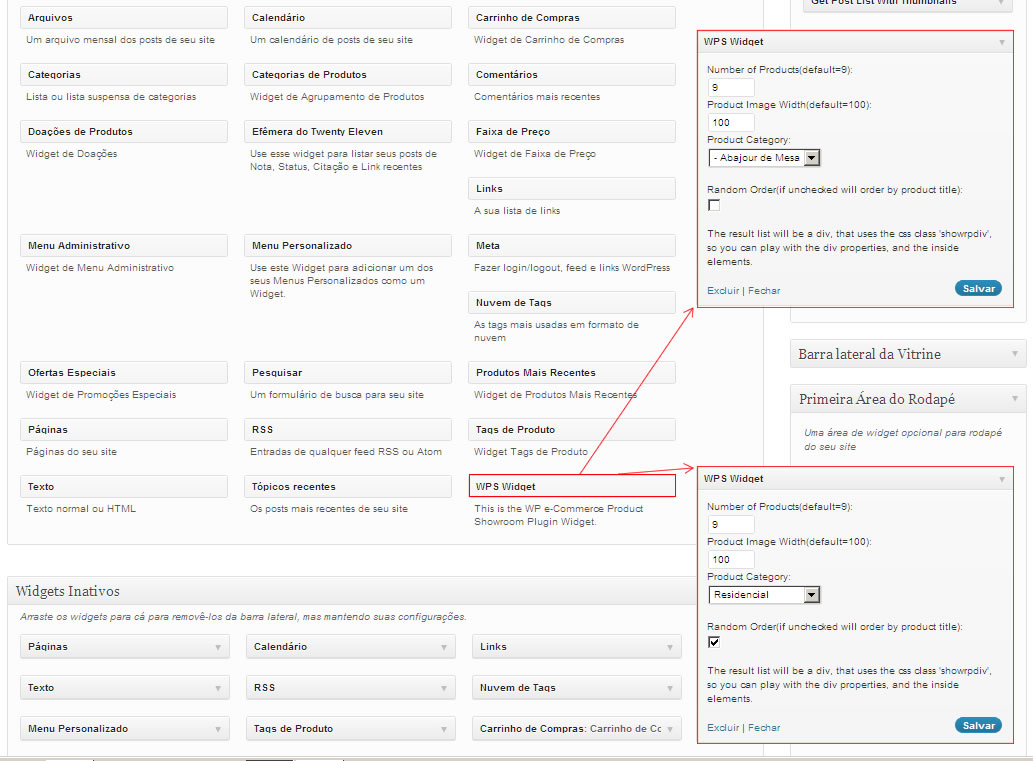
Configuring widgets parameters on wp-admin

See it working(with a little custom css and hack for add button) on http://www.schdseditora.com.br/htdocs/new/
Changelog
5.0.0 – supports multiple widgets
4.0.0 – product random order, supports shortcodes
To use shotcodes, go like that [wpeshow prodnr=”9″ tbwid=100 catg=” rndw=’true’]
just paste it on wp-admin post/page editor
/*
parameters:
prodnr : default = 9 number of products;
tbwid : default = 100 width of thumbnail;
catg : default = ” products category id;
rndw : default = ‘false’ random product order;
*/
3.0.0 Now you can choose a product category.
Important note: It was tested on WP-ecommerce 3.8.6. For older versions, check version 1.0.0 of this plugin, that works only for WP-ecommerce 3.6 or lower.