

WP Featured Screenshot
This plugin will allow you to take a screenshot of a website using the url and add it to your media library.
Plugin info
Maintenance & Compatibility
Maintenance score
Possibly abandoned • Last updated 2754 days ago • 5 reviews
Is WP Featured Screenshot abandoned?
Possibly abandoned (last update 2754 days ago).
Compatibility
Similar & Alternatives
Explore plugins with similar tags, and compare key metrics like downloads, ratings, updates, support, and WP/PHP compatibility.
Description
This plugin allows you add screenshots to your media library to use throughout your wordpress site as you would with any other image. It creates a copy of the screenshot on your web server to reduce the overhead on your site.
Please check out our WP Links Page Pro at http://wplinkspage.com/
Usage
- When adding a new post, click ‘Add Media’.
- Then click the ’Screenshot’ tab to the left.
- Type in the web address to use for the screenshot, and click ‘Add Screenshot’.
- The screenshot will appear in the table below the ‘Add Screenshot’ form, click the screenshot in the table.
- From here you can set the screenshot as your featured image or insert it into the post as you would with any other image in your media library.
For more information please visit http://wplinkspage.com/
Installation
Installation
Uploading via WordPress Dashboard
Navigate to the ‘Add New’ in the plugins dashboard
Navigate to the ‘Upload’ area
Select wp-featured-screenshot.zip from your computer
Click ‘Install Now’
Activate the plugin in the Plugin dashboard
Using FTP
Download wp-featured-screenshot.zip
Extract the wp-featured-screenshot.zip directory to your computer
Upload the wp-featured-screenshot.zip directory to the /wp-content/plugins/ directory
Activate the plugin in the Plugin dashboard
Frequently Asked Questions
Installation Instructions
Installation
Uploading via WordPress Dashboard
Navigate to the ‘Add New’ in the plugins dashboard
Navigate to the ‘Upload’ area
Select wp-featured-screenshot.zip from your computer
Click ‘Install Now’
Activate the plugin in the Plugin dashboard
Using FTP
Download wp-featured-screenshot.zip
Extract the wp-featured-screenshot.zip directory to your computer
Upload the wp-featured-screenshot.zip directory to the /wp-content/plugins/ directory
Activate the plugin in the Plugin dashboard
Review feed
Featured on iThemes Training Plugin Roundup Nov 2, 2015
Easy to use
Screenshots
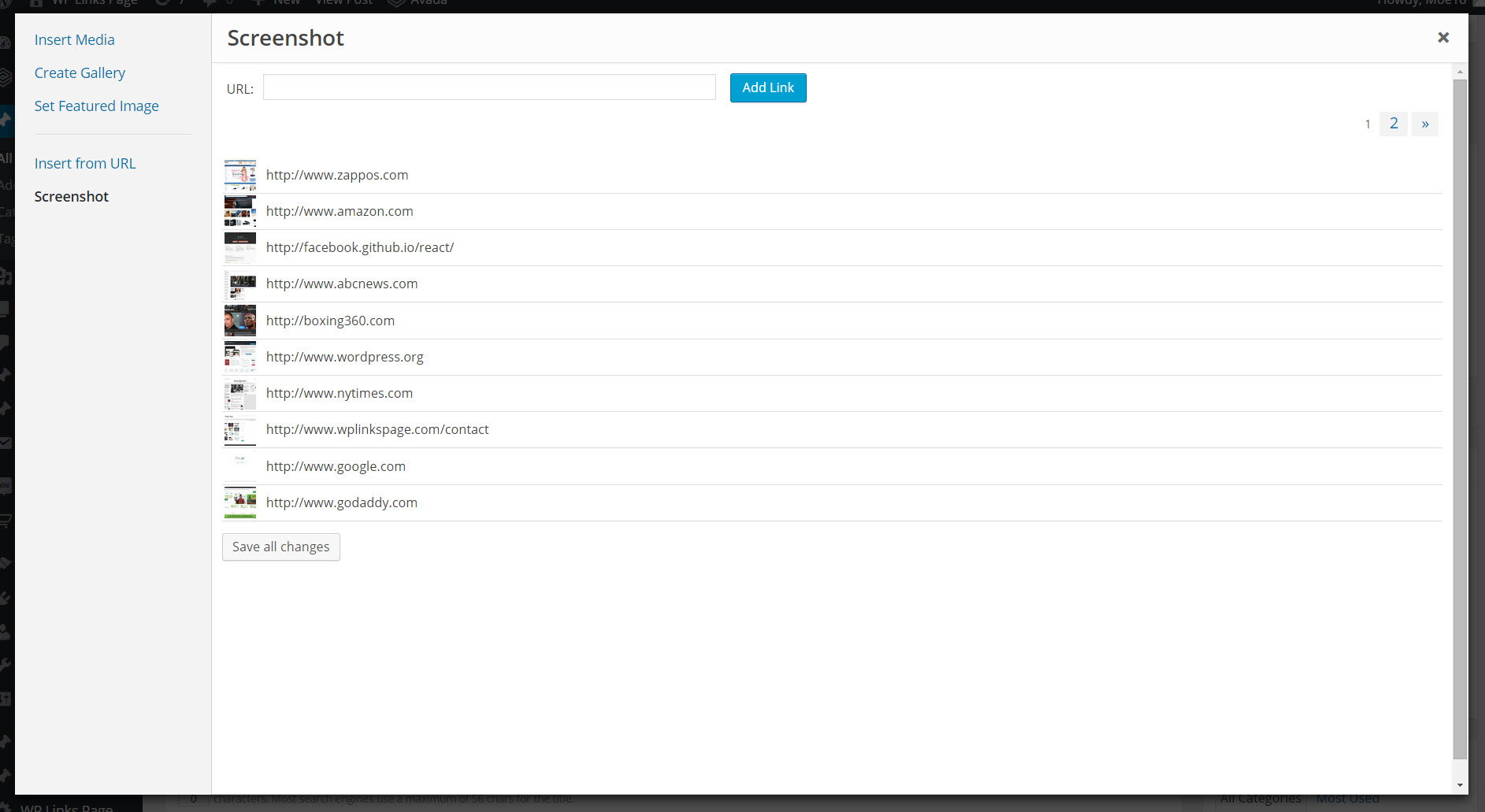
The Screenshot tab is added to the media library.

The image detail screen, used to add the screenshot to your post.
Changelog
Version 1.0
- Initial version of this plugin.