

WP Frontend Profile
WP Frontend Profile allows users to edit/view their profile and register/login without going into the dashboard to do so.
Plugin info
Maintenance & Compatibility
Maintenance score
Possibly abandoned • Last updated 525 days ago • 8 reviews
Is WP Frontend Profile abandoned?
Possibly abandoned (last update 525 days ago).
Compatibility
Languages
Similar & Alternatives
Explore plugins with similar tags, and compare key metrics like downloads, ratings, updates, support, and WP/PHP compatibility.
Description
WP Frontend Profile gives you the ability to add a extensible user profile section to the frontend of your WordPress website. By default the plugin adds two tabs to the frontend profile. One of these tabs, titled profile, allows a user to edit their user data including email, first and last names, URL and bio (description). The password tab allows a user to change their password for the site.
Plugin Extensibility
As the frontend profile is rendered with tabs you can easily add your own tabs with your own fields to store user meta data. Tabs and fields are added through filters and all the saving of the data is taken care of for you.
You can add the following field types:
- WYSIWYG
- Select
- Multi Select
- Radio
- Text Area
- Checkbox
- Password
- Text
See FAQs for how to add our own fields and tabs.
Profile Output
To output the frontend profile feature you can use the following shortcodes in editor:
- Profile page
[wpfep-profile] - Edit profile
[wpfep] - Register page
[wpfep-register] - Login page
[wpfep-login]
Features
- Added Login Widget
- Addon for Mailchimp
- Added Content Restriction feature for paid members.
Installation
- Upload the plugin folder to the
/wp-content/plugins/directory - Activate the plugin through the ‘Plugins’ menu in WordPress
After having installed the plugin:
1. Create a new Page “Profile” for profile and insert shortcode [wpfep-profile]
2. Create a new Page “Edit Profile” for editing profile and insert shortcode [wpfep]
3. Create a new Page “Login” for login form and insert shortcode [wpfep-login]
4. Create a new Page “Register” for registration form and insert shortcode [wpfep-register]
5. Set the Edit Page option from Pages tab on settings page.
Frequently Asked Questions
For more information and more extensive documentation about this plugin checkout the WP Frontend Profile Wiki on Github.
Tabs can be added using the wpfep_tabs filter provided. Below is an example of how to add a tab after the default Profile and Password tabs.
<?php
function wpmark_add_tab( $tabs ) {

    /* add our tab to the tabs array */
    $tabs[] = array(
        'id' => 'wpmark_tab',
        'label' => 'Testing',
        'tab_class' => 'testing-tab',
        'content_class' => 'testing-content',
    );

    /* return all the tabs */
    return $tabs;

}

add_filter( 'wpfep_tabs', 'wpmark_add_tab', 30 );
?>
Note here the priority of 30 which means after the Profile tab (10) and the Password tab (20).
Fields can be added to a tab using a dynamic filter named wpfep_fields_$tab_id. The tab ID is the id of tab as declared when adding the tab (see FAQ above). This means that you can add fields to any tab even the default tabs. Below is an example of how you would add fields to a tab with the ID of wpmark_tab:
<?php
function wpmark_add_tab_fields( $fields ) {

    $fields[] = array(
        'id' => 'testing_field',
        'label' => 'Testing',
        'desc' => 'Just testing.',
        'type' => 'text',
        'classes' => 'testing',
    );

    return $fields;

}

add_filter( 'wpfep_fields_wpmark_tab', 'wpmark_add_tab_fields', 10 );
?>
Yes there are two field IDs reserved which are user_email and user_url. This is because you should not save new meta data with these keys are they already exist, but not in the user_meta table.
Review feed
Screenshots

WP frontend profile edit page.

WP frontend profile register page.

WP frontend profile login page.

WP frontend profile setting area.
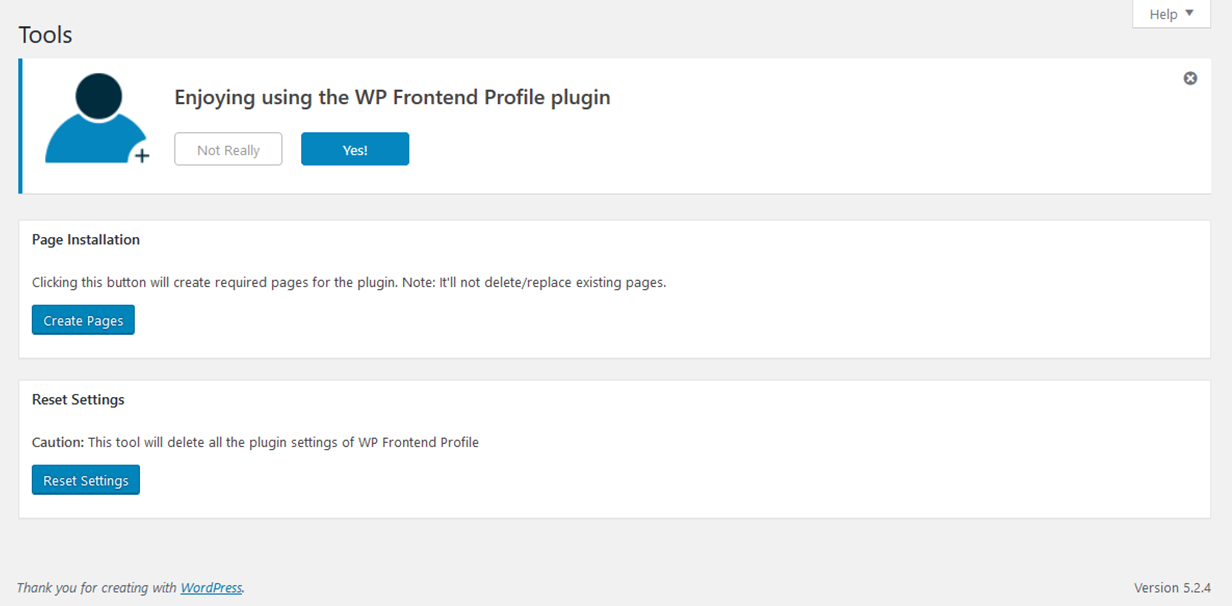
WP frontend profile tool area.

WP frontend profile system status area.
Changelog
For the plugin’s changelog, please see the changelog page on GitHub.