

Plugin info
Maintenance & Compatibility
Maintenance score
Possibly abandoned • Last updated 2268 days ago • 2 reviews
Is WP Gatsby Markdown Exporter abandoned?
Possibly abandoned (last update 2268 days ago).
Compatibility
Similar & Alternatives
Explore plugins with similar tags, and compare key metrics like downloads, ratings, updates, support, and WP/PHP compatibility.
Description
The plugin creates zip files containing posts converted to Markdown. A WP-CLI command exists to handle exporting sites with a large amount of content.
- Move WordPress content to Gatsby-friendly Markdown.
- Customize the export! Remap and restructure exported fields.
- CLI: Avoid PHP timeouts by using the command line with WP-CLI.
- CLI: Export progress bar (great for large sites)!
Reminder: always keep a backup of the WordPress database and files in case your export doesn’t work as expected!
Working with Gatsby
If you’re just getting started with Gatsby, we recommend experimenting with a Markdown based Gatsby starter like Tina Grande. Installation is as easy as:
git clone https://github.com/tinacms/tina-starter-grande.git

cd tina-starter-grande

yarn install && gatsby develop
Then copy your exported WordPress Markdown into the content directory or point the wp gatsby-markdown-export command at the content directory.
Want to port your WordPress or HTML theme to Gatsby? Checkout Porting an HTML Site to Gatsby for tips.
Command Line Usage
The command line functionality uses WP-CLI to interact with WordPress. WP-CLI is easy to install if you haven’t already.
Once it’s installed, you can export content to a directory like this:
wp gatsby-markdown-export --directory=/example/gatsby-starter/src/content
All CLI arguments are optional.
Option
Description
Default value
--help
get help
--directory=
export output directory
random temp directory
--post_types=
post types to export, see: https://developer.wordpress.org/reference/classes/wp_query/#post-type-parameters
page,post
--post_status=
post status to export, see: https://developer.wordpress.org/reference/classes/wp_query/#status-parameters
any
--fields_to_markdown=
fields to convert to Markdown
excerpt
--excluded_front_matter=
fields to exclude from front matter
--post_date_format=
format for post publish date, see: https://www.php.net/manual/en/function.date.php
c
--upload_dir=
directory in the export to copy WordPress uploads
uploads
--remap_fields=
remap front matter field names, example: find1,replace1;find2,replace2
--fields_to_array=
convert single value front matter fields to arrays
--include_private_fields=
private post meta fields to include (they start with _)
--skip_copy_uploads
flag, skips copying WordPress uploads to the export
--skip_original_images
flag, skips the use of original dimension images
--skip_enforce_charset
flag, skips use of blog_charset for the XML charset
--create_type_directory
flag, creates directories based on post type
Installation
- Upload the plugin files to the
/wp-content/plugins/plugin-namedirectory, or install the plugin through the WordPress plugins screen directly. - Activate the plugin through the ‘Plugins’ screen in WordPress
- Use the Settings->Export to Gatsby screen to export content
Frequently Asked Questions
What does `Warning: The markdown converter encountered invalid HTML and could not convert the content at:` mean?
This means that the markdown converter couldn’t convert the referenced post to markdown, so we will just copy the HTML as it is.
Review feed
Screenshots
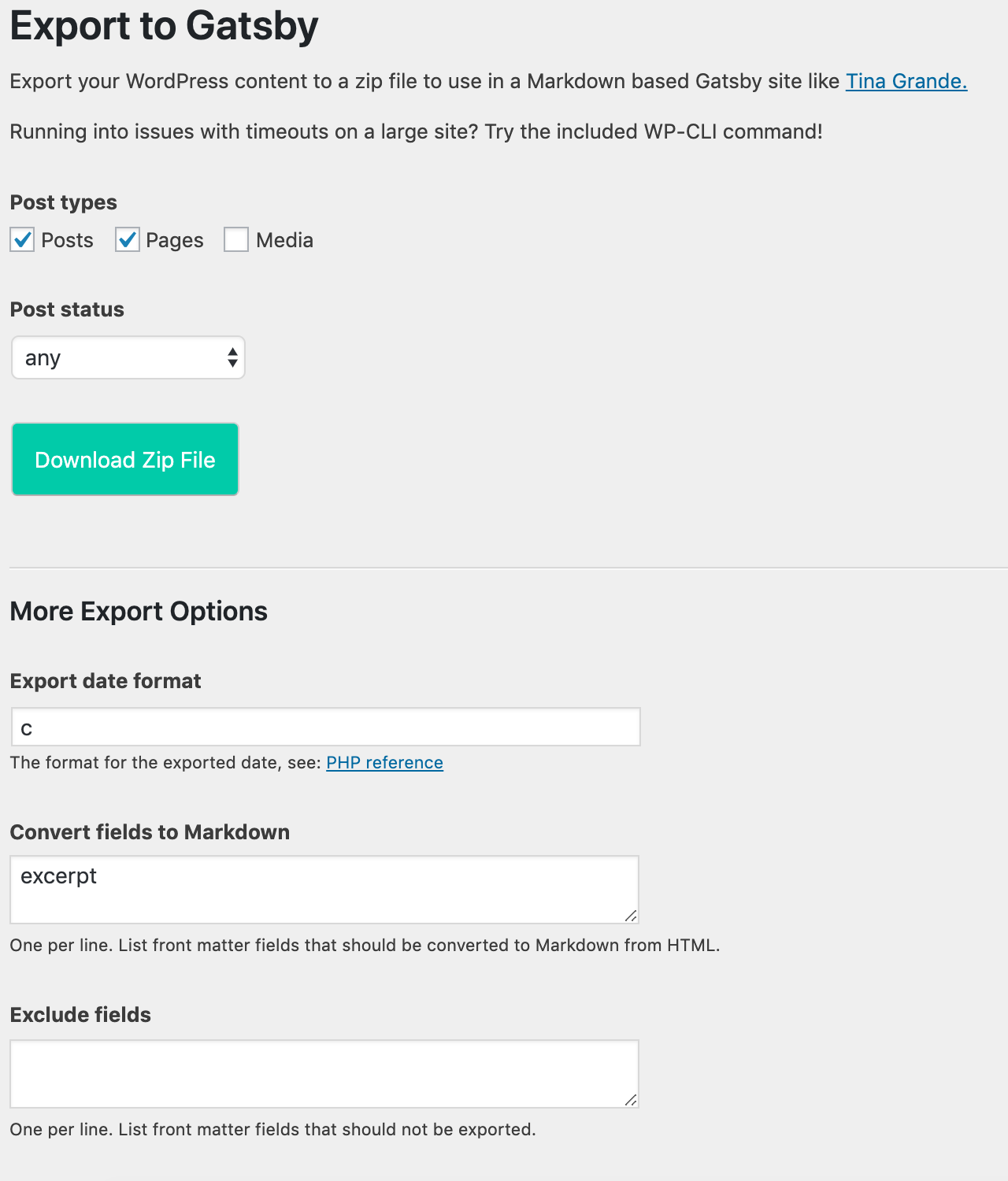
The export options form allows for customization of the exported Zip file.
Changelog
0.3.3
- Support including private post meta fields (like Yoast)