

WP Go Maps Block
The easiest-to-use Google Maps plugin is now available as a standalone map block! Create custom Google maps or OpenLayers maps with high-quality marke …
Plugin info
Maintenance & Compatibility
Maintenance score
Stale • Last updated 353 days ago • 19 reviews
Is WP Go Maps Block abandoned?
Likely maintained (last update 353 days ago).
Compatibility
Languages
Similar & Alternatives
Explore plugins with similar tags, and compare key metrics like downloads, ratings, updates, support, and WP/PHP compatibility.
Description
The easiest to use Google Maps and Open Layers Map Plugin is now available as a standalone map block!
Create a custom map block with high-quality markers and add them to your WordPress posts and pages effortlessly. Perfect for contact pages, business locations, event venues, and more!
Map blocks are lightweight and deliver optimal performance, ensuring a seamless experience for your WordPress site. They’re easy to customize, allowing you to quickly add and configure maps to suit your needs without compromising site speed or performance.
If you need more features like multiple markers, shapes, and a store locator, our full (free) WP Go Maps plugin might be perfect for you.
Block Features
- Add unlimited map blocks to your posts/pages
- Choose between Google Maps or OpenLayers for each block
- Edit your marker directly from the block editor
- Set marker location by free location search, or by right-clicking on the map preview
- Preview your map in real time, within the block editor
- Easy to use and customize without any coding experience
- Control width, height and alignment of your maps
- From the team that brought you the most popular Google Maps plugin on WordPress
- Lightweight for optimal performance
- No database queries or tables
- Basic info-window for your marker
- Control zoom level of your map
- Support for localization
- Latest Google Maps API
- Latest OpenLayers API
Already using WP Go Maps? You can still use this block for single locations, as it is fully integrated with both our basic and Pro versions!
References
We make use of a various libraries and 3rd party service providers in order to render maps in your preferred mapping engine. This section will describe each of these in more detail and when they are used.
- OpenLayers: Served from a local library file (lib/ol.js & lib/ol.css), provided by OpenLayers. We use this library when you set your block to use OpenLayers (default). You can find the source files on the OpenLayers GitHub.
- OpenStreetMap: When you select the OpenLayers engine, a default map tile server is used, which is provided by OpenStreetMap. This is a 3rd party service provider that we rely on to render your map. They may also make use of MapBox for some of their assets.
- Google Maps API: If you decide to use Google Maps as your map engine, we will include the Google Maps API as a 3rd party service provider that we rely on to render your maps. In this case, admin map previews are still rendered by OpenLayers and OpenStreetMap.
- Nominatim (OpenStreetMap): If you perform an address search within the admin area, we will make use of the OpenStreetMap Nominatim to lookup locations and suggest addresses to you. This is a 3rd party service provider that we rely on for address searches.
Installation
Installing and adding a map
- Thank you for choosing WP Go Maps Block! In order to create your first map, simply activate the plugin and edit any post or page.
- From the block menu find the Map Block and place it at your preferred location.
Adding a marker to a map
- Select the Map Block within your page and take a look at Location section within the block inspector.
- Search for a location and pick from the provided results.
- If you require more accuracy or your address cannot be found, right click on the map preview to place your marker instead.
- You can enter any “Address” to be shown in your info-window
Additional Options
- Select the Map Block within your page and have a look at the sections in the block inspector
- Here you will find sections for customizing dimensions and alignment, map engine, and info-window behaviour
Frequently Asked Questions
Our WP Go Maps plugin can be found on the WordPress plugin directory. It can be installed alongside the block plugin if you need more features like multiple markers, shape support or a store locator!
Once the plugin is activated, simply edit the post/page and drag the Map Block into your map.
If you are using the full plugin alongside our lightweight block plugin, the block name will be change to Single Location instead, as the full plugin includes it’s own map block which is more focused on full map features.
Yes we are! We decided to build a lightweight standalone map block to help users who need a simple map, perfect for a contact page, without the need for any more advanced features.
Review feed
Screenshots
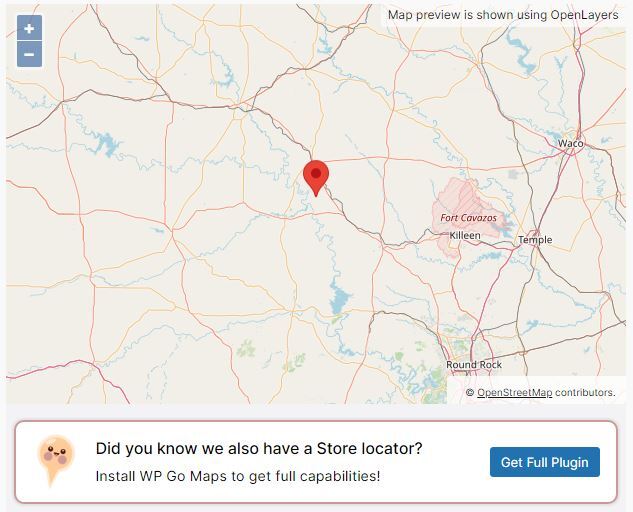
Block editor preview
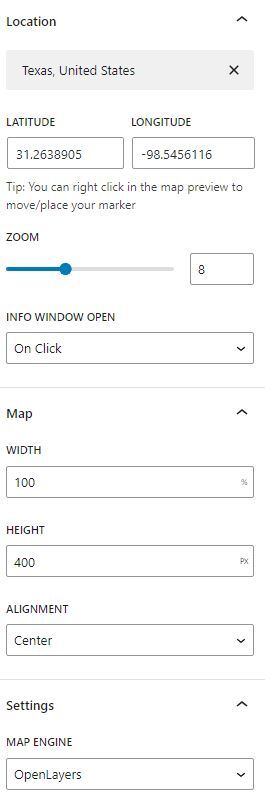
Block settings overview
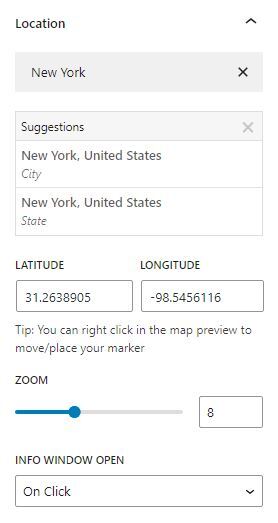
Location settings

Map settings
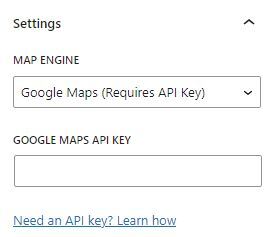
General Settings
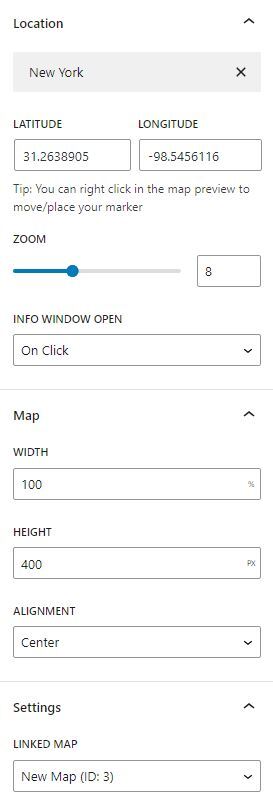
Settings overview with full plugin
Changelog
1.0.0 – TBD
- Launch!