

WP INBOX
WP INBOX is the first plugin developed for managing your multiple email accounts within your Wordpress Dashboard.
Plugin info
Maintenance & Compatibility
Maintenance score
Possibly abandoned • Last updated 1855 days ago • 2 reviews
Is WP INBOX abandoned?
Possibly abandoned (last update 1855 days ago).
Compatibility
Similar & Alternatives
Explore plugins with similar tags, and compare key metrics like downloads, ratings, updates, support, and WP/PHP compatibility.
Description
WP INBOX is the first plugin developed by SOFTBRANCH for managing your multiple email accounts within your WordPress Dashboard.
We tried our best to provide you the best and the smoothest user experience to check or manage your email. Easy-to-use admin interface to configure multiple email accounts in few clicks.
We are continuously updating our plugin with new features and security patches.
WP INBOX comes with many options like creating labels, Mark as Important, Trash, Reply and more….
Functions
- Email Inbox
- Label Email
- Important Email
- Star Email
- Send Email
- Receive Email
- Forword Email
- Trash Email
- Email Attachments
Buy PRO Version
- Tons of Features with multiple email management in PRO Version.
Translations
- Arabic / عربي
- Spanish / español
- Czech / čeština
- Danish / dansk
- Dutch / nederlands
- English
- French / français
- German / deutsch
********* Convert WP Inbox plugin in your language – Use Loco Translate and Loco Automatic Translate Addon *********
Live Demo
https://wordpress.org/plugins/wp-inbox/
Installation
- Open your Cpanel
- Click on Select PHP Version
- Enable the IMAP.
- Upload the plugin files to the
/wp-content/plugins/directory, or install the plugin through the WordPress plugins screen directly. - Activate the plugin through the ‘Plugins’ screen in WordPress
- Click on INBOX->Settings to configure the plugin
- Email ID is created in Menu.
- Click on Email
- Click on Refresh button to load Emails.
Frequently Asked Questions
Yes, you need to enable your IMAP.
Please create ticket in plugin support forum.
Review feed
Screenshots
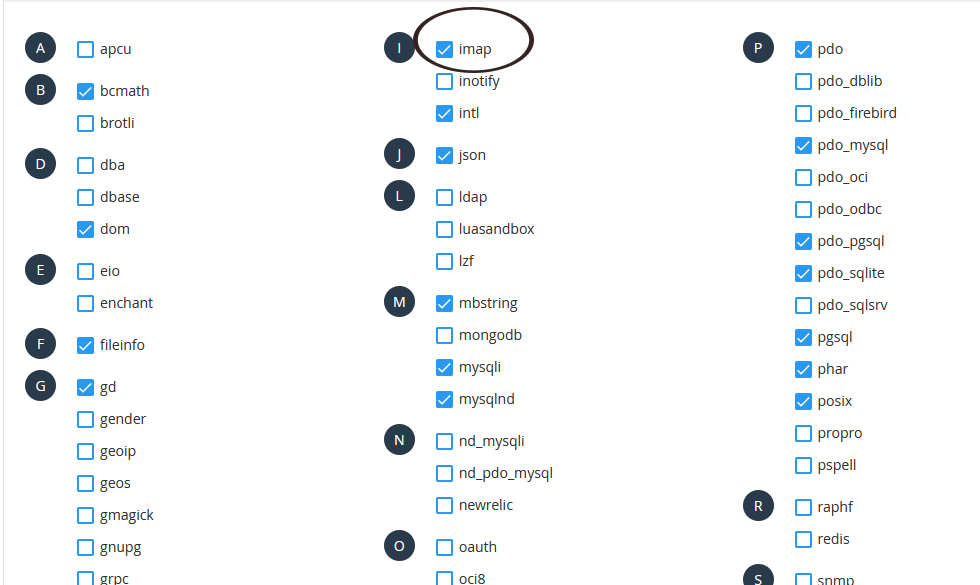
Enable IMAP

Menu Link

Enter Settings

Load Emails