

Plugin info
Maintenance & Compatibility
Maintenance score
Possibly abandoned • Last updated 3060 days ago • 26 reviews
Is WP Post Navigation abandoned?
Possibly abandoned (last update 3060 days ago).
Compatibility
Similar & Alternatives
Explore plugins with similar tags, and compare key metrics like downloads, ratings, updates, support, and WP/PHP compatibility.
Description
WP Post Navigation Plugin gives you facility to show Previous and Next Post Links at the Top or Bottom of a Post.
You can set to navigate within category or date wise navigation. You’ve the option to set Post Navigation Bar at Bottom, Top or both Top & Bottom.
You can apply CSS style to Previous and Next Post Links. You can set custom text instead of Next and Previous Post Titles.
You can set custom Image for Next and Previous Post Links.
Manually Place Post Navigation in single.php, just Copy & paste following code anywhere in single.php page under get_header();
WP_Custom_Post_Navigation():”; ?>
For Help visit: http://sharp-coders.com/wp-post-navigation/
Installation
Step 1
- Download zip file and Extract it
- Upload wp-post-navigation folder to your /wp-content/plugins/ folder.
- Go to the ‘Plugins’ page in the menu and activate the plugin.
Step 2
- Go to Wodpress Admin Panel > Setting > WP Post Navigation
- If you want to apply CSS style to Previous and Next Post Links, then write CSS Code in CSS Code for Links Box.
- If you want to apply custom text to Previous and Next posts instead of Post Titles, you can enable the Option Custom Text and Set Previous & Next Post Text.
- If you want to use Images for Previous and Next post links instead of text, you can enable Use Images Options and give complete url of the images.
Frequently Asked Questions
Installation Instructions
Step 1
- Download zip file and Extract it
- Upload wp-post-navigation folder to your /wp-content/plugins/ folder.
- Go to the ‘Plugins’ page in the menu and activate the plugin.
Step 2
- Go to Wodpress Admin Panel > Setting > WP Post Navigation
- If you want to apply CSS style to Previous and Next Post Links, then write CSS Code in CSS Code for Links Box.
- If you want to apply custom text to Previous and Next posts instead of Post Titles, you can enable the Option Custom Text and Set Previous & Next Post Text.
- If you want to use Images for Previous and Next post links instead of text, you can enable Use Images Options and give complete url of the images.
Which is the good place to show Post Navigation?
In my opinion, at the Bottom of the Content.
Review feed
What I wanted
Screenshots

Admin Panel Setting
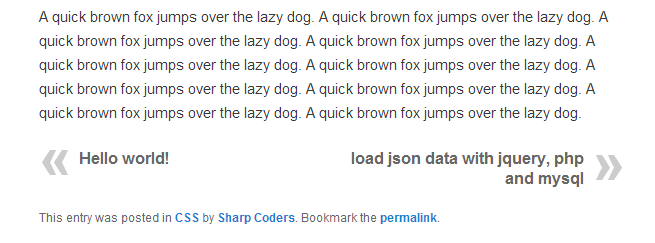
WP Post Navigation

Changelog
= 1.2.4
* Testet on WordPress 4.7.4
= 1.2.3
* Post Next/Previous position Reseverse option added
* Disable Auto place navigation option is added (You can disable auto and can place navigation manually)
* On updation you’ll not lose your previous settings
* Bugs Fixed
1.2.2
- Bugs Fixed
- Position option is removed, by default shows at the bottom
- Manually Place Post Navigation anywhere in single.php file
1.2.1
- Bugs Fixed
1.2
- Compatible with WordPress 3.8
- Show Post Navigation above the Post Title
1.1
- Navigate Within Category Option Added
1.0.1
- Bugs Fixed