

WP User Stylesheet Switcher
Adds a list (or multiple list) of stylesheets in the frontend to allow visitors to choose a different visual look for the website.
Plugin info
Maintenance & Compatibility
Maintenance score
Possibly abandoned • Last updated 3458 days ago • 16 reviews
Is WP User Stylesheet Switcher abandoned?
Possibly abandoned (last update 3458 days ago).
Compatibility
Similar & Alternatives
Explore plugins with similar tags, and compare key metrics like downloads, ratings, updates, support, and WP/PHP compatibility.
Description
Sometimes, we just want to offer visitors simple variations of our website theme. Sometimes, we simply want to offer a stylesheet with improved accessbility. There are plugins that let you choose a different theme, but this plugin offers you to change only the stylesheet. In the admin settings, you can configure as many different stylesheets as you want. Those possibilities are offered in a list on the front page.
The list of available stylesheets can be shown in a dropdown list or as a series of icons. It can be shown using the widget or in a page/post using the shortcode, or directly in the template using the php function.
On the frontend, when a choice is made in the dropdown list, the webpage is reloaded using the chosen stylesheet.
Plugin Features
- Easy installation/setup
- Any number of switchers
- Each switcher can have any number of stylesheet options
- Set a default stylesheet
- Multiple instances of switchers/stylesheet lists can be present on the same page.
- Choice between a dropdown or icon list for each list
- Can be used with a shortcode in a post/page, with the widget and with a php function in the theme
- For each list, possibility to show/hide the title
- Optional single switcher button (text or icon)
- Chose between theme relative path or absolute path (useful to customize multisite)
- Optional automatic theme rotation (weekday, week, month, year or random)
- Ready for internationalization
- Complete uninstall (removes options and widgets)
Languages already available
- English
- French
- Spanish (thanks to Andrew Kurtis from WebHostingHub)
- Serbo-Croatian (thanks to Andrijana Nikolic from WebHostingGeeks)
To see an example, visit plugin page.
Installation
- Place the wp_user_stylesheet_switcher folder in the wp-content/plugins folder.
- Activate the plugin through the ‘Plugins’ menu in WordPress.
- Go in Settings->WP User Stylesheet Switcher to setup the alternative stylesheet files. The CSS files should be in the same folder as the other CSS files. Most commonly, this is the theme folder or the child-theme folder.
- Add an optional icon file for each stylesheet if you want to use the icon list instead of the dropdown list
- Tell WordPress to show the stylesheet list by adding the shortcode [wp_user_stylesheet_switcher] in a page/post or put the widget in a sidebar. Alternatively, you can use the php function show_wp_user_stylesheet_switcher() in your theme, for example to have the list in the footer on every pages of your website (see details below).
- If using icons, customize the look of the list in the CSS files.
Options for the shortcode
- switcher_id : Reference of the switcher to display (shown in the switcher admin page)
- list_title : Used to set a title to the list of stylesheets
- list_type : Select between “dropdown” “icon” or “button”. The dropdown list is set by default. “Button” will show only only button to rotate between available stylesheets.
- show_list_title : Set to “false” if you don’t want any list title. “true” by default.
Example : [wp_user_stylesheet_switcher switcher_id="s0" list_title="Available styles" list_type="icon" show_list_title="false"]
If using the php function show_wp_user_stylesheet_switcher(), you can customize the list using an array of variables (similar to the shortcode) : array('switcher_id'=>'s0', 'list_title'=>'Available styles', 'show_list_title'=>'true', 'list_type'=>'icon')
By default <?php show_wp_user_stylesheet_switcher(); ?> will show a dropdown list with the default list title. But you can also pass an array like this :
show_wp_user_stylesheet_switcher(array(‘switcher_id’=>’s0’, ‘list_title’=>’Available styles’, ‘show_list_title’=>’true’, ‘list_type’=>’dropdown’));?>
To customize the icon list, place the icons in your the theme folder (where the CSS are).
You can give a different look for the icon list for each CSS files.
If no icon files are specified in the admin settings, the buttons will show the name of the stylesheet.
If you want to offer the option of desactivating all stylesheets, you have to add an option give a name to that option and specify a an empty css file in the configuration page. Then, select that option in the droplist “Option to remove stylesheets”.
Show icon link
If showing the available stylesheets as icons, you can also print the name of the stylesheets before, after, over or under the icon. In php, you would add ‘icon_names’=>’after’ to the array to show the names after each icon.
Automatic stylesheet rotation
This option offer to possibility to automatically change the stylesheet. There are different options (weekday, week, month, year or random)
The switcher will simply rotate one stylesheet after the other. So if you want a different stylesheet for each season, setup 4 different stylesheet options and set the default to the actual season.
If you don’t want any automatic rotation (default), select “none”.
CSS classes to use
- button.wp_user_stylesheet_switcher_button : for the general buttons aspect
- img.wp_user_stylesheet_switcher_icon : for the image inside the buttons
- button.wp_user_stylesheet_switcher_button:active : for the button being pressed
- button.wp_user_stylesheet_switcher_active_option : for the active stylesheet
Here an example:
button.wp_user_stylesheet_switcher_button {
padding: 0;
margin: 1px;
border: none;
}
img.wp_user_stylesheet_switcher_icon {
    border: none;
    padding: 0px;
    margin: 0px;
    width: 30px;
    height: 30px;
    vertical-align:middle;
}

button.wp_user_stylesheet_switcher_button:active {
    padding: 0;
    margin: 1px;
}

button.wp_user_stylesheet_switcher_active_option {
    padding-bottom: 1px;
    border-bottom: 3px rgb(185, 50, 7) solid;
    border-radius: 0px;
}
Frequently Asked Questions
Why this plugin?
I couldn’t find this solution in other plugin, so I developped it. This plugin is useful when developping a website, so we can keep a few alternative stylesheet and switch back and forth, or let a client chose his favorite one.
How do you setup the css files for a child theme
In my child theme folder, my style.css file only contains the link to the original theme css: @import url(“../twentythirteen/style.css”);
Then my other files only need to override the original styles.
Review feed
Works Great
Screenshots
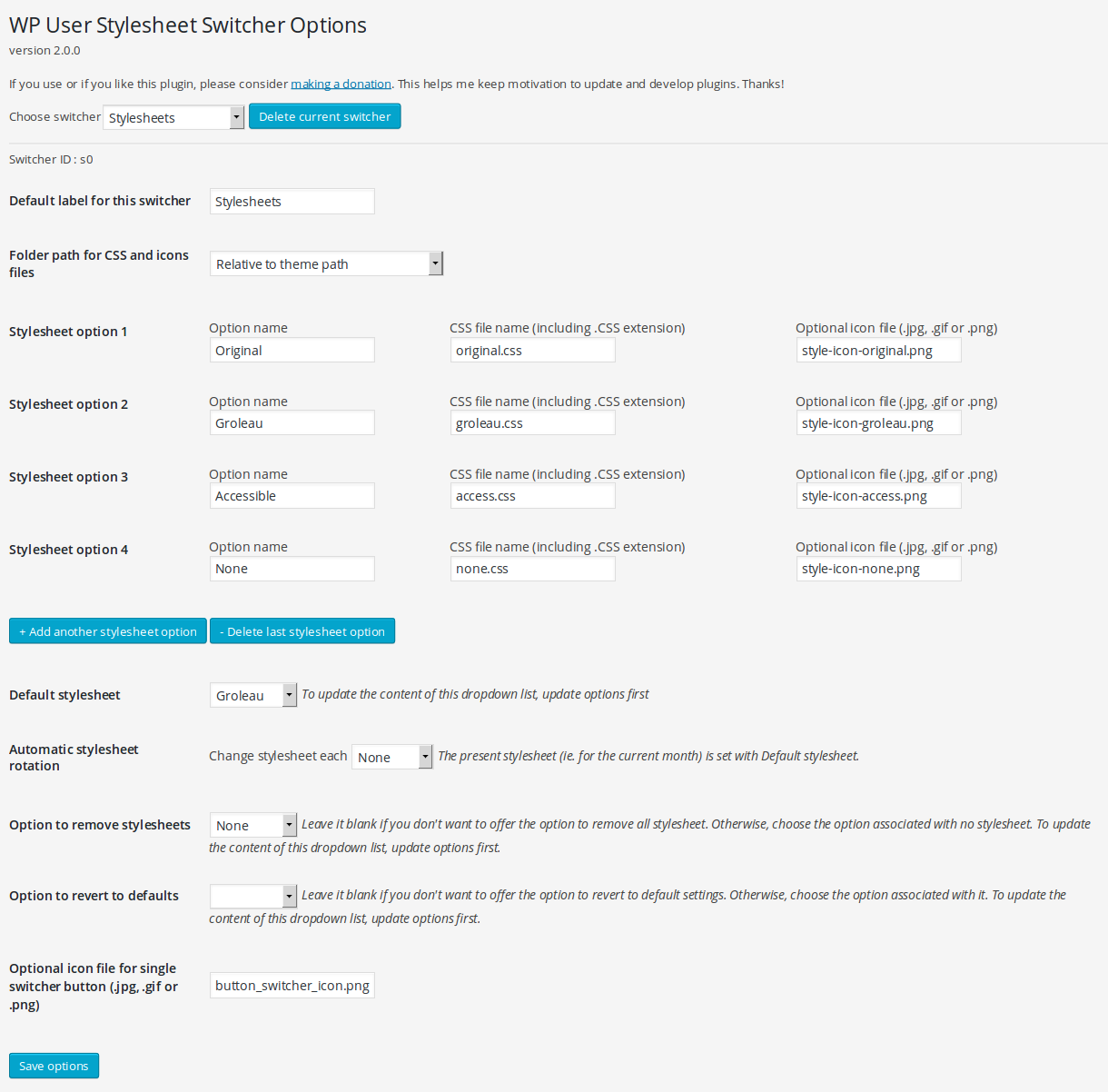
Setup page in admin->settings
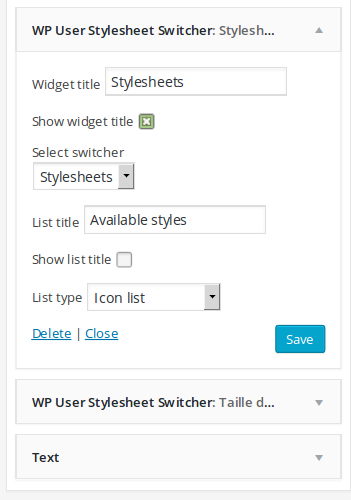
Widget options
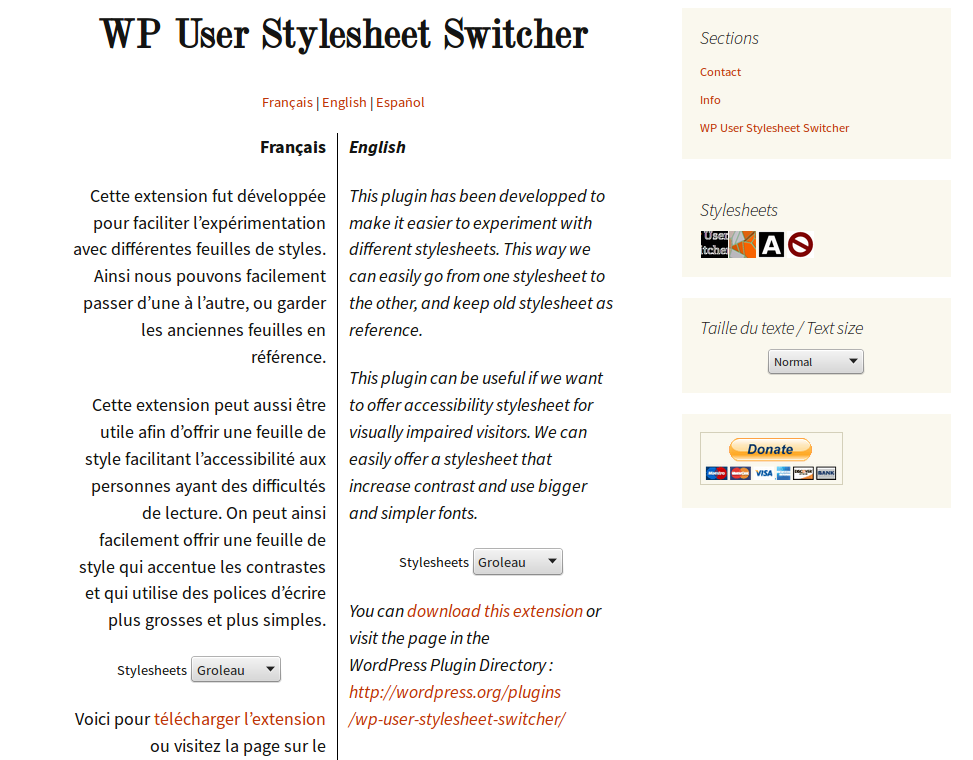
Dropdown list and icon list visible in the frontend
Changelog
2.2.0
- Update cookie.js
- Update readme file
- Fix Cookies conflicts
- Fix php7 warning for class constructor
2.1.1
- Update cookie.js
- Fix absence of cookie.js if no switcher loaded
- Fix WP_Widget constructor for 4.3.0
2.1.0
- Add the possibility to show link text with the icon (before, after, over or under)
- Add Serbi translations
2.0.3
- Fix stylesheet flashes when changing page
2.0.2
- Fix array initialization problem (“array()” instead of “[]”) for older php versions (< 5.4)
2.0.1
- Fix missing .js files
2.0.0
- Multiple different switchers
- No more page reload (using javascription instead of forms)
- Preserver user choice using a cookie
1.6.1
- Fix blank page on automatic rotation.
1.6.0
- Fix session start condition
- Option to have automatic theme rotation
- Option to chose between relative or absolu path (useful for multisites)
- Add plugin icon and banner
1.5.8
- Fix blank option update in config page
1.5.7
- Ignore empty options when using single switcher button
1.5.6
- Fix blank page when upgrading
- Add information to “Option to remove stylesheets”
1.5.5
- Fix missing js file
- Add explanation for the “no stylesheet” option.
1.5.4
- Add optional single switcher button (with text or icon) to rotate between stylesheets
- Add option to remove all styles and stylesheets.
- Increase filename maxlength
- Change stylesheet priority when loading them.
1.5.2
- Fixes default stylesheet with more then five stylesheets
1.5.1
- Adds Spanish translation
1.5.0
- Internationalization of this plugin
- Internal update toward OOP (class for the plugin and for the widget)
1.0.1
- Set defaults to php function show_wp_user_stylesheet_switcher()
1.0.0
- Possibility to choose between an icon list of a dropdown list
- Add option to the shortcode and the widget
- Fixes layout positioning bug with Twentythirteen theme
- Manage uninstall to remove options/widgets
0.2.0
- No limits for the number of stylesheets to offer.
0.1.0
- First stable version released.