

WP Video Playlist
Easily create and display video playlists on your WordPress site using media files or YouTube videos.
Maintenance 28/100480d since update
Active installs
100
Downloads
4,569
Reviews
1
Age
7.1y
Plugin info
Total downloads: 4,569
Active installs: 100
Total reviews: 1
Average rating: 5
Support threads opened: 0
Support threads resolved: 0 (0%)
Available in: 1 language(s)
Contributors: 2
Last updated: 12/11/2024 (480 days ago)
Added to WordPress: 2/24/2019 (7 years old)
Minimum WordPress version: 3.6
Tested up to WordPress version: 6.7.4
Minimum PHP version: 5.7
Maintenance & Compatibility
Maintenance score
Possibly abandoned • Last updated 480 days ago • 1 reviews
28/100
Is WP Video Playlist abandoned?
Possibly abandoned (last update 480 days ago).
Compatibility
Requires WordPress: 3.6
Tested up to: 6.7.4
Requires PHP: 5.7
Similar & Alternatives
Explore plugins with similar tags, and compare key metrics like downloads, ratings, updates, support, and WP/PHP compatibility.
Better Video & Playlist
Rating 3.0/5 (2 reviews) • Active installs 10
Description
Easily create and display video playlists on your WordPress site using media files or YouTube videos.
Features
- Add video items to a playlist directly from your media files.
- Include YouTube videos in your playlist.
Shortcodes
Use the following shortcode to display the video playlist anywhere on your site:
[videoplayer]
Installation
- Download the plugin
.zipfile. - Log in to your WordPress admin panel.
- Navigate to Plugins Add New Upload Plugin.
- Upload the
.zipfile and install the plugin. - Activate the WP Video Playlist plugin from the plugin list.
- Go to Video Player, add your videos, and enjoy!
Frequently Asked Questions
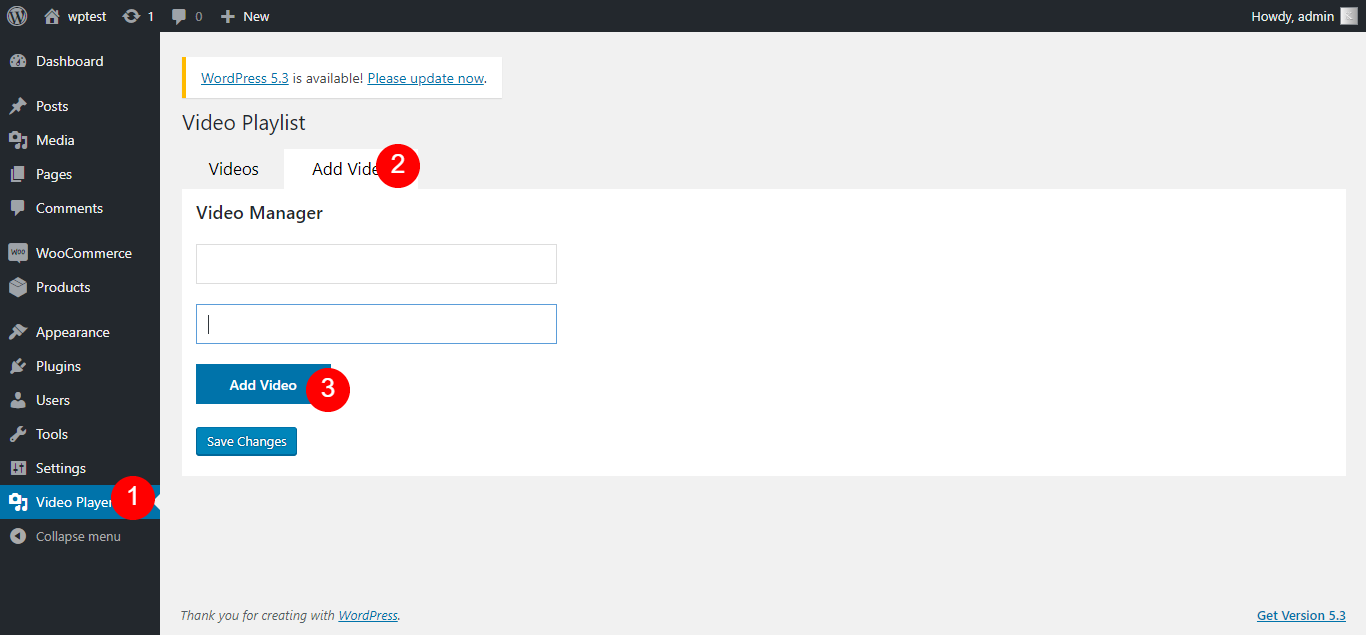
- Navigate to Video Player from the WordPress sidebar.
- Click Add Video beside the Videos section.
- Click the Add Video button and select the video you want to add.
- Optionally, add a custom title and URL:
- The first field is for the video title.
- The second field is for the video URL.
- Click Save to finalize your playlist.
- Copy the generated shortcode and paste it wherever you want to display the video player.
- Open the page where you want to add the Video Player.
- Locate the FDK category in the Elementor sidebar.
- Drag and drop the Video Player widget into your desired location on the page.
- Open the page or post where you want to add the WP Video Playlist block.
- Click the Add Block button (the + icon).
- Search for WP Video Playlist in the block search bar.
- Click on the WP Video Playlist block to add it to your content.
- Configure the block settings as needed.
- Publish or update the page to display the video playlist.
Review feed
No reviews available
Screenshots


Changelog
1.1.2
- Added Elementor category FDK.
1.0.9
- Added support for Elementor and Gutenberg widgets.
1.0.8
- Performance improvements.