

Maintenance 22/1002059d since update
Active installs
700
Downloads
7,251
Reviews
3
Age
8.9y
Plugin info
Total downloads: 7,251
Active installs: 700
Total reviews: 3
Average rating: 5
Support threads opened: 0
Support threads resolved: 0 (0%)
Available in: 2 language(s)
Contributors: 1
Last updated: 8/26/2020 (2059 days ago)
Added to WordPress: 6/1/2017 (8 years old)
Minimum WordPress version: 4.7.5
Tested up to WordPress version: 5.3.18
Minimum PHP version: f
Maintenance & Compatibility
Maintenance score
Possibly abandoned • Last updated 2059 days ago • 3 reviews
22/100
Is WP Visual Sitemap abandoned?
Possibly abandoned (last update 2059 days ago).
Compatibility
Requires WordPress: 4.7.5
Tested up to: 5.3.18
Requires PHP: f
Similar & Alternatives
Explore plugins with similar tags, and compare key metrics like downloads, ratings, updates, support, and WP/PHP compatibility.
No similar plugins found yet.
Description
Add a visual sitemap of your site’s pages, or of a menu, to any page on your website. Options available to add icons and choose the colour of the sitemap.
Installation
- Upload wp-visual-sitemap folder to your /wp-content/plugins/ directory.
- Activate the plugin through the ‘Plugins’ menu in WordPress.
- Customise the look and feel of the sitemap by going to Settings > WP Visual Sitemap.
- In the page editor choose icon and whether to exclude the page from the sitemap.
- You can override the sitemap’s CSS by creating a directory named ‘wp-visual-sitemap’ in your template with a stylesheet named wpvs-front-end.css. It’s advisable to copy the stylesheet from the plugin’s CSS directory, then make your changes.
- Use the [wp_visual_sitemap] shortcode to display your sitemap!
- Use the “menu” attribute to display a visual sitemap of a menu of your choice, e.g. [wp_visual_sitemap menu=”my menu”]
Frequently Asked Questions
None yet!
Review feed
No reviews available
Screenshots
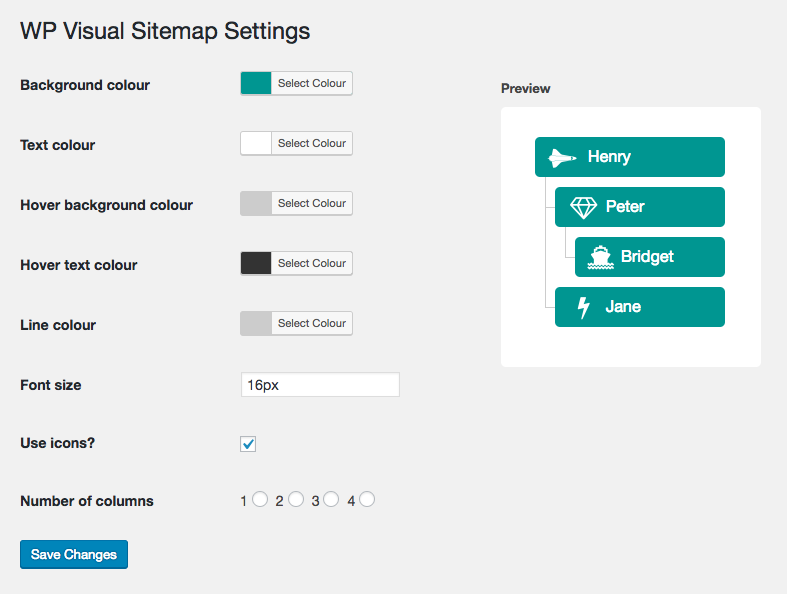
Main settings, with preview panel showing colour choices.
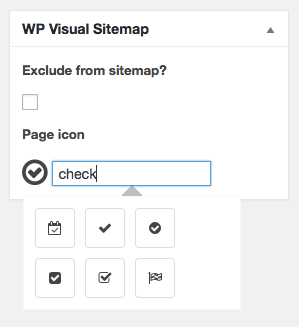
Page settings, where you can choose to exclude the page from the sitemap, and choose the icon to use.
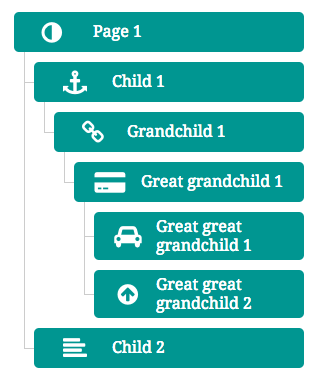
Example of a sitemap displayed on the page.
Changelog
0.1
- Initial release
0.2
- Fixed issue with default settings
0.3
- Changed default to include all pages
0.4
- Improved admin preview panel
0.5
- Improvements to admin UI
1.0.1
- Add menu functionality
1.0.2
- Bug fix