

Add Links to Pages
Add Links to Pages allows you to add page specific links and have tim displayed through a widget.
Plugin info
Maintenance & Compatibility
Maintenance score
Possibly abandoned • Last updated 5333 days ago • 1 reviews
Is Add Links to Pages abandoned?
Possibly abandoned (last update 5333 days ago).
Compatibility
Similar & Alternatives
Explore plugins with similar tags, and compare key metrics like downloads, ratings, updates, support, and WP/PHP compatibility.
Description
Easily display page specific links on any page or post by quickly adding a link directly from the add/edit page/post screen.
Delete links by clicking the trashcan next to the link.
Supports adding URL, name, target and description.
Installation
- Upload the folder
wordpress-galleryto the/wp-content/plugins/directory keeping the file structure. - Activate the plugin through the ‘Plugins’ menu in WordPress
- Go to a page/post or create a new one.
- Use the new “Add Links” section to add a new link.
- Fill in at least the URL and name of the link. You can also specify how the link should open and add a description for the link.
- Save the Page/post.
- From the Widgets menu, add the widget titled “Add links to page” to your desired sidebar.
- Make a coffee and fill your site with page specific links!
Frequently Asked Questions
What happens if I do not specify a link for a page/post?
Nothing! The widget will not even show up unless the page that is being viewed has links associated with it.
How do I delete a link?
Click the trash can to the left of the links on the add/edit page screen and watch it magically disappear. Make sure you save your page after deleting it though!
Can I add links to posts as well as pages?
Yes! As of version 0.2 you can add links to posts too. Happy days!
Review feed
Screenshots
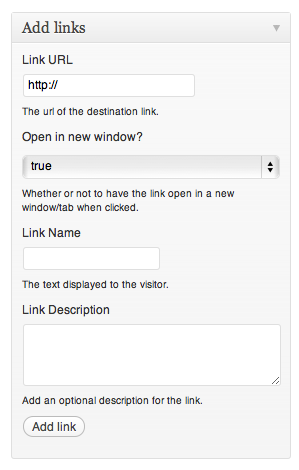
The new section that is added to the add/edit page screen.

Add at least a url and name and hit "Add link". Your link then shows up at the bottom of this section.

Multiple links are no problem and the handy trash icon allows you to quickly delete a link.

Choose the widget titled "Add links to page".

The widget! Add a title of your choosing.

The widget will render in style with your site perfectly.
Changelog
0.1
- First release
0.2
*Added option to add links to posts as well as pages