

Awesome Project Manager
A Single Page(SPA) WordPress project management plugin in WordPress plugin repository. Built with cutting edge technologies like VueJs.
Plugin info
Maintenance & Compatibility
Maintenance score
Possibly abandoned • Last updated 2218 days ago • 3 reviews
Is Awesome Project Manager abandoned?
Possibly abandoned (last update 2218 days ago).
Compatibility
Similar & Alternatives
Explore plugins with similar tags, and compare key metrics like downloads, ratings, updates, support, and WP/PHP compatibility.
Description
A Single Page(SPA) WordPress project management plugin in WordPress plugin repository. Built with cutting edge technologies like VueJs.
Awesome Project Manager WordPress Plugin is the best project manager plugin for WordPress. You can manage your todos with separate to-do lists, post messages for the team and upload files to share. You can discuss every todo and message via the comment section.There is also a built in file management system where you can organize your files by creating separate folders.You can view all your todos in event calendar so that you can have a birds eye view on what is happening throughout each projects.
Installation
This section describes how to install the plugin and get it working.
- Upload the plugin files to the
/wp-content/pluginsdirectory, or install the plugin through the WordPress plugins screen directly. - Activate the plugin through the ‘Plugins’ screen in WordPress
- A new menu called “Project Manager” will appear in the menubar
- Navigate to that menu and become a project manager
Features
Projects
- Create unlimited projects
- Set the name and description for your project
- Assign users to that project
- Keep everyone informed via the message board, where you can send attachments and messages and the team can respond and view the messages
Todos
- Create to-do lists for all the work you need to do
- Create, view, edit and customize as many tasks as you want to under that list
- Assign task to users
- See details of the task by clicking on them
- Add one/multiple attachment(s) to that task
- Set due date for that taks
- Mark task as complete
- Reopen task if needed
- Start discussion with other team members about that task by commenting on that task
Messages
- Post new topic to discuss with other project members
- Add attachment(s) to that topic
- Discuss that topic by commenting on that topic
Discussion boards keep the entire conversation about a specific topic together on a single page. No more digging through your inbox, trying to reassemble a story from a series of fragmented replies.
Docs & Files
- Create unlimited Folders
- Add unlimited attachment(s) to that folder, remove attachment(s)
- Comment on folder or comment on individual files
- Organize files by folder
Event Calendar
- Every project has a calendar view where you can see what is happening at a glance
Activity & Assignments
- Keep track of what is happening to a project in activity section
- Keep track of your acitivity in “My activity” section
- Keep track of personal assignments in “My Assignments” section located in submenu
Installation
Frequently Asked Questions
Who can create project ?
Anybody who is invited to the project manager can create project.
Who can access all projects ?
User with ‘Administrator’ role can have access to all projects but User with role ‘Project member’ can only have access to the projects they have created or the projects they are invited to.
How to invite people ?
When you enter into a project there is a button called ‘Add/remove people’, clicking into the button will take you to the users section where you can invite new users or add existing users to your projects.
How a new user will have access to the project they are invited to ?
After adding a user to a project all necessary credentials will be sent to the user’s email address.
What about project permissions ?
User with ‘Administrator’ role can Edit , Delete anything.
User with ‘Project member’ role can Edit, Delete Projects, Lists, Todos, Messages they have created.
Review feed
Bottom line: unusable, buggy
Screenshots

Projects home

Project summary

All task lists

Single task list

Todo details

Message board
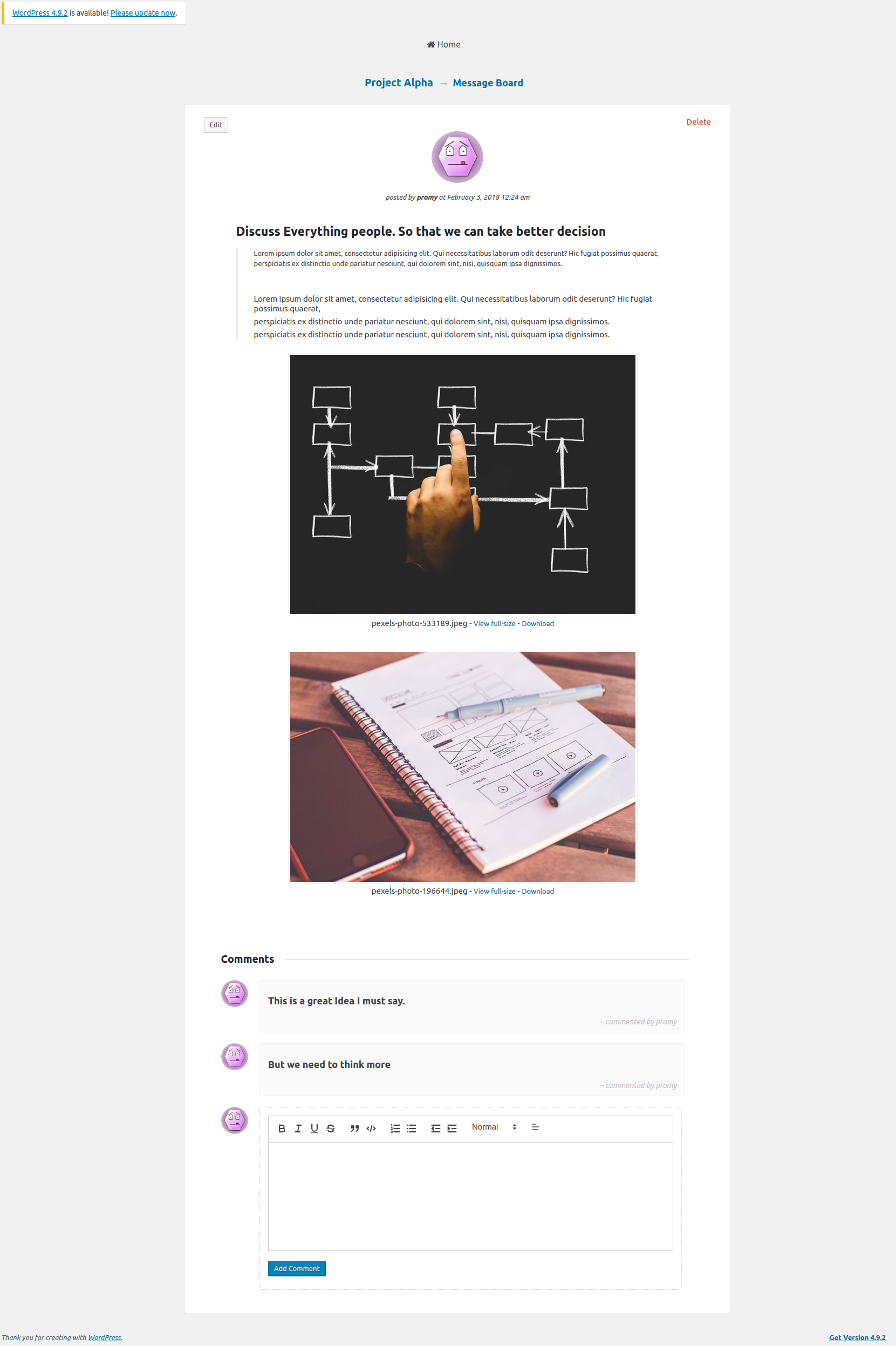
Message details

Project users

Event calendar

Project activity

My activity

Navigation
Changelog
v1.0.6 -> January 05, 2020
- [new] Subtask
- [tweak] Code refactor and form ui update
- [tweak] Dropdown autocomplete for user in todos
- [fix] Event Calendar issue
- [fix] Todo Edit issue
v1.0.5 -> August 08, 2019
- [new] Docs & Files Section
- [new] Event Calendar Section
- [tweak] Code refactor and form ui update
- [tweak] Project activity ui update
- [tweak] My activity ui update
v1.0.4 -> November 16, 2018
- [new] submenu added
- [tweak] code refactor
- [tweak] my assignment ui update
v1.0.3 -> july 07, 2018
- [fix] projects load more issue fix
- [fix] project delete issue fix
- [fix] css issue fix
v1.0.2 -> May 23, 2018
- [tweak] libraries moved to vendors directory
- [tweak] code refactor
- [fix] css issue fix
- [new] navigation redesigned
v1.0.1 -> Feb 9, 2018
- [tweak] js file minified
- [fix] updated translation
v1.0.0 -> Feb 1, 2018
- [new] Initial Release