

Comment Links New Tab
Stop sending visitors away - open comment author links in a new tab or window with: Comment Links New Tab.
Plugin info
Maintenance & Compatibility
Maintenance score
Possibly abandoned • Last updated 2000 days ago
Is Comment Links New Tab abandoned?
Possibly abandoned (last update 2000 days ago).
Compatibility
Similar & Alternatives
Explore plugins with similar tags, and compare key metrics like downloads, ratings, updates, support, and WP/PHP compatibility.
Description
Comment Links New Tab will allow you to have your comment author name links open in a new tab or window. In other words, instead of leaving your site completely when clicked, they will open in a new tab.
This will increase the likelihood that visitors will continue browsing your website.
Simple, fast, and effective!
Some of the features include:
- Whitelist your domain
- Select a css class, id, or custom value
- Enter a css value
- Open comment links in a new tab or the same tab
- Select keep original, external nofollow, nofollow, or dofollow rel (relationship) link attribute
- Use an optional title
- Option to Compress/Minify Js (javascript file)
- Works with http:// and https:// links
Installation
From within WordPress
- Visit ‘Plugins > Add New > Search plugins’
- Search for ‘Comment Links New Tab’ and click to install
- Activate Comment Links New Tab from your Plugins page.
- Go to Settings > Coms New Tab and configure the options.
You can also download the zip file from this page and upload it from the Plugins >> Add New > Upload page.
Manually
- Upload the
cruinnv-com-links-new-tabfolder to the/wp-content/plugins/directory - Activate the Comment Links New Tab plugin through the ‘Plugins’ menu in WordPress
- Configure the plugin by going to the WordPress
Settingsmenu, then toComs New Tabthat appears in your admin menu
Frequently Asked Questions
My comment links don’t open in a new tab. Is there something I can do?
Yes. First make sure haven’t changed the “Target” setting to Same Tab. It should be New Tab.
Second, you may need to change the “CSS Options” to class or custom and enter a CSS Value specific to your theme.
By default it is configured to use an id with a value of comments. In other words, #comments, which is very common. If your theme developer happens to use a different or custom id, class, or combination, then you can find this value by right clicking on a comment author/name link and selecting inspect or inspect element depending on your web browser.
After doing so, find id=”something”, class=”something”, or id=”something” class=”something else”. Id’s are #’s and classes are .(dots). So you would simply select that in the CSS Options settings, and enter them in the CSS Value field if your theme happens to require something different.
Are there any limitations?
Yes. For example, if you enter an optional title all comment author links will have the same title attribute. If you leave it blank they retain/keep their current value. The title link is the text you see when you hover your mouse over a link if set or available.
Is there a help or information section available?
Yes. You may hover your mouse over, or tap the ?’s in the plugin settings page, and it will tell you the default values, what values are available, and a brief description of what the particular option does.
Review feed
Screenshots
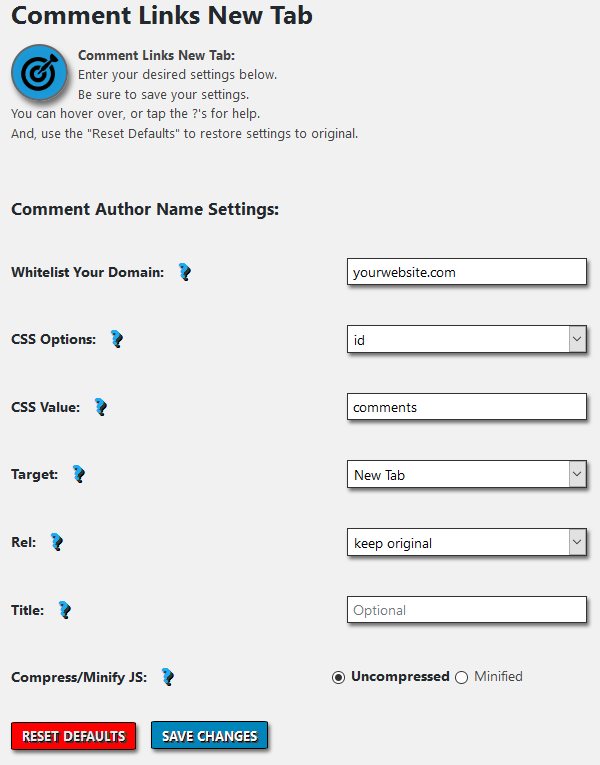
WordPress Admin Dashboard Comment Links New Tab Settings

Comment Link with open in new tab - target _blank set

Comment Link with open in new tab and title attribute set
Changelog
1.0.0, March 5, 2019
- First Initial Release