

Company Posts for LinkedIn
A simple plugin to fetch Company Posts of LinkedIn using API.
Plugin info
Maintenance & Compatibility
Maintenance score
Possibly abandoned • Last updated 606 days ago • 1 reviews
Is Company Posts for LinkedIn abandoned?
Possibly abandoned (last update 606 days ago).
Compatibility
Similar & Alternatives
Explore plugins with similar tags, and compare key metrics like downloads, ratings, updates, support, and WP/PHP compatibility.
Description
The “Company Posts for LinkedIn” plugin is a powerful tool designed to seamlessly integrate your LinkedIn company’s posts into your WordPress site. With this plugin, you can effortlessly showcase your company’s latest updates, articles, and announcements, boosting your online presence and engagement.
Third-Party Service: LinkedIn API
This plugin uses the LinkedIn API to retrieve and display company posts on your WordPress site. By activating and using this plugin, you are agreeing to send requests to LinkedIn’s servers in order to fetch the latest posts from specified LinkedIn company pages.
Please review LinkedIn’s Terms of Service and Privacy Policy to ensure compliance with their data usage policies:
LinkedIn Terms of Service
LinkedIn Privacy Policy
API Terms of Use
Plugin Configuration
“LinkedIn Company features Required to use this plugin”
- First of all, you need to create an app for your LinkedIn company Here, (No need to create if you already have).
- You have to access Advertising API to showcase your LinkedIn posts into your WordPress website.
- Open MyApps from LinkedIn Developer Panel and go to Auth tab.
- Copy Client ID and Client Secret and also collect Company Id from LinkedIn Company, Company id can be found in an address link.
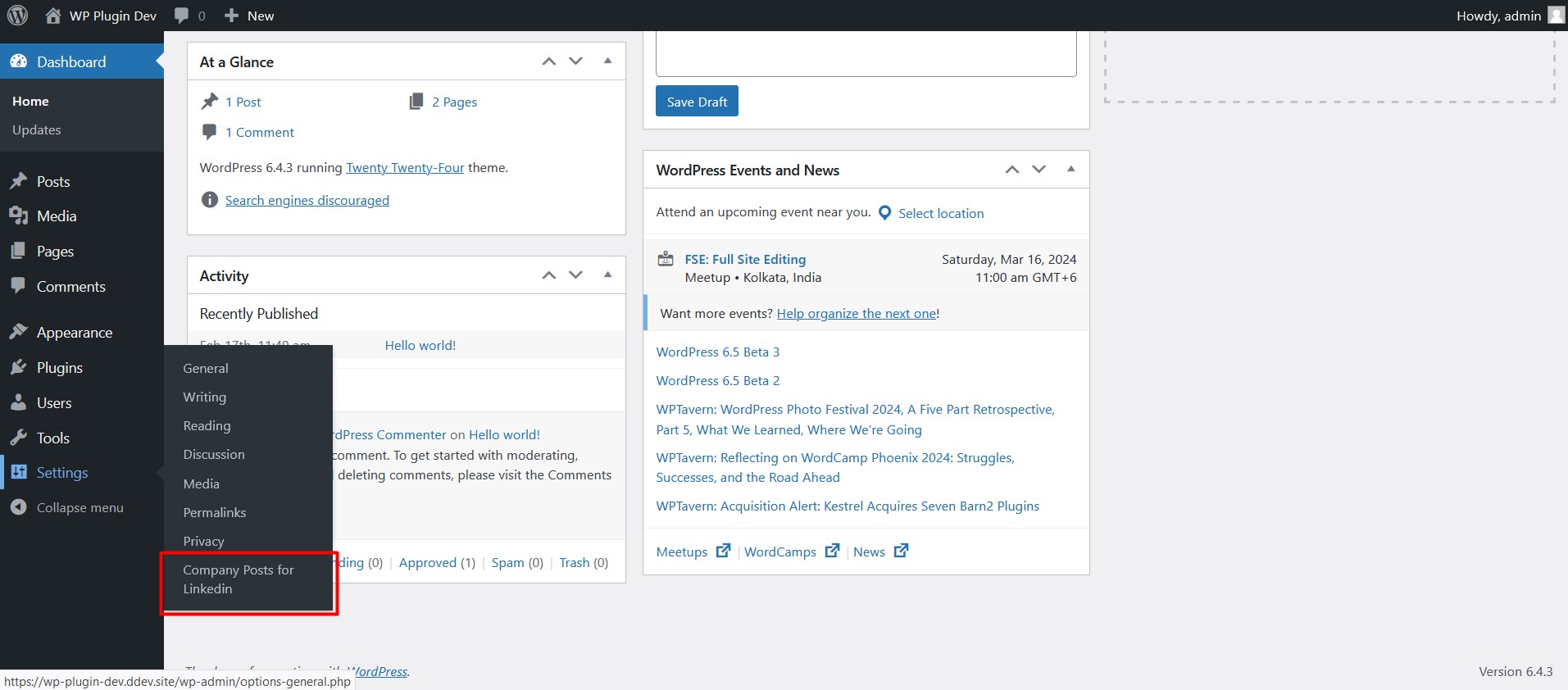
- Now open Company Posts for LinkedIn plugin admin dashboard found in WordPress plugin dashboards settings menu.
- Set Client Id, Client Secret in Config section, Company id in Feed Settings section and Save it.
- Copy Authorized redirect URL and set it on your LinkedIn company App auth tab, OAuth 2.0 Settings.
- After that, click Authorize Me (Company Posts for LinkedIn Dashboard) and verify login using email and password.
- Now you can see the shortcode located below the save button.
- Use the shortcode into your page, posts wherever you want.
- You can set the limit of the company posts from Feeds Settings.
- Open Your LinkedIn and click profile, From manage section click Company and Manage your Company Posts.
Installation
INSTALL Company Posts for LinkedIn WITHIN WORDPRESS
- Visit the Plugins page within your dashboard and select ‘Add New’;
- Search for ‘Company Posts for LinkedIn’;
- Activate Company Posts for LinkedIn from your Plugins page;
INSTALL Company Posts for LinkedIn MANUALLY
- Upload the ‘company-posts-for-linkedin’ folder to the /wp-content/plugins/ directory;
- Activate the plugin through the ‘Plugins’ menu in WordPress;
- Setup LinkedIn API from Settings > Company Posts for LinkedIn;
- Place
[company-posts-for-linkedin company='your company id']shortcode in your template/post/page
Frequently Asked Questions
coming soon.
Review feed
Screenshots
This screenshot description corresponds to screenshot-1.(png|jpg|jpeg|gif). Note that the screenshot is taken from the /assets directory or the directory that contains the stable readme.txt (tags or trunk). Screenshots in the /assets directory take precedence. For example,
/assets/screenshot-1.pngwould win over/tags/4.3/screenshot-1.png(or jpg, jpeg, gif).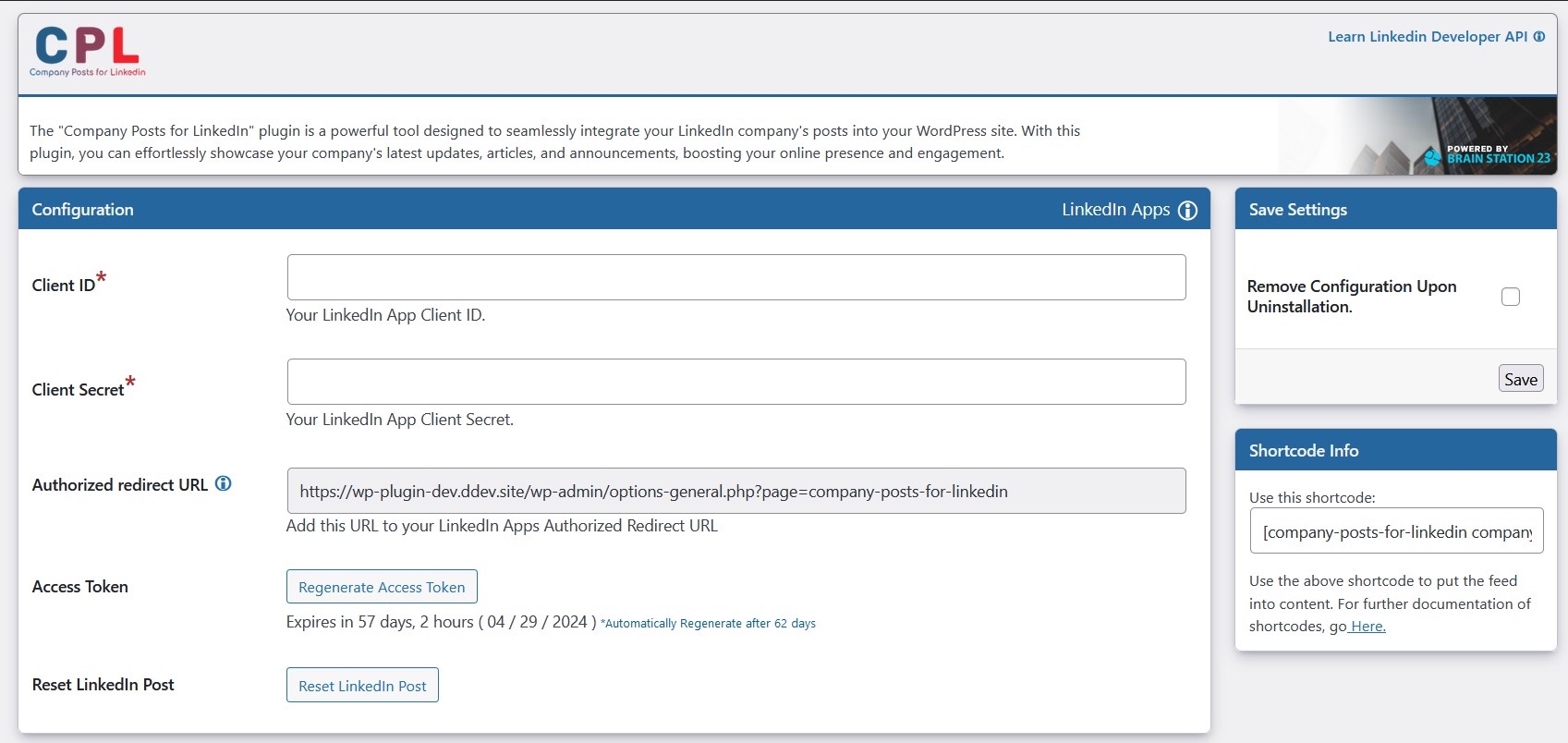
This is the second screenshot
Changelog
1.0
- First release version.