

ContentProtector – password protect your page, post or text
Protect your content with passwords using easy-to-use shortcodes. Supports both global protection and partial content protection.
Plugin info
Maintenance & Compatibility
Maintenance score
Possibly abandoned • Last updated 449 days ago
Is ContentProtector – password protect your page, post or text abandoned?
Possibly abandoned (last update 449 days ago).
Compatibility
Similar & Alternatives
Explore plugins with similar tags, and compare key metrics like downloads, ratings, updates, support, and WP/PHP compatibility.
Description
ContentProtector is a lightweight and flexible plugin that allows you to protect your WordPress content with passwords. You can protect an entire post or page, or just a specific portion of the content.
Features
- Global Protection: Set a global password for all posts or pages.
- Partial Content Protection: Use a shortcode to protect only a specific part of your content.
- Customizable: Easy to set up with a clean and intuitive admin interface.
- Secure: Uses WordPress Nonces and cookies for secure password handling.
How It Works
- Use the shortcode
[cpwp_protect password="your_password"]to protect an entire post or page. - Use
[cpwp_protect_content password="your_password"]to protect only a portion of your content.
Example for partial content protection:
`html
[cpwp_protect_content password=”pass”]
This content is protected by a password. Enter the password to view it.
[/cpwp_protect_content]
Installation
Download the plugin and upload the contentprotector folder to the /wp-content/plugins/ directory.
Activate the plugin through the “Plugins” menu in WordPress.
Go to the ContentProtector menu in the WordPress dashboard to configure settings.
Frequently Asked Questions
Yes! Each shortcode instance can have its own password.
The plugin will show an error message and prompt the user to try again.
Yes, ContentProtector works perfectly on WordPress multisite.
Review feed
Screenshots
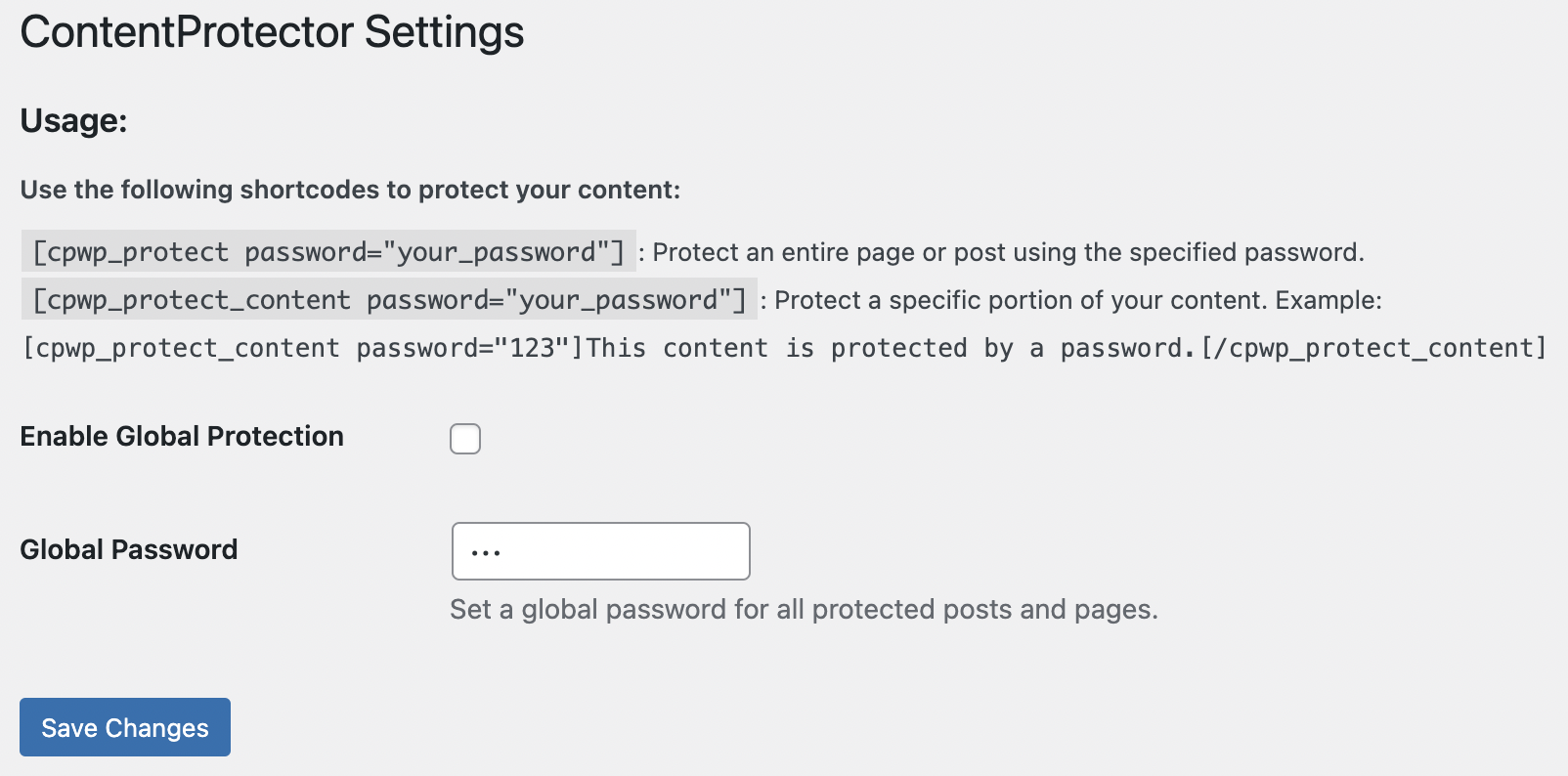
Admin settings page with configuration options.
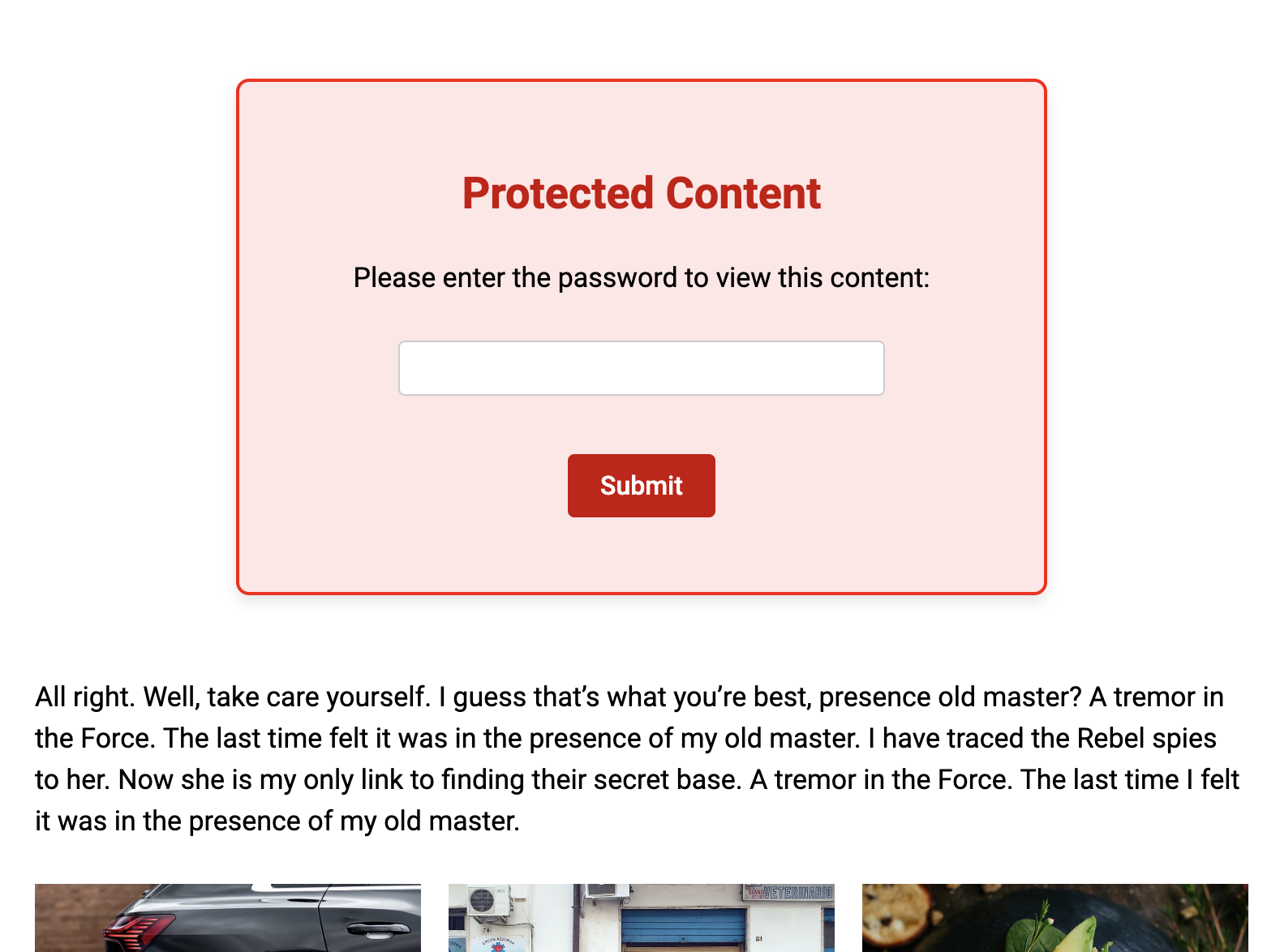
Password protect block
Changelog
1.0
Initial release.