

Disable Gravity Forms Fields
This is a simple plugin that lets Gravity Forms users set a form field's attribute to either disabled or readonly.
Plugin info
Maintenance & Compatibility
Maintenance score
Possibly abandoned • Last updated 2671 days ago • 11 reviews
Is Disable Gravity Forms Fields abandoned?
Possibly abandoned (last update 2671 days ago).
Compatibility
Similar & Alternatives
Explore plugins with similar tags, and compare key metrics like downloads, ratings, updates, support, and WP/PHP compatibility.
Description
Simply install the plugin and add the appropraite CSS class to the form field you want to assign an attribute. This is done within the Form Editor under the Advanced tab of the field. The classes are “disabled” for the disabled attribute and “readonly” for the readonly attribute (don’t include the quotation marks).
Installation
This section describes how to install the plugin and get it working.
Automatically
- Search for Disable Gravity Forms Fields in the Add New Plugin section of the WordPress admin
- Install & Activate
Manually
- Download the zip file and upload
disable-gf-fieldsto the/wp-content/plugins/directory - Activate the plugin through the ‘Plugins’ menu in WordPress
Frequently Asked Questions
How do I use this plugin?
Once you’ve installed and activated the plugin, just add a the appropriate class to your field (“disabled” or “readonly”).
What is the difference between the disabled and readonly attributes?
Both attributes set a field to be uneditable by the user. This means that the field will not accept any input from a user. However, there are a few important differences between the two attributes. Here’s a good overview of disabled vs. readonly attributes.
Do you offer support for this plugin?
This plugin is very simple so it’s unlikely you’ll need support. If you do have any questions, feel free to email me.
Review feed
Screenshots
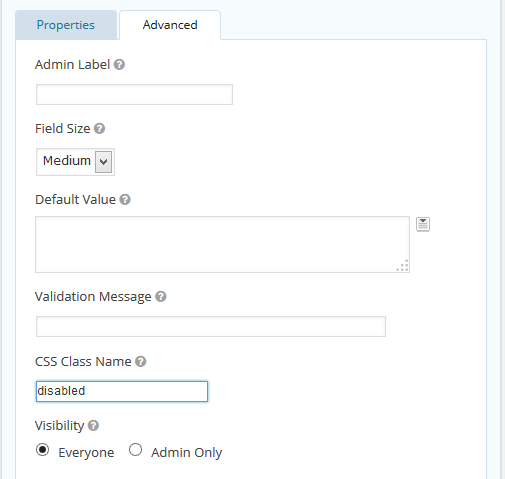
Gravity Forms Advanced Tab w/ a CSS class of "disabled". This will set the field's attribute to disabled. Alternatively, you can enter the CSS class "readonly" to set the attribute to readonly.
Changelog
1.4
- Updated to using
$.prop()instead of$.attr() - Added support for
textareatags
1.3.1
- Updated author info
1.3
- Wrapped jQuery dependency in array in the enqueue call
- Removed some specificity from the jQuery selectors (will work for any
inputwith the appropriate classes)
1.2
- Added the jQuery dependency to wp_enqueue_scripts() call
1.1
- Added readonly attribute support
1.0
- Launch version