

Doctor Appointment Booking
This plugin manages doctor's chamber with patient appointment booking, prescription & billing. It supports multiple chambers for a single doctor.
Plugin info
Maintenance & Compatibility
Maintenance score
Possibly abandoned • Last updated 2996 days ago • 4 reviews
Is Doctor Appointment Booking abandoned?
Possibly abandoned (last update 2996 days ago).
Compatibility
Similar & Alternatives
Explore plugins with similar tags, and compare key metrics like downloads, ratings, updates, support, and WP/PHP compatibility.
Description
Doctor Appointment Booking WordPress Plugin is the first of its kind developed specifically for managing doctor’s professional practice. This plugin will run on any WordPress site as a backend plugin. This plugin not only manages the tiresome works of a doctor’s practice but also can manage multiple chambers at a time. Clean user interface and easy to operate user experience makes it possible to organize an appointment starting from visit up to billing. The plugin can keep patients’ records with their medical information, billing history, medication history and appointment history. And this makes it easier for the doctor to keep track of patients’ development.
Features
- Patient’s appointment management
- Patient’s prescription management
- Doctor’s schedule management
- Multiple chamber management
- Patient’s medical records
- Patient’s billing management (available in the pro version)
- Multiple chamber management
- Advanced data filtering
Walkthrough Video
Full Version | Download From Codecanyon.
Installation
- Upload the plugin zip file to the
/wp-content/plugins/directory and unzip it, or install the plugin through the WordPress plugins screen directly. - Activate the plugin through the ‘Plugins’ screen in WordPress.
- Go to Settings screen of the plugin and configure the plugin according to your need.
- Go to Chambers screen of the plugin and configure your schedule.
- Now you can go to the Appointment screen of the plugin and start discovering it’s features.
Frequently Asked Questions
Review feed
Screenshots
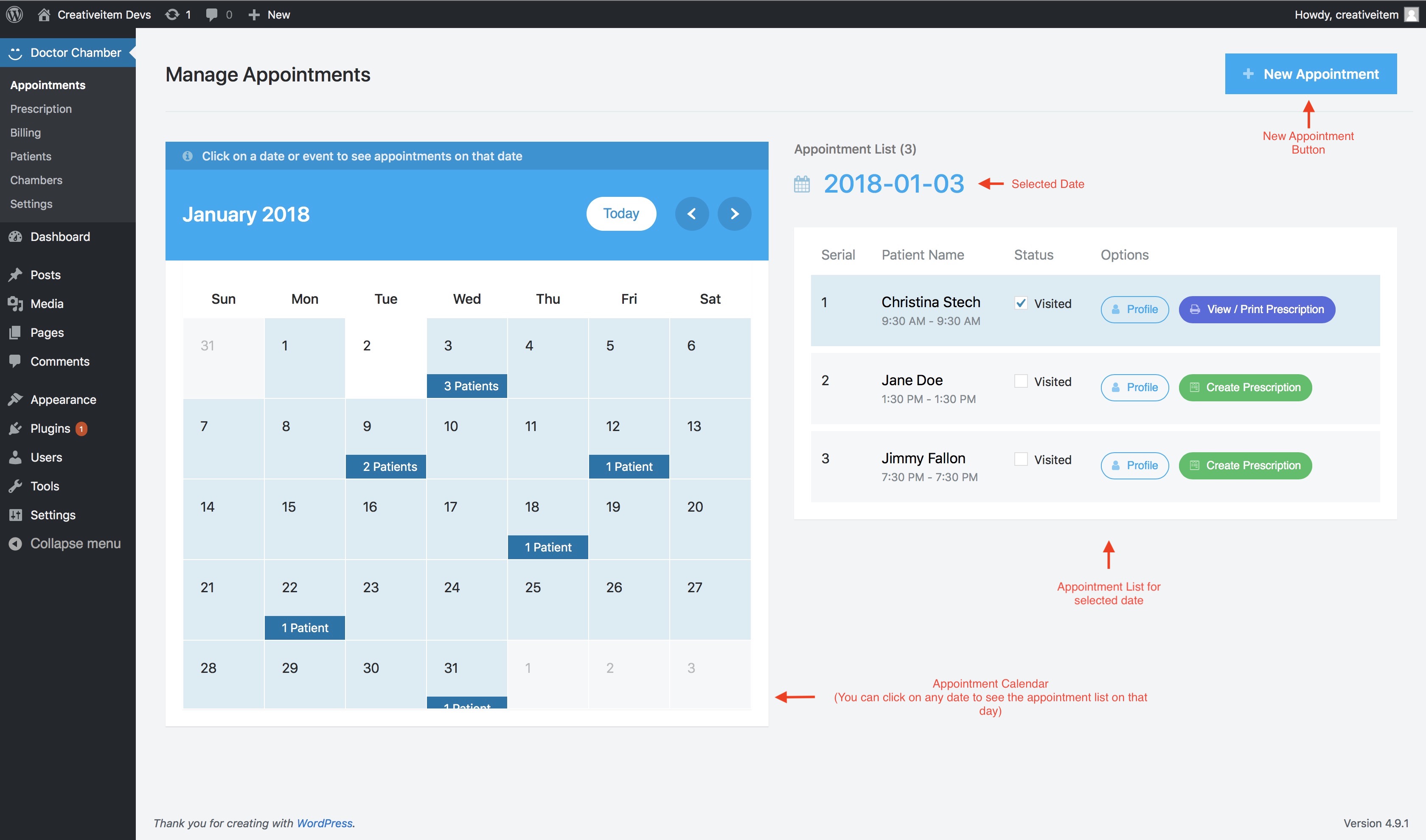
Managing apoointments

Creating a new appointment

Changing patient's appointment status

Creating prescription for an appointment

Creating prescription without appointment

Patient's medical information

Patient's profile

Doctor's schedule management

Plugin's settings

Prescription print
Changelog
1.0.0
- Initial release