

Download List Block with Icons
Use a Gutenberg Block to manage a download list with file type specific icons. No configuration is necessary.
Plugin info
Maintenance & Compatibility
Maintenance score
Maintained • Last updated 142 days ago • Support resolved 100% • 7 reviews
Is Download List Block with Icons abandoned?
Likely maintained (last update 142 days ago).
Compatibility
Developers
Similar & Alternatives
Explore plugins with similar tags, and compare key metrics like downloads, ratings, updates, support, and WP/PHP compatibility.
Description
Use a Gutenberg Block to manage a download list with file type specific icons. No configuration is necessary. The Block can be used immediately after installation.
Features
- Choose files from media library
- Output chosen files as list with file-type-specific icon, download-link, title, size and description from media library
- Ships with multiple iconsets (Bootstrap-Icons, Dashicons, FontAweSome-Icons)
- Drag & Drop sorting for the list
- Remove files from list
Supports
- Display of file size, description and icon can be switched on and off
- Choose what link should be published: direct link or attachment page
- Choose an iconset for each Block; manage custom icons in unlimited lists
- Usage of multiple hooks to change or add icons to shipped iconsets
- Sort list by title or filesize with one click
- The Block can be used in widgets
- Set colors, typography and borders for each Block
- Use External files in media library if you want to link to external files
The development repository is on GitHub.
Installation
- Upload “download-list-block-with-icons” to the “/wp-content/plugins/” directory.
- Activate the plugin through the “Plugins” menu in WordPress.
- Add the Download List Block to the post or page where you want to show the downloadlist. Choose the file(s) you wish to present.
Frequently Asked Questions
The description stored at the file in the Media Library itself is used as the description. You can edit it in 2 ways:
- Open the file in the Media Library for editing. There you will find the field “Description”. Enter the desired description here.
- Or open this editing mask via the pencil at the file in the block you have created.
You can also add a custom title and description per file used only by the Block of this plugin.
No, there are no limitations.
The block can basically be used in any theme that supports Gutenberg blocks. If this is the case for your theme, you have to ask your theme developer.
Yes, you can manage your custom iconsets in WordPress-backend.
The file will probably have a file type that does not comply with the WordPress standard and is therefore not included in our plugin. You have 2 options:
- Use the iconset specific hook downloadlist_*_icons to add the list of icons. Check beforehand with the developer of your chosen icon set if the icon you want is included there.
- Use another icon set which supports the file type if necessary.
No. The plugin is intended solely for the Gutenberg editor and will not be extended to other PageBuilders.
Review feed
Screenshots
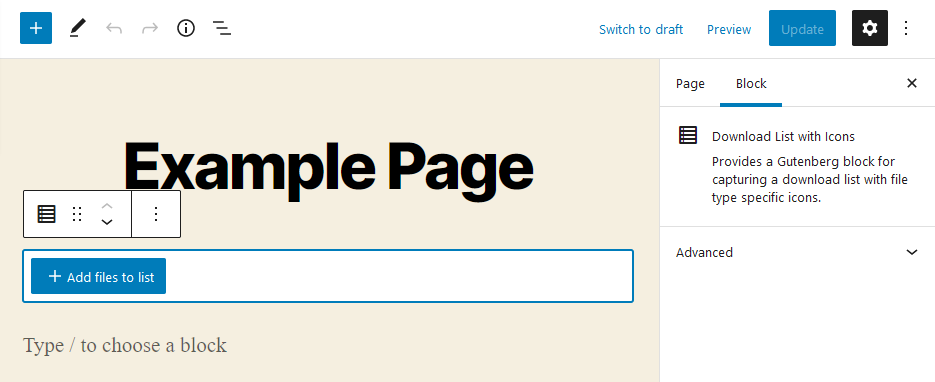
After adding the Block you have to choose the files.

After adding files to the Block they will be listed.
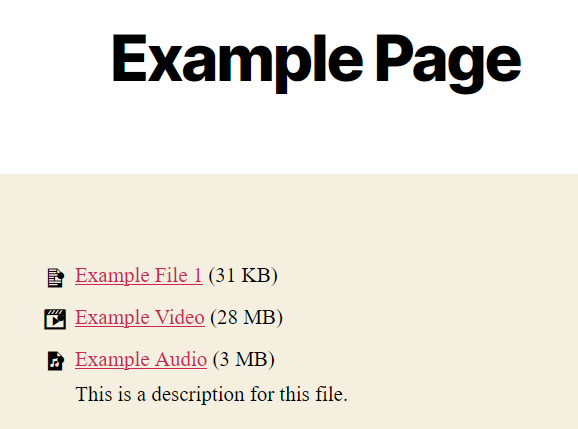
The files will be listed in frontend.