

Plugin info
Maintenance & Compatibility
Maintenance score
Possibly abandoned • Last updated 449 days ago • 4 reviews
Is Logged In As abandoned?
Possibly abandoned (last update 449 days ago).
Compatibility
Similar & Alternatives
Explore plugins with similar tags, and compare key metrics like downloads, ratings, updates, support, and WP/PHP compatibility.
Description
An easy-to-use lightweight WordPress Plugin that can show the currently logged in user name or other metadata.
Replaces a target menu item with alternate txt which can also include usermeta. User metadata would typically include ‘first-name’, ‘last-name’, ‘nickname’ etc
Any available usermeta may be used.
Optionally decorates the menu item with a user avatar. The avatar size is adjustable.
The target menu, the replacement text and the avatar are all set on the options menu which is found in [Settings|Logged In As]
Designed with the intention of being used in conjunction with a Membership plugin.
The website visitor must be logged in for this plugin to work
To date has been tested only with Ultimate Member and MemberPress membership plugins but others may work too
Installation
Install Logged In As just as you would any other WP Plugin:
-
Upload the plugin files to the
/wp-content/plugins/logged in asdirectory, or install the plugin through the WordPress plugins screen directly. -
Activate the plugin through the ‘Plugins’ screen in WordPress
-
Configure ‘Logged In As’ in the settings screen by clicking the ‘settings’ link on the plugins page or navigating to ‘settings|logged In As’ on the dashboard.
Frequently Asked Questions
Sorry, this plugin is available for use only on self-hosted (WordPress.org) websites.
Review feed
Tested now in Gutenberg theme but...
Screenshots
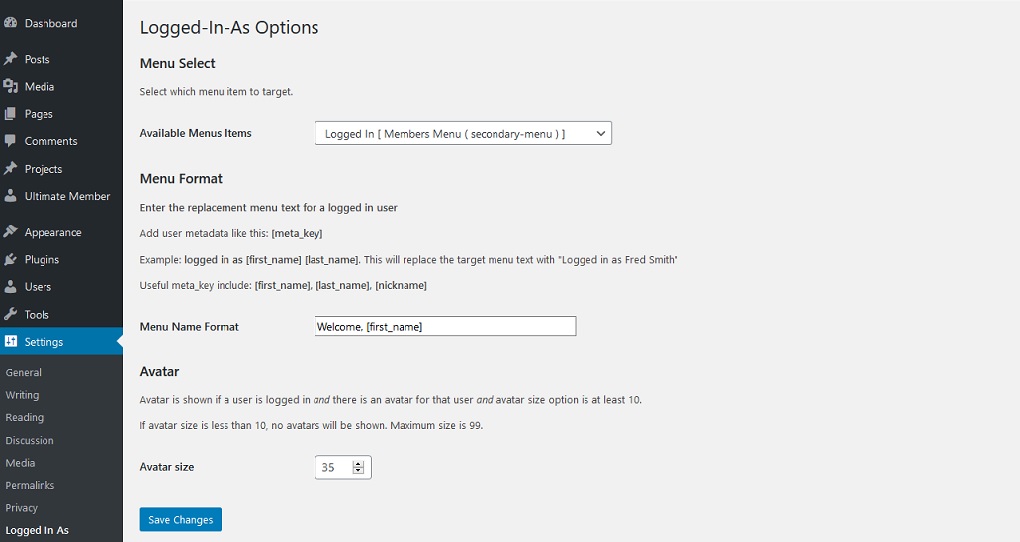
Example Settings screen

Example Output. Running on Divi theme with the Ultimate Member membership plugin
Changelog
1.0
- Initial Release
1.1.0
Added the ability to select multiple target menus
Bugfixes
Allow logout without confirm dialog
Fix link to options (settings) from plugin page