
Order on WA for WooCommerce
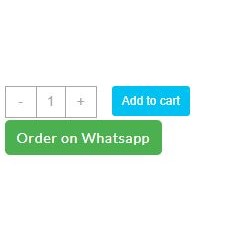
Adds an "Order on WhatsApp" button next to your WooCommerce products.
Plugin info
Maintenance & Compatibility
Maintenance score
Stale • Last updated 326 days ago
Is Order on WA for WooCommerce abandoned?
Likely maintained (last update 326 days ago).
Compatibility
Similar & Alternatives
Explore plugins with similar tags, and compare key metrics like downloads, ratings, updates, support, and WP/PHP compatibility.
Description
Enhance your WooCommerce store with the Order on WhatsApp plugin! This handy tool seamlessly adds a customizable “Order on WhatsApp” button next to your products, allowing customers to reach out and place orders directly via WhatsApp. With easy-to-use settings, you can configure the destination WhatsApp number and personalize the button label to match your brand’s style. Whether you’re looking to boost engagement, provide instant customer support, or simplify the ordering process, this plugin makes it effortless. Perfect for businesses that want to connect with customers in real-time and drive more sales! 🚀💬
Installation
Installation from WordPress Plugins:
1. On your WordPress site, go to Plugins -> Add New Plugin.
2. Search “Order on WA for WooCommerce”, install and activate the plugin.
3. Open the plugin settings via WordPress Settings -> Order on Whatsapp, or on the plugins list, click the Settings link next to the plugin.
4. Indicate the Whatsapp phone number that users shall be redirected to, and customise the label on the button if need be, and save the Settings.
Manual Installation:
1. Download the Zip file for “Order on WA for WooCommerce” from WordPreess plugins page.
2. Upload it on the wp-content/plugins folder of your site.
3. On the plugins page, activate the plugin.
4. Indicate the Whatsapp phone number that users shall be redirected to, and customise the label on the button if need be, and save the Settings.
The “Order on Whatsapp” button will now appear next to your WooCommerce products.
Frequently Asked Questions
Review feed
Screenshots

Plugin Settings

Plugin displayed next to WooCommerce products

Message Sent on Whatsapp
Changelog
v1.3
– Refactored code to enqueue properly
v1.2
– Fixed bugs
– Added ability to customise label on text
v1.1
– Initial version