

Term Description: Rich Text Editor (Powered by TinyMCE) for WooCommerce
You can easily add the TinyMCE (WYSIWYG) editor to WooCommerce product categories and tags "description" for better formatting options.
Plugin info
Maintenance & Compatibility
Maintenance score
Maintained • Last updated 134 days ago • 1 reviews
Is Term Description: Rich Text Editor (Powered by TinyMCE) for WooCommerce abandoned?
Likely maintained (last update 134 days ago).
Compatibility
Similar & Alternatives
Explore plugins with similar tags, and compare key metrics like downloads, ratings, updates, support, and WP/PHP compatibility.
Description
This plugin enables the TinyMCE (WYSIWYG) editor for WooCommerce product categories and tags “description”. This lets you easily add text formats like H1, and H2 titles, bullet points, images, and bold text. This would be great for SEO purposes.
Installation
Automatic Installation from the WordPress Dashboard
- Login to your admin panel
- Navigate to Plugins -> Add New
- Search Term Description: Rich Text Editor for WooCommerce
- Click install and activate respectively.
Manual Installation from the WordPress Dashboard
If your server is not connected to the Internet, then you can use this method
- Download the plugin. A ZIP file will be downloaded.
- Login to your site\’s admin panel and navigate to Plugins -> Add New -> Upload.
- Click choose file, select the plugin file and click install
Install Using FTP
If you are unable to use any of the methods due to internet connectivity and file permission issues, then you can use
this method
- Download the plugin. A ZIP file will be downloaded.
- Unzip the file.
- Launch your favorite FTP client. Such as FileZilla, FireFTP, CyberDuck etc. If you are a more advanced user, then you
can use SSH too. - Upload the folder to wp-content/plugins/
- Log in to your WordPress dashboard.
- Navigate to Plugins -> Installed
- Activate the plugin
Frequently Asked Questions
Once the plugin is activated, the TinyMCE editor will automatically replace the default textarea in the product category description field. Simply go to Products > Categories in your WordPress dashboard, and you’ll see the enhanced editor available for use.
No, the plugin is designed primarily for WooCommerce product categories and tags.
The plugin is lightweight and optimized for performance. It only loads the TinyMCE editor when you’re editing product category descriptions, so it shouldn’t significantly impact your site’s loading speed or performance.
The TinyMCE editor offers a wide range of formatting options, including:
– Bold, Italic, Underline
– Bullet Points and Numbered Lists
– Links and Anchor Texts
– Blockquotes
– Text Alignment
– Adding Media (images, videos, etc.)
By allowing richer formatting and better-organized content, the plugin can help improve the readability and SEO of your category descriptions. However, the actual impact on SEO will depend on the content you create and how well it aligns with SEO best practices.
The plugin is designed to be compatible with most WordPress themes, particularly those that support WooCommerce. However, if you encounter any compatibility issues, please reach out to our support team.
Yes, if you prefer to use the default WooCommerce editor, you can simply deactivate the plugin, and your product category description fields will revert to the standard WooCommerce text editor.
Yes, we regularly update the plugin to ensure compatibility with the latest versions of WordPress and WooCommerce, as well as to introduce new features and improvements.
Review feed
Screenshots

Product category edit page.
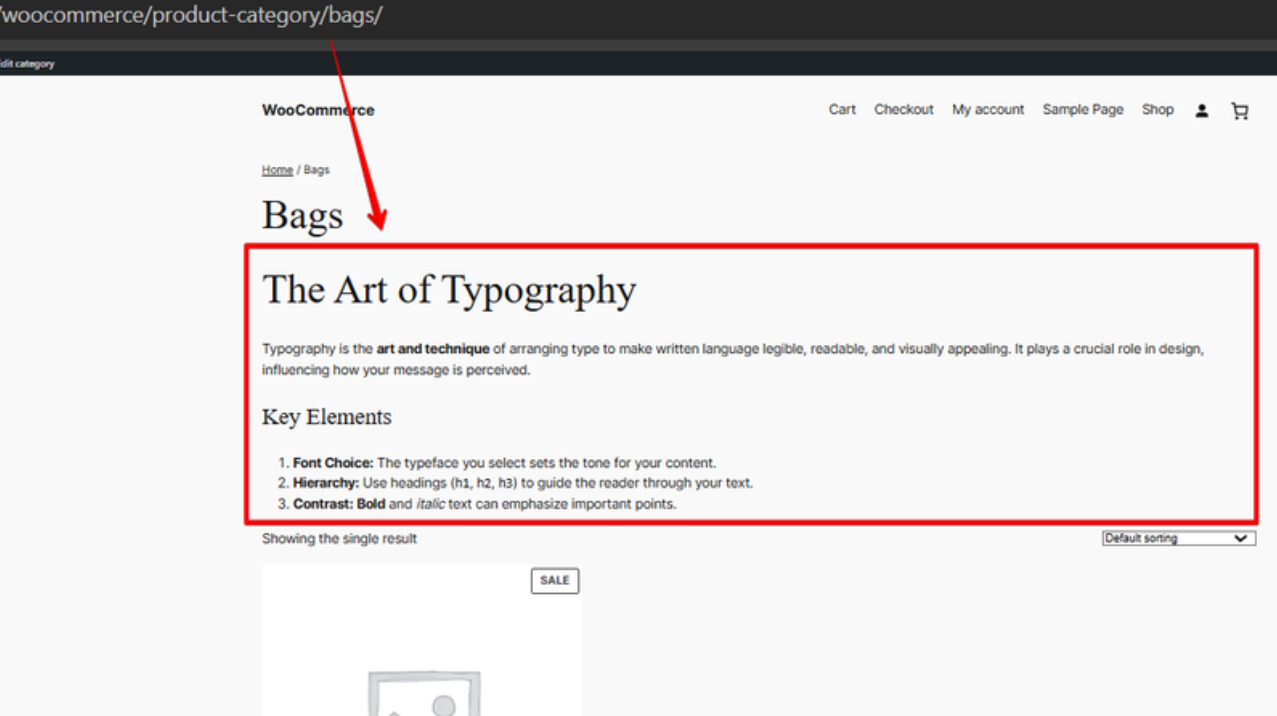
Product category view page.
Changelog
1.2.0
- Updated Freemius SDK to the latest version
- Updated language files
1.1.0
- Dependencies update
- Rich text editor enabled for Brands under Products.
1.0.0
- Initial release