

SVG Editor: Upload & Change Colors
SVG Editor lets you upload SVG files and change their colors directly within the WordPress Media Library.
Plugin info
Maintenance & Compatibility
Maintenance score
Stale • Last updated 270 days ago • 3 reviews
Is SVG Editor: Upload & Change Colors abandoned?
Likely maintained (last update 270 days ago).
Compatibility
Similar & Alternatives
Explore plugins with similar tags, and compare key metrics like downloads, ratings, updates, support, and WP/PHP compatibility.
Description
SVG Editor adds native support for uploading and editing SVG (Scalable Vector Graphics) directly within your WordPress Media Library. Easily change the colors of your favorite icons, images, and vector assets without needing any external design software.
Whether you’re a web designer, developer, or content creator, SVG Editor is here to simplify your workflow and save you time.
Features:
- Enable SVG Uploads: Allows you to safely upload SVG files to your WordPress site.
- View SVGs in Media Library: Preview your SVG files directly within the WordPress Media Library.
- Native WordPress Integration: Works seamlessly within the WordPress Media Library.
- Simple Color Editing: Change SVG colors with our intuitive interface.
- Sanitized SVGs: Automatically cleans SVG code to prevent security risks and ensure safe usage.
- Preserves SVG Integrity: Maintains the scalability and quality of your vector graphics.
- Mobile Responsive: Easily edit SVG on the go.
About Digages:
SVG Editor is a free and open-source plugin developed and maintained by Digages. We’re committed to creating tools that make WordPress more powerful and easier to use.
Other Plugins by Digages:
-
Direct Payment for Woocommerce: Direct Payments for WooCommerce makes it easy for WooCommerce store owners to accept payments directly through local and global methods with 0.0% transaction fees. Enable direct payments from your customers via bank transfers, mobile money, crypto and peer-to-peer platforms like Zelle, Venmo, Cash App e.t.c
-
Direct Payment WP: Direct Payments WP is the ultimate plugin for WordPress users who want a simple and flexible way to accept payments. Whether you’re a freelancer, a small business owner, or running a membership site, Direct Payments WP empowers you to accept payments directly using customizable forms, invoices and pages.
External API Notice
This plugin optionally connects to an external API to fetch additional plugin listings. The core functionality of the plugin is fully independent and remains unaffected if the API is not used.
We value user privacy and ensure that no personal or sensitive data is sent to the external API.
Installation
Using The WordPress Dashboard:
- Go to WordPress Admin > Plugins > Add New Plugin from the left-hand menu.
- In the search box, type SVG Editor.
- Click on Install Now when you see the SVG Editor plugin by Digages.
- After installation, click Activate.
Manual Installation:
- Go to WordPress Admin > Plugins > Add New Plugin from the left-hand menu.
- Click the Upload Plugin button.
- Choose
svg-editor.zipfrom your computer and click Install Now. - After installation, click Activate.
Frequently Asked Questions
After installation and activation, simply navigate to WordPress Admin > Media > SVG Editor. There, you can either select from your existing media library or upload new SVG files to open the editor interface.
Using our intuitive color picker, you can change colors and preview your modifications in real-time. Once you’re satisfied with your customized SVG, click “Save Changes” and use it anywhere on your WordPress site.
Yes! SVG Editor seamlessly integrates with WordPress. Once activated, you’ll see an “Edit SVG” button appear on all compatible SVG files in your media library.
Yes, the external API requests are optional and do not affect core functionality.
Review feed
Screenshots
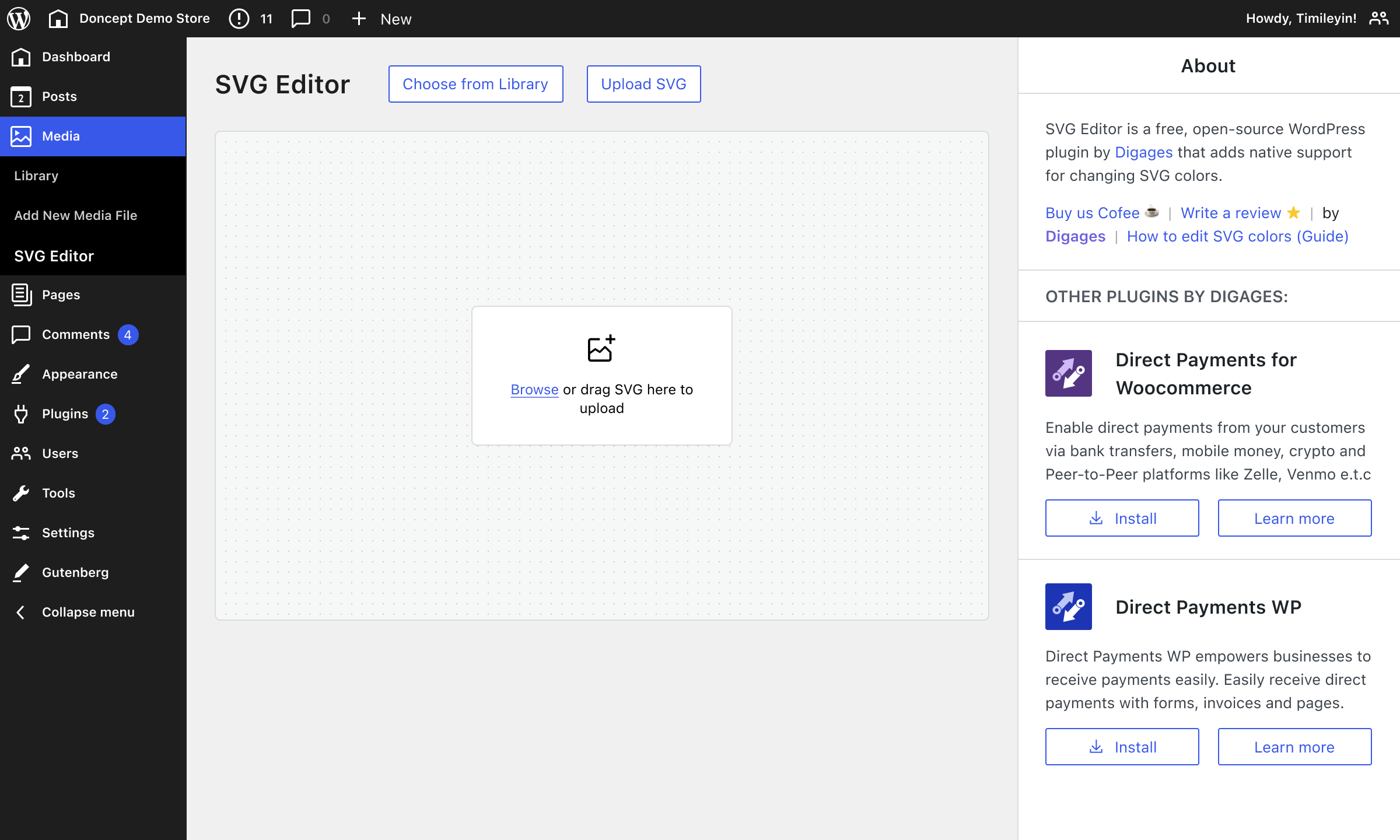
SVG Editor main interface

Editing an icon in SVG Editor

Customizing the WooCommerce logo

Customizing the Digages logo

Integration with the Native Media Library
Changelog
1.1
- Allows upload of svg files without using extra plugins