

User Profile Picture
Set a custom profile image for a user using the standard WordPress media upload tool.
Plugin info
Maintenance & Compatibility
Maintenance score
Possibly abandoned • Last updated 460 days ago • 1 reviews
Is User Profile Picture abandoned?
Possibly abandoned (last update 460 days ago).
Compatibility
Similar & Alternatives
Explore plugins with similar tags, and compare key metrics like downloads, ratings, updates, support, and WP/PHP compatibility.
Description
Set a custom profile image for a user using the standard WordPress media upload tool.
Help Contribute
- Leave a star rating
Installation
Starting with Users Profile Picture consists of just two steps: installing and setting up the shortcode. Users Profile Picture is designed to work with your site’s specific needs, so don’t forget to go through the Users Profile Picture configuration wizard as explained in the ‘after activation’ step!
INSTALL USER REGISTRATION FROM WITHIN WORDPRESS
- Visit the plugins page within your dashboard and select ‘Add New’;
- Search for ‘Users Profile Picture’;
- Activate Users Profile Picture from your Plugins page;
- Go to ‘after activation’ below.
INSTALL USER REGISTRATION MANUALLY
- Upload the ‘users-profile-picture’ folder to the /wp-content/plugins/ directory;
- Activate the Users Profile Picture plugin through the ‘Plugins’ menu in WordPress;
- Go to ‘after activation’ below.
AFTER ACTIVATION
- Go through the user profile and set up the profile picture for your site;
- You’re done!
Frequently Asked Questions
-
Visit the profile page you would like to edit.
-
Click on the upload to add, or change the profile picture.
All user roles.
Since the plugin uses the native uploader, you’ll have to make use of add_image_size in your theme. You can then call dew_profile_img and pass in the custom image size.
We recommend the Post Thumbnail Editor plugin for cropping thumbnails, as you can custom-crop various image sizes without affecting other images.
Yes, but you’ll have to set a new profile image per site. This is currently a limitation of the way the plugin stores its data. Ideas to overcome this are welcome.
Review feed
Screenshots
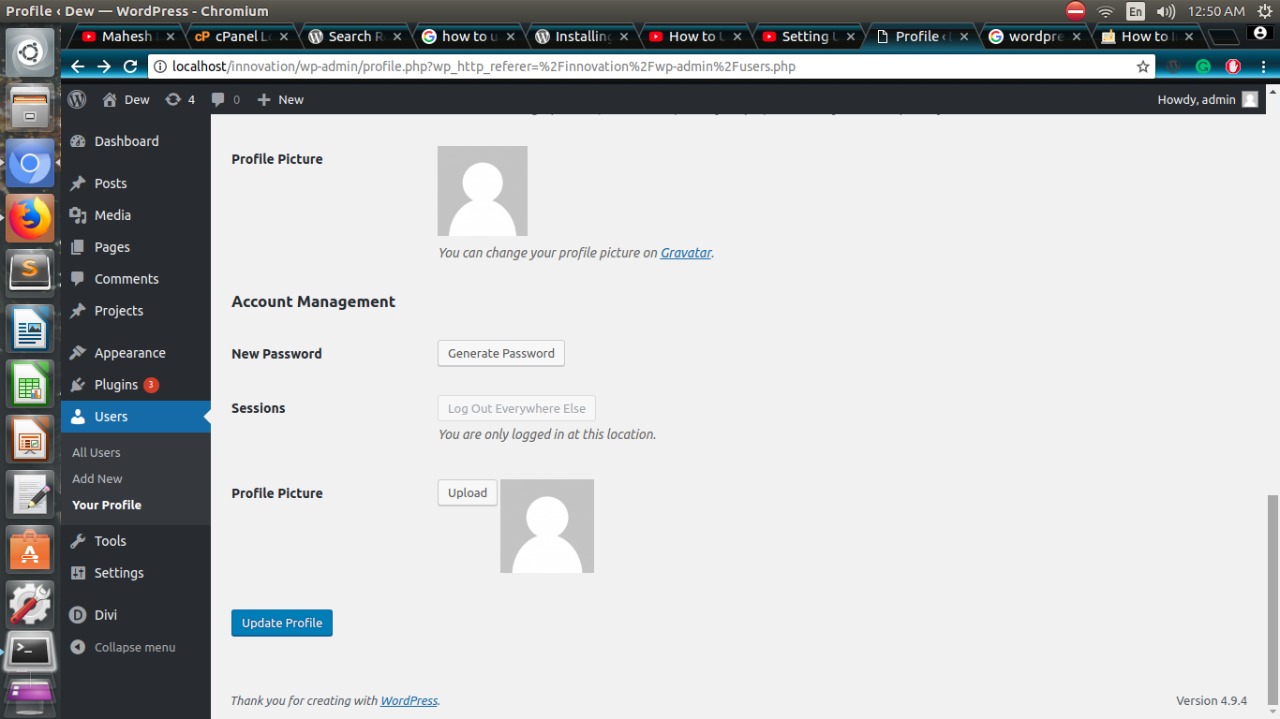
Profile page options.
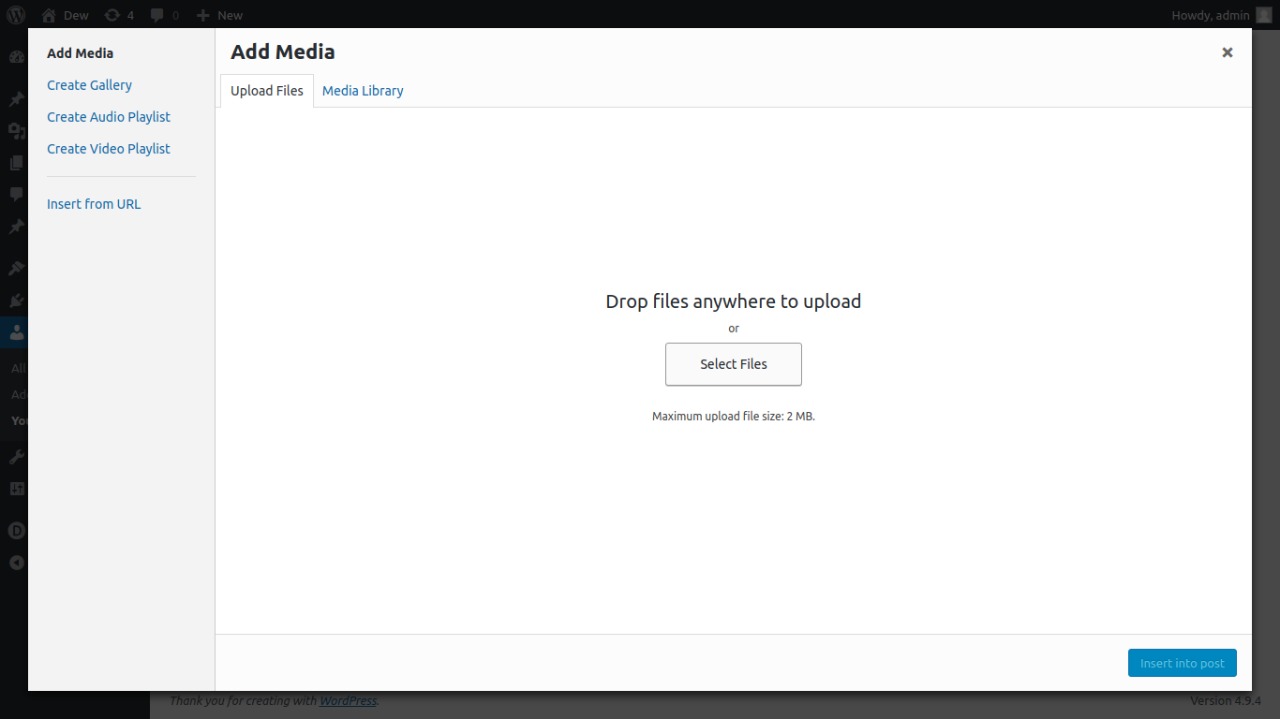
Media upload dialog.
Changelog
1.0.5
- Added compatibility with WordPress version 6.7.1.
1.0.4
- Added compatibility with WordPress version 6.0.
- Other minor bug fixes.
1.0.3
- Added compatibility with PHP version 8.0.
- Added compatibility with WordPress version 5.6.
- Other minor bug fixes.
1.0.2
- Change
1.0.1
- Fix error
1.0.0
- Initial release.