
Plugin info
Maintenance & Compatibility
Maintenance score
Maintained • Last updated 118 days ago • 13 reviews
Is WP Login Form abandoned?
Likely maintained (last update 118 days ago).
Compatibility
Developers
Similar & Alternatives
Explore plugins with similar tags, and compare key metrics like downloads, ratings, updates, support, and WP/PHP compatibility.
Description
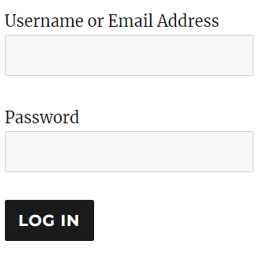
WP Login Form allows you to create a simple login form for use anywhere on the front end of your WordPress site. You can add it to a post, page or your sidebar with a shortcode.
WP Login Form Add-ons
How to Create a Custom Login Page for WordPress
In order to create a login form or custom login page for WordPress with the default options, all you need to do is use this shortcode:
[wp_login_form]
However, there are other parameters that you can pass in the shortcode to customize it.
redirect
An absolute URL to which the user will be redirected after a successful login. For example,
[wp_login_form redirect="https://example.com/mypage/"]
The default is to redirect back to the URL where the form was submitted.
form_id
Your own custom ID for the login form. For example,
[wp_login_form form_id="myloginform"]
The default is “loginform”.
label_username
Your custom label for the username/email address field. For example,
[wp_login_form label_username="Login ID or Email"]
The default is “Username or Email Address”.
label_password
Your custom label for the password field. For example,
[wp_login_form label_password="Login Password"]
The default is “Password”.
label_remember
Your custom label for the remember field. For example,
[wp_login_form label_remember="Remember"]
The default is “Remember Me”.
label_log_in
Your custom label for the form submit button. For example,
[wp_login_form label_log_in="Submit"]
The default is “Log In”.
id_username
Your own custom ID for the username field. For example,
[wp_login_form id_username="wp_user_login"]
The default is “user_login”.
id_password
Your own custom ID for the password field. For example,
[wp_login_form id_password="wp_user_pass"]
The default is “user_pass”.
id_remember
Your own custom ID for the remember field. For example,
[wp_login_form id_remember="login_rememberme"]
The default is “rememberme”.
id_submit
Your own custom ID for the form submit button. For example,
[wp_login_form id_submit="login_form_submit"]
The default is “wp-submit”.
remember
Specify whether to display the “Remember Me” checkbox in the WordPress login form. For example,
[wp_login_form remember="0"]
The default is “1” (true).
value_username
Your custom placeholder attribute for the username input field. For example,
[wp_login_form value_username="Your Username"]
The default is NULL.
value_remember
Specify whether the “Remember Me” checkbox in the form should be checked by default. For example,
[wp_login_form value_remember="1"]
The default is “0” (false).
lost_password
Specify whether to display a lost password link in the form. For example,
[wp_login_form lost_password="0"]
The default is “1” (true).
label_lost_password
Your custom label for the lost password link. For example,
[wp_login_form label_lost_password="Reset Password"]
The default is “Lost your password?”.
How to Enable Google reCAPTCHA
WP Login Form supports Google reCAPTCHA v3 to protect your login form against spam and other types of automated abuse. To enable this feature, go to “Settings > WP Login Form” and configure these options.
- Enable Google reCAPTCHA v3
- Site Key
For detailed documentation please visit the WordPress Login Form plugin page
Installation
- Go to the Add New plugins screen in your WordPress Dashboard
- Click the upload tab
- Browse for the plugin file (wp-login-form.zip) on your computer
- Click “Install Now” and then hit the activate button
Frequently Asked Questions
Yes.
Yes.
Review feed
Screenshots
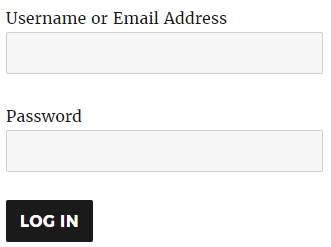
WP Login Form Demo
Changelog
1.0.13
- Added support for custom error add-on.
1.0.12
- Additional check for the settings link.
1.0.11
- Added a CSS class for the lost password link.
1.0.10
- Made some improvements in the settings area.
1.0.9
- Fixed an issue with reCAPTCHA script loading when not enabled.
1.0.8
- Added support for the force redirect option that can used to redirect all successful WordPress logins to a specific URL.
1.0.7
- Fixed an issue where the shortcode_tag filter was not returning any output for admin pages.
1.0.6
- Added support for Google reCAPTCHA v3.
1.0.5
- Added an option to customize the “Lost your password?” message.
1.0.4
- Made some security related improvements in the plugin
1.0.3
- Added an option to show/hide the “Lost your password?” link in the form.
1.0.2
- Added an option to the login form to reset a password
1.0.1
- First commit