

WP Telegram Widget and Join Link
Display the Telegram Public Channel or Group Feed in a WordPress widget or anywhere you want using a simple shortcode.
Plugin info
Maintenance & Compatibility
Maintenance score
Stale • Last updated 209 days ago • 31 reviews
Is WP Telegram Widget and Join Link abandoned?
Likely maintained (last update 209 days ago).
Compatibility
Developers
Similar & Alternatives
Explore plugins with similar tags, and compare key metrics like downloads, ratings, updates, support, and WP/PHP compatibility.
Description
Display the Telegram Public Channel or Group Feed in a WordPress widget or anywhere you want using a simple shortcode.
Features
- Provides an ajax widget to display channel feed
- Ajax widget contains a Join Channel link
- A separate Join Channel Link/Button
- Pulls updates automatically from Telegram
- Uses a responsive widget to display the feed
- Fits anywhere you want it to be
- The received messages can be seen from /wp-admin
- Automatically removes deleted messages
- Can be displayed using a shortcode
- Available as a Gutengerg block
- Allows embedding of Telegram public channel messages
- Can be extended with custom code
Widget Info
Ajax Widget
Goto Appearance > Widgets and click/drag WP Telegram Ajax Widget and place it where you want it to be.
Alternately, you can use the below shortcode.
Inside page or post content:
[wptelegram-ajax-widget username="WPTelegram" width="100%" height="500px"]
Inside the theme templates
or
Legacy Widget
Goto Appearance > Widgets and click/drag WP Telegram Legacy Widget and place it where you want it to be.
Alternately, you can use the below shortcode.
Inside page or post content:
[wptelegram-widget num_messages="5" width="100%" author_photo="auto"]
Inside the theme templates
 'auto',
        // 'num_messages' => 5,
        // 'width'        => 100,
    );

    wptelegram_widget( $args );
}
?>
or
Join Link
Goto Appearance > Widgets and click/drag WP Telegram Join Channel and place it where you want it to be.
Alternately, you can use the below shortcode.
Inside page or post content:
[wptelegram-join-channel link="https://t.me/WPTelegram" text="Join @WPTelegram on Telegram"]
Inside the theme templates
 'https://t.me/WPTelegram',
        'text' => 'Join @WPTelegram on Telegram',
    );
    wptelegram_join_channel( $args );
}
?>
or
Excellent Support
Join the Chat
We have a public group on Telegram to provide help setting up the plugin, discuss issues, features, translations etc. Join @WPTelegramChat
For rules, see the pinned message. No spam please.
Get in touch
- Website wpsocio.com
- Telegram @WPTelegram
- Facebook @WPTelegram
- Twitter @WPTelegram
Contribution
Development takes place in our Github monorepo, and all contributions welcome.
Installation
Automatic installation
Automatic installation is the easiest way — WordPress will handle the file transfer, and you won’t need to leave your web browser. To do an automatic install of the plugin:
- Log in to your WordPress dashboard
- Navigate to the Plugins menu, and click “Add New”
- In the search field type “wptelegram-widget” and hit Enter
- Locate the plugin in the list of search results
- Click on “Install Now” and wait for the installation to complete
- Click on “Activate”
Manual installation
Manual installation method requires downloading the plugin and uploading it to your web server via your favorite FTP application. The official WordPress documentation contains instructions on how to do this here.
Updating
Automatic updates should work smoothly, but we still recommend you back up your site.
Frequently Asked Questions
Legacy Widget does not show the old messages.
You need to post something new into the group/channel and wait for 5 minutes for the messages to appear.
If you are too impatient to wait for the results, open the URL under Tip!💡 (below the instructions) in your browser.
Note: Please ensure to follow the instructions given on the settings page correctly.
It means that there is something wrong with the permalinks on your website.
Simply goto wp-admin > Settings > Permalinks and just Save Changes.
That should fix it. If it doesn’t, please let us know at @WPTelegramSupport.
Review feed
Screenshots

Ajax Widget Settings

Legacy Widget Settings

Legacy Widget Settings (Cont.)

Join Link Settings

Advancced Settings
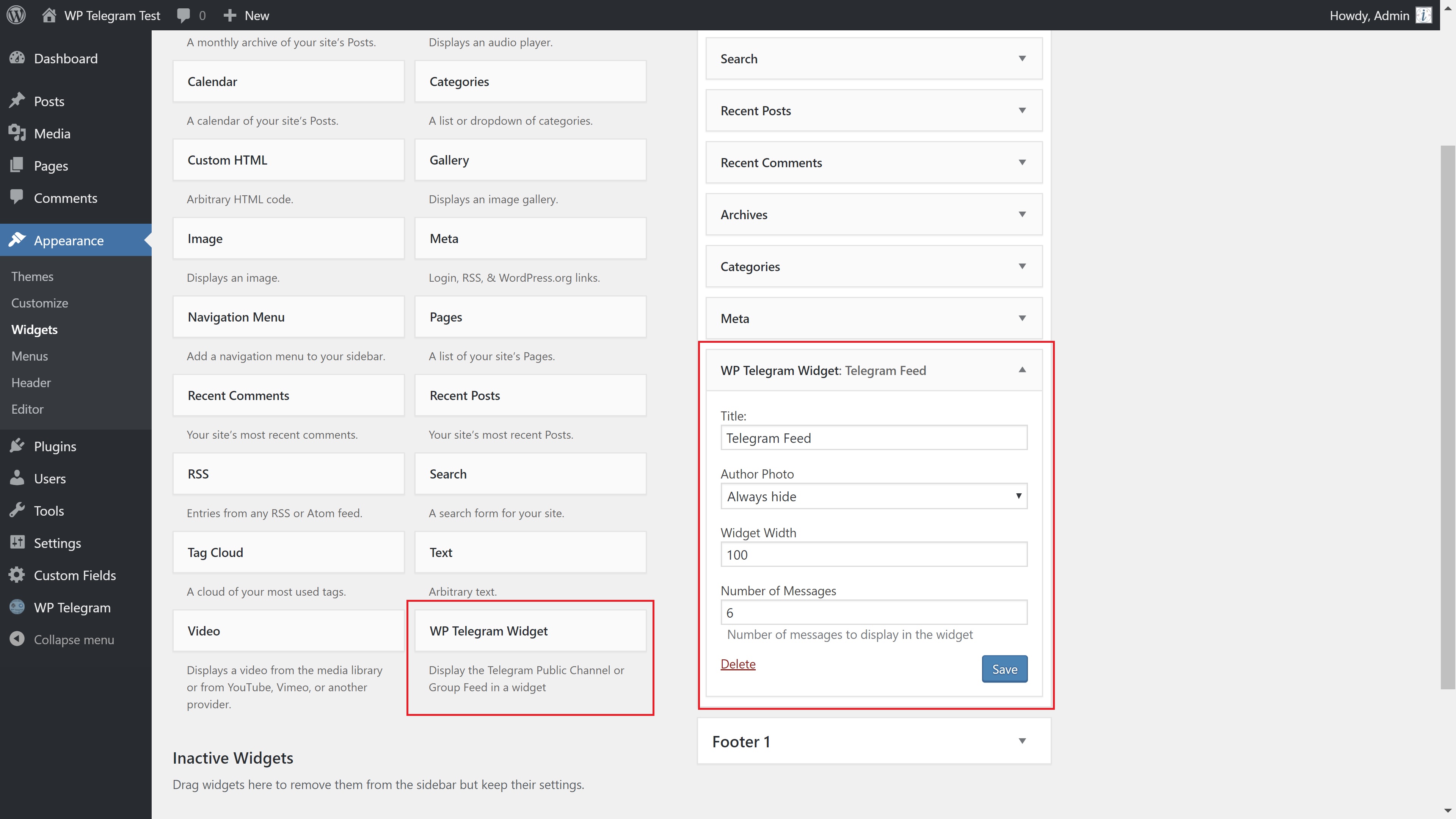
Widget Settings (back-end)
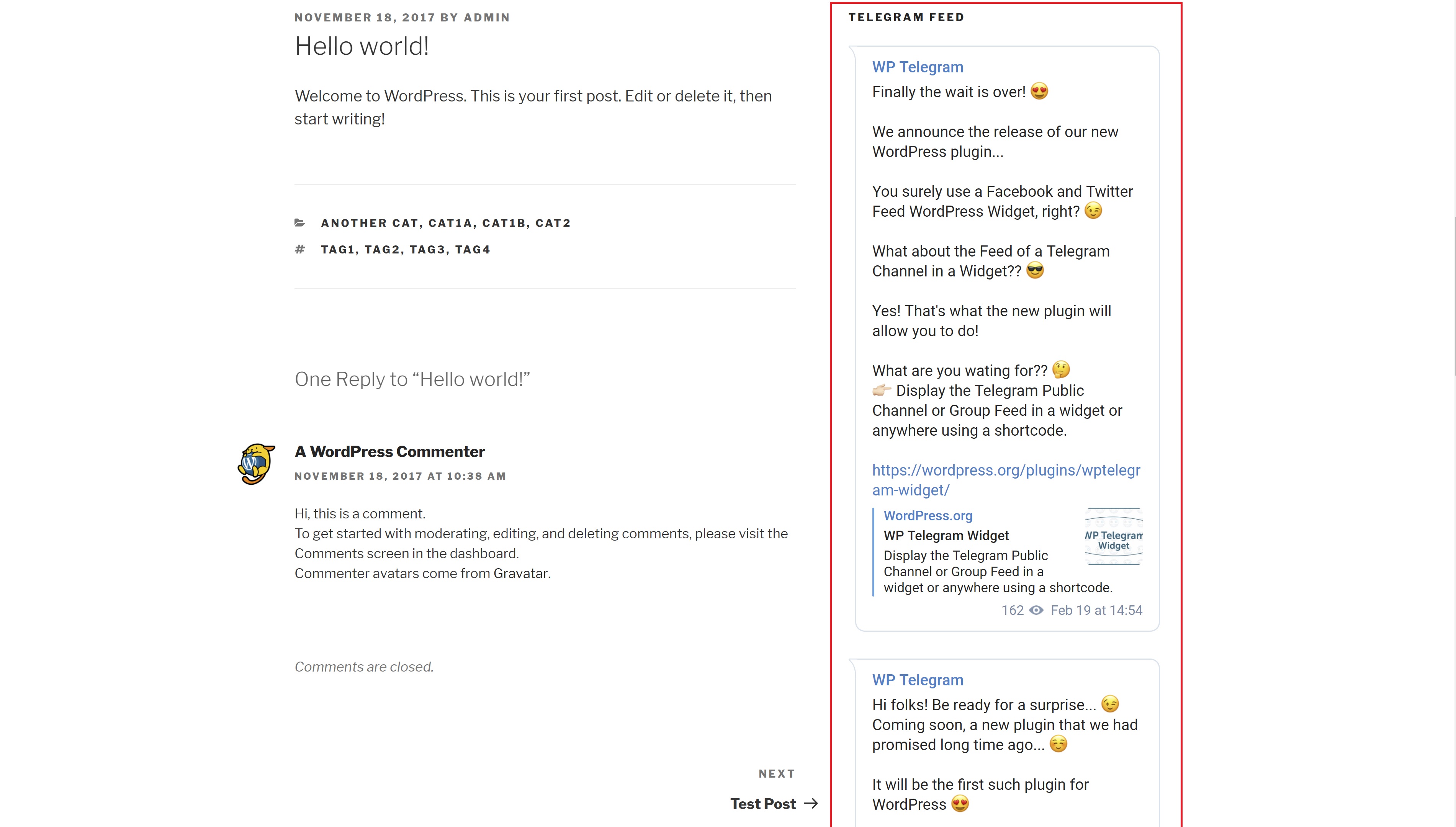
Widget View (front-end)

Blocks

Join Link View