

Plugin info
Maintenance & Compatibility
Maintenance score
Possibly abandoned • Last updated 3066 days ago • 17 reviews
Is Disable Toolbar abandoned?
Possibly abandoned (last update 3066 days ago).
Compatibility
Similar & Alternatives
Explore plugins with similar tags, and compare key metrics like downloads, ratings, updates, support, and WP/PHP compatibility.
Description
This humble plugin adds an option in Settings > General that controls who sees the WP Toolbar when viewing your site.
You can turn the Toolbar on or off per user role.
Note that this controls the public, front-end version of your site. When viewing the dashboard, the toolbar always appears.
How is this different from other plugins that do similar things? It’s smaller, cleaner, and doesn’t add any unnecesary settings pages. It’s also smart enough to hide the Toolbar option on user profiles if that user is already restricted from seeing the toolbar.
Installation
Automatic Install
- Log into your WordPress dashboard and go to Plugins → Add New
- Search for “Disable Toolbar”
- Click “Install Now” under the Disable Toolbar plugin
- Click “Activate Now”
Manual Install
- Download the plugin from the download button on this page
- Unzip the file, and upload the resulting
disable-toolbarfolder to your/wp-content/pluginsdirectory - Log into your WordPress dashboard and go to Plugins
- Click “Activate” under the Disable Toolbar plugin
Frequently Asked Questions
Installation Instructions
Automatic Install
- Log into your WordPress dashboard and go to Plugins → Add New
- Search for “Disable Toolbar”
- Click “Install Now” under the Disable Toolbar plugin
- Click “Activate Now”
Manual Install
- Download the plugin from the download button on this page
- Unzip the file, and upload the resulting
disable-toolbarfolder to your/wp-content/pluginsdirectory - Log into your WordPress dashboard and go to Plugins
- Click “Activate” under the Disable Toolbar plugin
Review feed
Screenshots
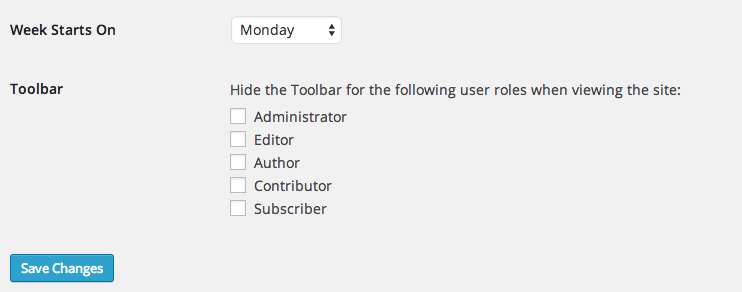
The Disable Toolbar option in Settings > General
Changelog
1.0
- Initial release.