

WP Hide Show Featured Image
The plugin provides options to hide featured images from all posts and pages.
Plugin info
Maintenance & Compatibility
Maintenance score
Stale • Last updated 255 days ago • 3 reviews
Is WP Hide Show Featured Image abandoned?
Likely maintained (last update 255 days ago).
Compatibility
Similar & Alternatives
Explore plugins with similar tags, and compare key metrics like downloads, ratings, updates, support, and WP/PHP compatibility.
Description
WP Hide Show Featured Image allows you to easily hide or show featured images on posts and pages. You can also remove the WordPress logo, the “Howdy” greeting, and the admin toolbar from the WordPress dashboard.
Features
Free Features:
– Hide featured images globally from all posts and pages
– Hide Admin Toolbar on the front-end for all users
– Remove the “Howdy” greeting from the top-right admin bar
– Remove the WordPress logo from the top-left admin toolbar
Explore more here:
Documentation
Support
Pro Features:
– Device-specific control: hide/show featured images on desktop or mobile
– Per-post and per-page visibility management
– Hide the admin toolbar based on user roles
– Compatible with custom post types
Upgrade to Pro
Unlock powerful customization with the Pro version:
– Show/hide featured images based on device (desktop & mobile)
– Control featured image visibility on each individual post or page
– Hide admin toolbar based on specific user roles
– Priority support and regular feature updates
Important: If you have the free version of WP Hide Show Featured Image installed, please deactivate and delete it before installing the Pro version.
If your theme uses a custom method to display the featured image, this plugin may not function as expected. For best compatibility, ensure that your theme uses standard WordPress functions to display featured images.
Please note that the plugin is currently not compatible with the Image widget in page builders like Elementor, Divi Builder, WPBakery, or similar, when used to dynamically display the featured image.
Installation
- Install from the WordPress Plugin Directory via
Plugins > Add Newand search for WP Hide Show Featured Image - OR download the plugin ZIP from here, unzip it, and upload the folder to
/wp-content/plugins/ - Activate the plugin via the
Pluginssection in the dashboard
Frequently Asked Questions
Go to Plugins > Settings > WP Hide Show Featured Image, and select YES to hide images from all posts/pages.
No, support for custom post types is available in the Pro version.
Yes, this feature is available in the Pro version.
Yes, the Pro version includes device-specific visibility options.
Go to the plugin settings page and select YES to hide the admin toolbar.
In the settings, enable the option to remove the “Howdy” greeting.
Go to settings and enable the option to hide the WordPress logo.
Review feed
Screenshots
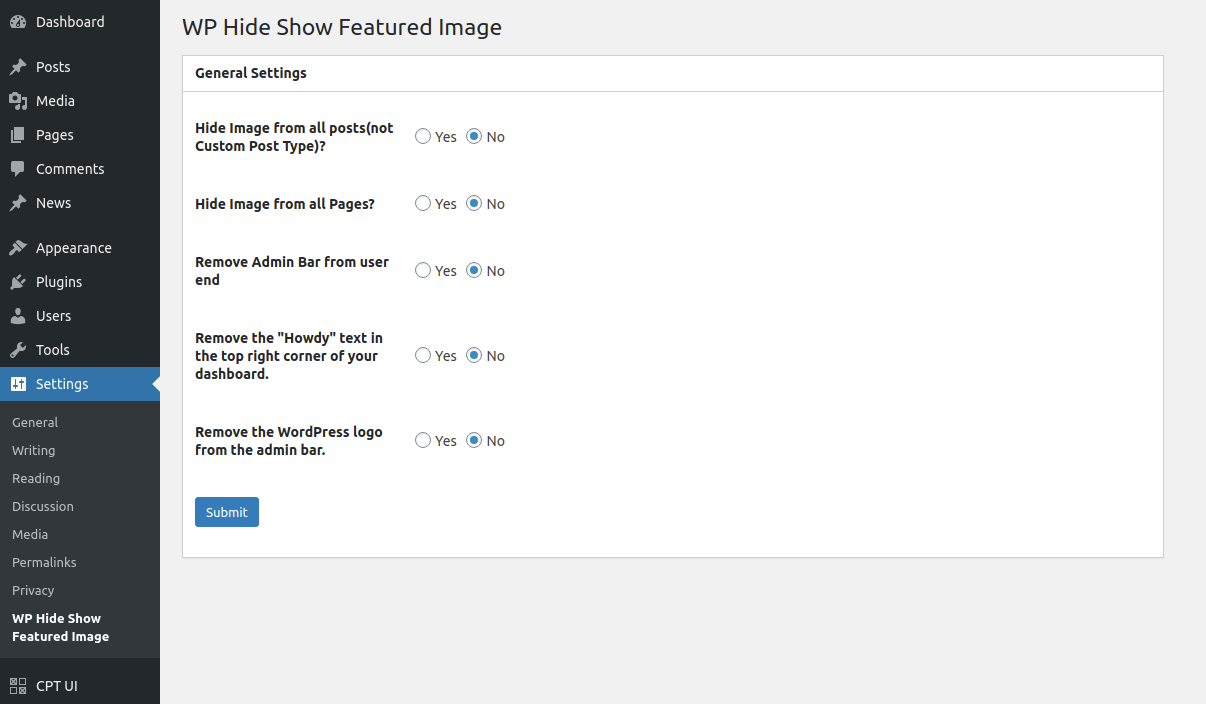
Plugin Settings Panel

Admin Toolbar Visibility Option

WordPress Logo Removal Setting
Changelog
2.8
– Stable Release
2.7
– Stable Release
2.6
– Stable Release
2.5
– Fixed minor issues
2.4
– Stable Release
2.3
– Stable Release
– Compatibility with the latest WordPress version
2.2
– Stable Release
2.1
– Stable Release
2.0
– Second Stable Release
– Fixed warning issue
1.0
– First Stable Release