

PageSpot
PageSpot facilitates more complex layout options for Pages, and dynamically assignable sidebar content on a per-Page basis.
Plugin info
Maintenance & Compatibility
Maintenance score
Possibly abandoned • Last updated 6090 days ago
Is PageSpot abandoned?
Possibly abandoned (last update 6090 days ago).
Compatibility
Similar & Alternatives
Explore plugins with similar tags, and compare key metrics like downloads, ratings, updates, support, and WP/PHP compatibility.
Description
PageSpot uses private Pages as groups of content to be inserted in various
other places in your Page or theme. By default it creates two special
private Pages:
PageSpot Snippets are pieces of another Page. To create a new snippet,
just
create a child Page of the [PageSpot] Page Snippets page. PageSpot will
ensure your new snippet remains Private and inaccessible on its own.
PageSpot then expects you to assign the snippet to a Spot on one of your
public Pages.
To do that, you will first need to create custom templates in your theme
directory. If you create a template with “pagespot” in the name, and select
it in the Page editor, the PageSpot admin box will become active for that
Page. PageSpot will parse the template for annotations that look like
“[[PageSpot:Foo]]”, and allow you to assign a PageSpot Snippet to the
“Foo” spot.
The final result is that when viewed from the front end, your Page will have
the assigned snippet Page’s content inserted in place of your [[PageSpot]]
annotation. This lets you build up complex layouts for a Page, composed of
other Pages. content which you can edit and replace independent of each
other.
Sidebar Items are pages that together comprise a sidebar for your theme.
To create a sidebar, just create a private Page named “[Sidebar] Foo”. All
child pages of that page constitute the Foo sidebar. PageSpot will add a
meta-box in the Page Edit screen to select the sidebar to use for the
current Page. Adding some simple PHP code to your sidebar template is all
you then need to bring this functionality into your custom theme:
Installation
- Extract PageSpot archive to the ‘/wp-content/plugins/’ directory
- Activate the plugin through the ‘Plugins’ menu in WordPress
- Creating a PageSpot page template*
- Create a template in your theme directory with “pagespot” in the filename (See screenshot 1)
- Add spot annotations to your template of the form [[PageSpot:aSpotName]]
- Create a child Page of the private Page “[PageSpot] Page Snippets” (See screenshot 2)
- Edit the target public Page, in the Template dropdown select “pagespot-foo” (See screenshot 3)
- In the PageSpot meta box, the names of your template annotations are displayed; assign a Page to each.
- Creating a PageSpot sidebar*
- Add child pages to the private Page “[Sidebar] Default Sidebar”
- Add the sidebar code to your theme template:
<?php PageSpot::print_sidebar(); ?> - Assign the sidebar to your public Pages using the Sidebar meta box
- Create other sidebars by creating private Pages named “[Sidebar] Your Name Here”
Frequently Asked Questions
Review feed
Screenshots
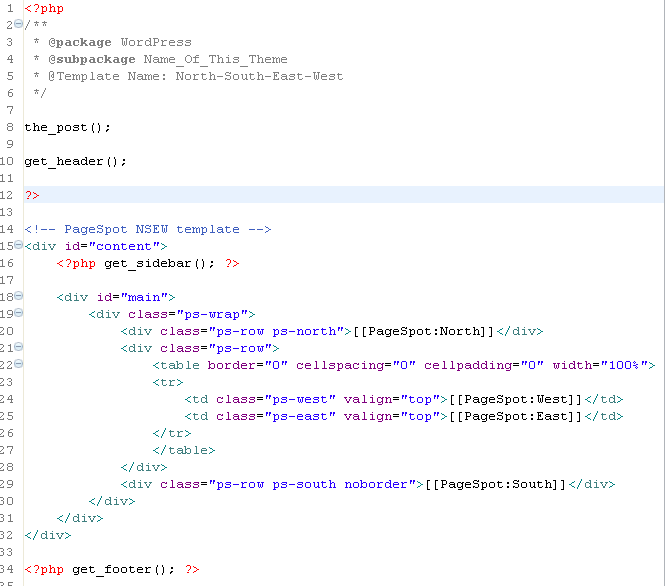
An example PageSpot template, pagespot-nsew.php, with spots for North, South, East, and West

Adding PageSpot snippets to be reused in public Page layouts

After selecting a PageSpot template, you can assign pages to fill in the spots in that template
![Creating selectable Sidebars by adding child pages to private "[Sidebar] Foo" pages](https://ps.w.org/pagespot/trunk/screenshot-4.png?rev=1539327)
Creating selectable Sidebars by adding child pages to private "[Sidebar] Foo" pages

Assigning a sidebar to a Page