

PixelFlow
PixelFlow official WordPress plugin. Easily install Meta's Conversions API on your website with WooCommerce integration and event tracking
Plugin info
Maintenance & Compatibility
Maintenance score
Maintained • Last updated 119 days ago
Is PixelFlow abandoned?
Likely maintained (last update 119 days ago).
Compatibility
Similar & Alternatives
Explore plugins with similar tags, and compare key metrics like downloads, ratings, updates, support, and WP/PHP compatibility.
Description
PixelFlow is the official WordPress plugin for PixelFlow – a powerful solution for implementing Meta’s Conversions API on your website.
Why PixelFlow?
Meta’s Conversions API helps you track customer actions beyond the limitations of browser-based tracking, ensuring accurate data collection for your advertising campaigns. PixelFlow makes it simple to set up and manage without technical expertise.
Key Features:
- 🚀 Easy Installation – Add your PixelFlow tracking code with just a few clicks
- 🛒 WooCommerce Integration – Automatic event tracking for your online store
- 📊 Complete Event Tracking – Track purchases, add to cart, checkout, and more
- ⚙️ Flexible Configuration – Control which events and elements to track
- 🎨 Theme Compatible – Works with most of WordPress themes
- 🔒 User Role Exclusion – Exclude admins or specific user roles from tracking
- 🐛 Debug Mode – Visual debugging tools for testing and validation
- 🎯 Custom Class Assignment – Automatically adds tracking classes to WooCommerce elements
WooCommerce Features:
When WooCommerce integration is active, PixelFlow automatically:
- Tracks purchase events with complete order details
- Adds event tracking classes to product, cart, and checkout pages
- Captures product names, prices, quantities, and totals
- Works with most WooCommerce themes out of the box
Tracked Events Include:
- Purchase
- Add to Cart
- Initiate Checkout
- View Content
- Lead Events
- And more…
Perfect for:
- E-commerce stores using WooCommerce
- Businesses running Facebook/Meta advertising campaigns
- Marketers who need accurate conversion tracking
- Anyone looking to improve their Meta Pixel implementation
Privacy Policy
PixelFlow integrates with Meta’s Conversions API to track customer actions on your website (when configured). This may include:
- Page views
- Product interactions
- Purchase events
- Form submissions
All data is processed according to Meta’s privacy policies and your local privacy regulations. Please ensure you have appropriate user consent mechanisms in place if required by law (e.g., GDPR, CCPA).
For more information:
* PixelFlow Privacy Policy
* Meta Business Tools
Additional Information
Links:
* PixelFlow Website
* Documentation
* Event Classes Reference
* Support
Requirements:
* WordPress 5.0 or higher
* PHP 7.4 or higher
* WooCommerce 4.0+ (optional, for e-commerce features)
Developer Resources:
* The plugin is developer-friendly with filters and hooks
* Custom event tracking can be implemented using PixelFlow classes
* Compatible with custom WooCommerce themes
* GitHub Repository – feel free to contribute or report issues
Installation
Automatic Installation:
- Log in to your WordPress admin panel
- Go to Plugins > Add New
- Search for “PixelFlow”
- Click “Install Now” and then “Activate”
- Go to Settings > PixelFlow Settings to configure
Manual Installation:
- Download the plugin zip file
- Go to Plugins > Add New > Upload Plugin
- Choose the downloaded file and click “Install Now”
- Activate the plugin
- Go to Settings > PixelFlow Settings to configure
Configuration:
Please follow this guide to set up your PixelFlow tracking code: PixelFlow Setup Guide
Frequently Asked Questions
PixelFlow is a service that helps you implement Meta’s Conversions API on your website, providing accurate tracking of customer actions for your Facebook/Meta and Instagram advertising campaigns.
Server-side tracking (also called the Conversion API) is better than using the standard “Facebook/Meta Pixel” implementation because it works even if visitors have ad blockers, tracking prevention, or cookie restrictions enabled meaning you get more complete, accurate data to measure results and improve your ads. It tracks events on your website before they can be blocked by a user’s browser meaning you can get more data sent to Meta events manager and in turn reduce your costs because your data is better and more accurate
PixelFlow tracks all events that users take on your website and send those events to Meta before the tracking can be blocked by the browser, adblocker, iPhone etc. This means you get far more accurate reporting data in your Meta events manager leading to reduced costs and increased conversions. Essentially you’ll spend less on Meta ads and get a better return as you’ll have more accurate data
PixelFlow picks up 30–40% more conversions that Meta Pixel misses – especially on iOS, Safari, or when ad blockers are active. While Meta relies on browser-side data (which gets blocked), PixelFlow uses server-side tracking to ensure you see the full picture – every click, sale, and signup, even the hidden ones.
We’ve actually designed PixelFlow as an alternative to the more complex platforms because we totally understand these things can seem complicated. With this in mind, the setup is super simple – you just follow the video and steps and you’re all done. However, if you need any help we’re happy to jump on a video call with you and get it all setup!
For EU customers, you can ensure the PixelFlow script only loads after they have accepted whatever consent banner you choose to implement
Yes, you need to sign up for a PixelFlow account at pixelflow.so to get your tracking code. We offer a free trial to get started.
Yes! The plugin works on any WordPress site. WooCommerce integration is an optional feature that provides automatic e-commerce event tracking.
No. The PixelFlow tracking code is lightweight and loads asynchronously, so it won’t affect your website’s performance.
Yes. You can exclude specific user roles (like administrators) from being tracked in the plugin settings.
The plugin works with any WordPress themes. The WooCommerce integration works with most themes, but you can manually adjust class assignments if needed.
- Enable Debug Mode in the plugin settings
- Visit your site while logged in
- You’ll see visual indicators on tracked elements
- Check Meta Events Manager for event data
Yes! You can manually add PixelFlow class names to any element on your site to track custom events. See the PixelFlow documentation for details.
Yes. PixelFlow follows industry best practices for data security and privacy. Your tracking data is sent directly to Meta’s servers.
Visit PixelFlow documentation or Contact Support.
Review feed
Screenshots
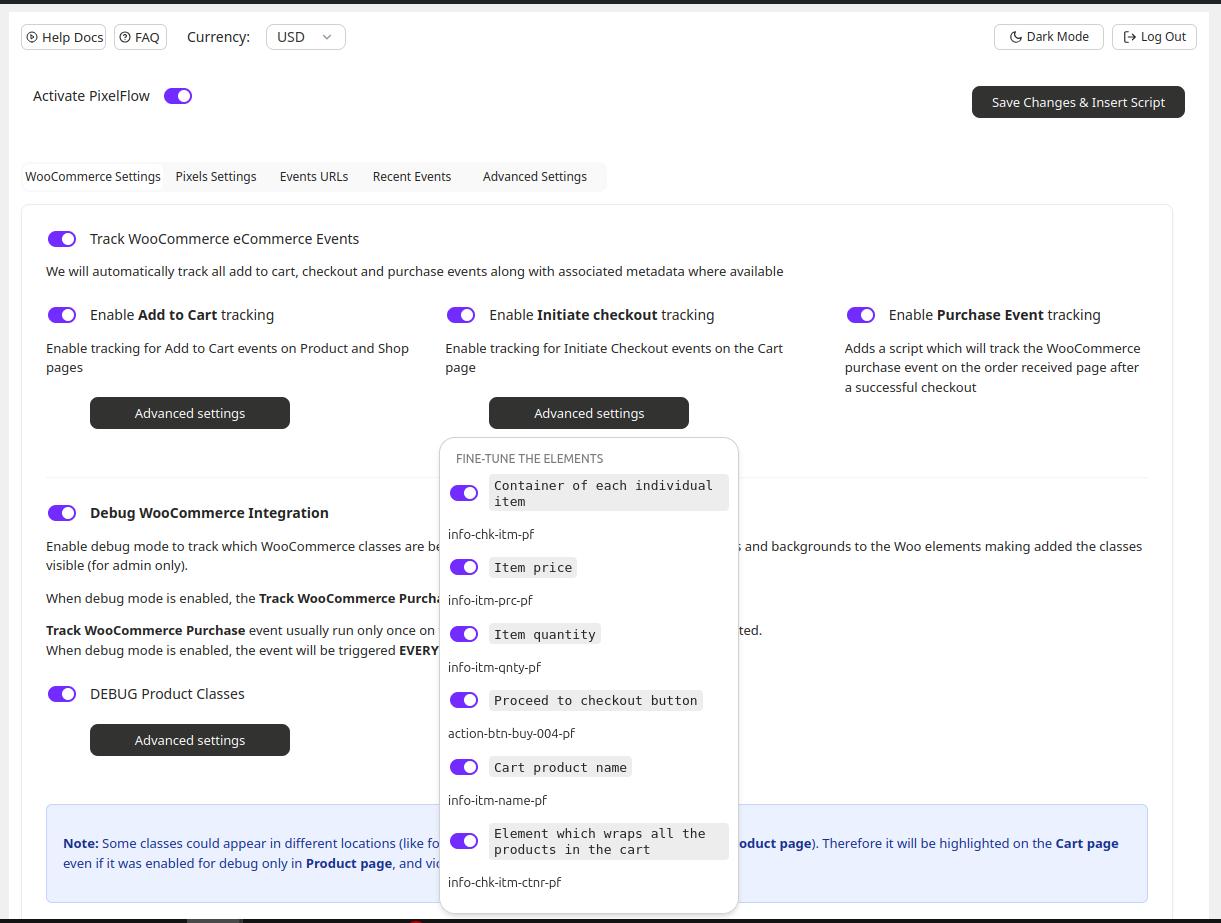
WooCommerce integration settings
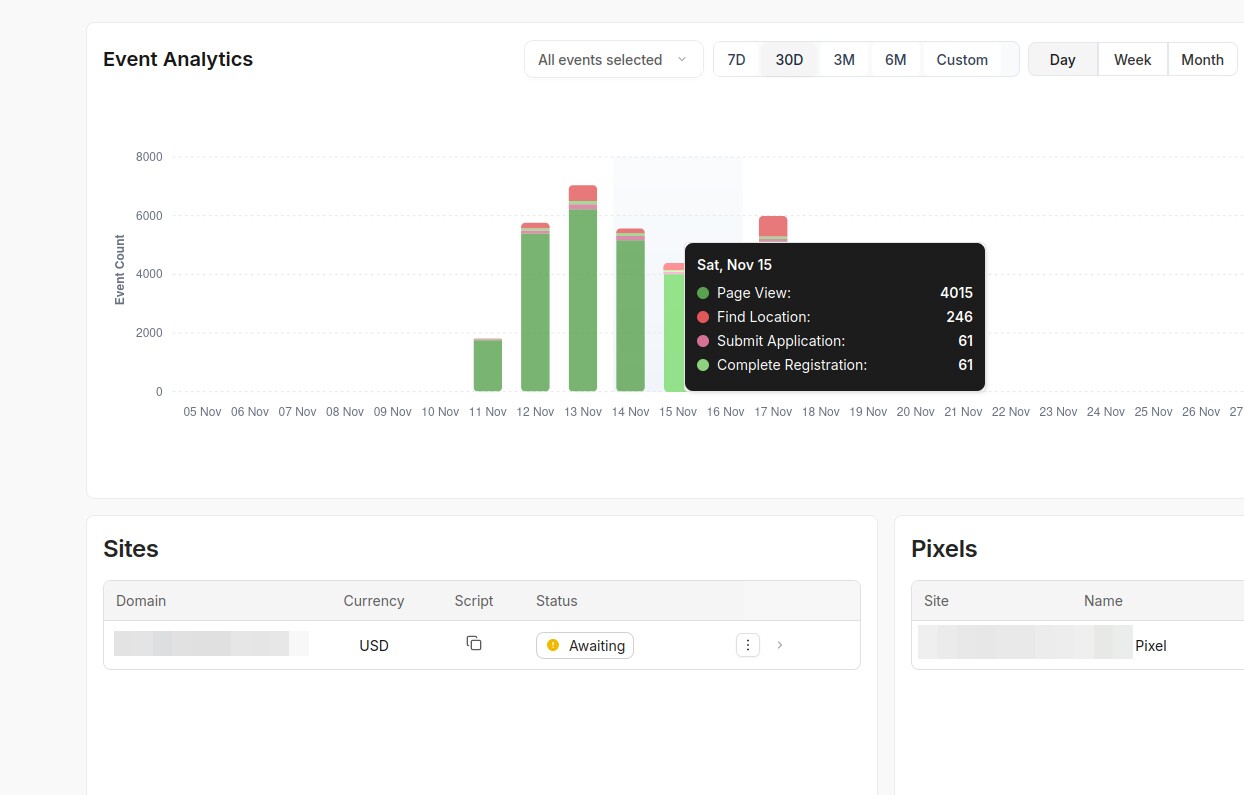
Analytics received in the Pixelflow dashboard
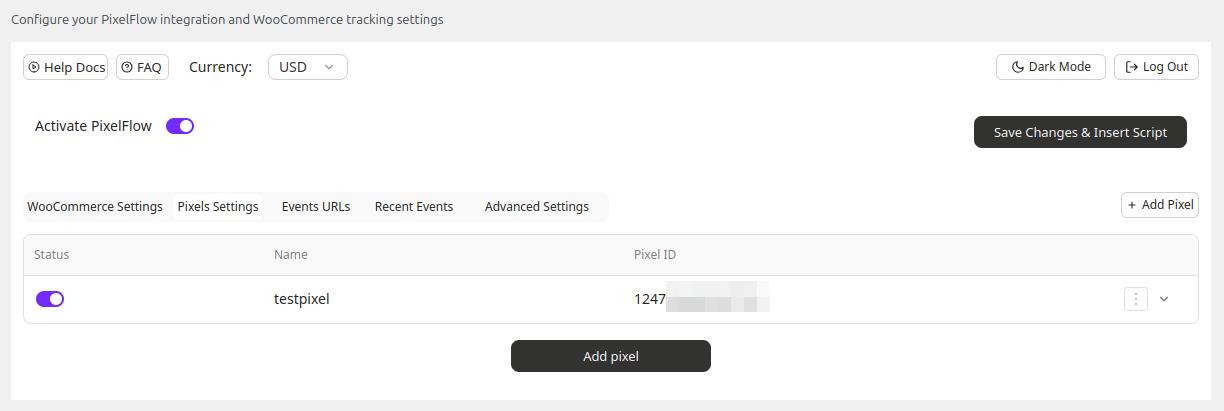
Pixels Settings
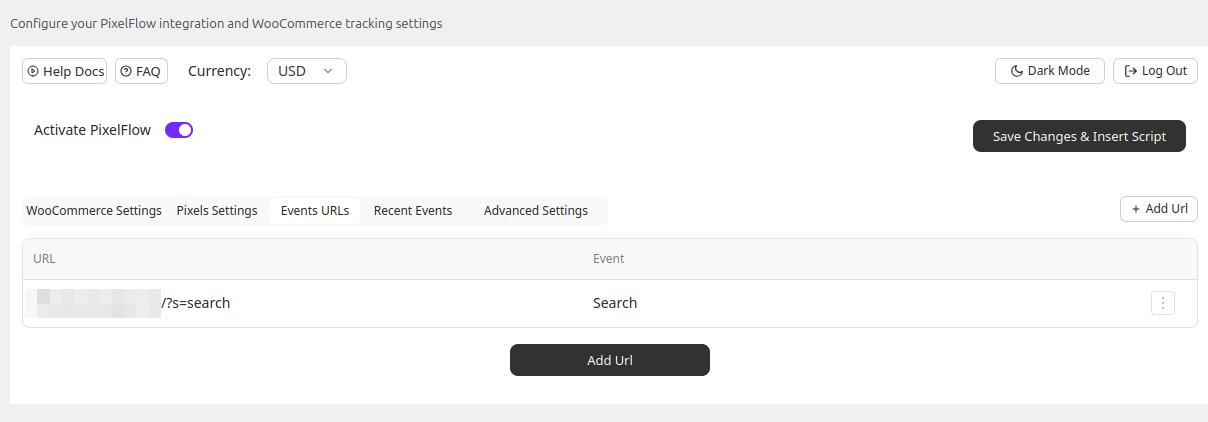
Events Urls Settings
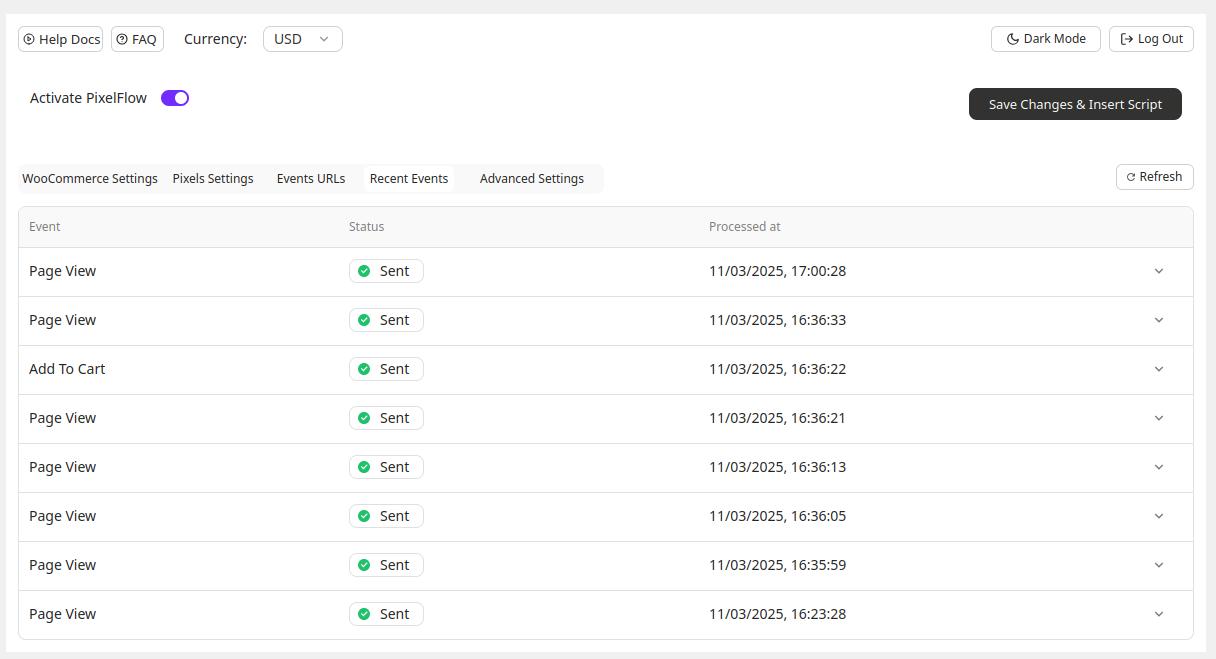
Recent Events
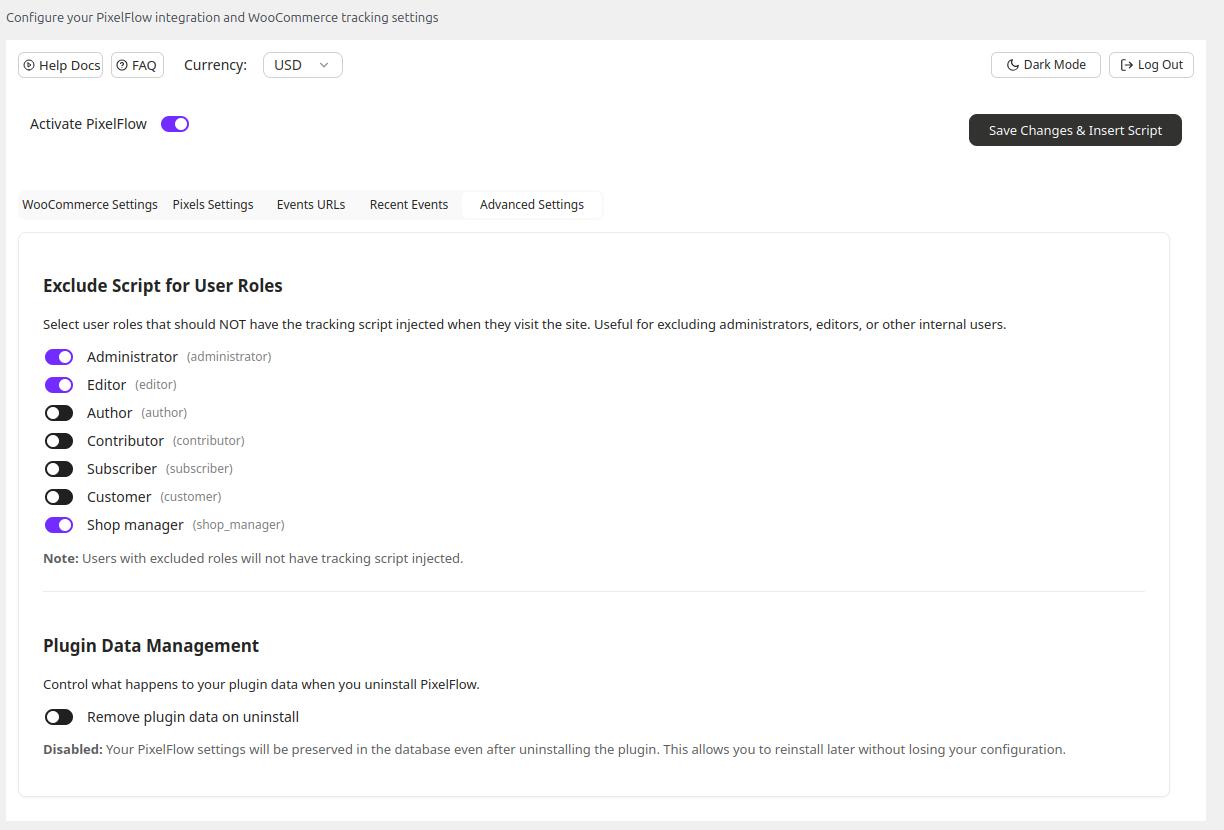
Advanced Settings
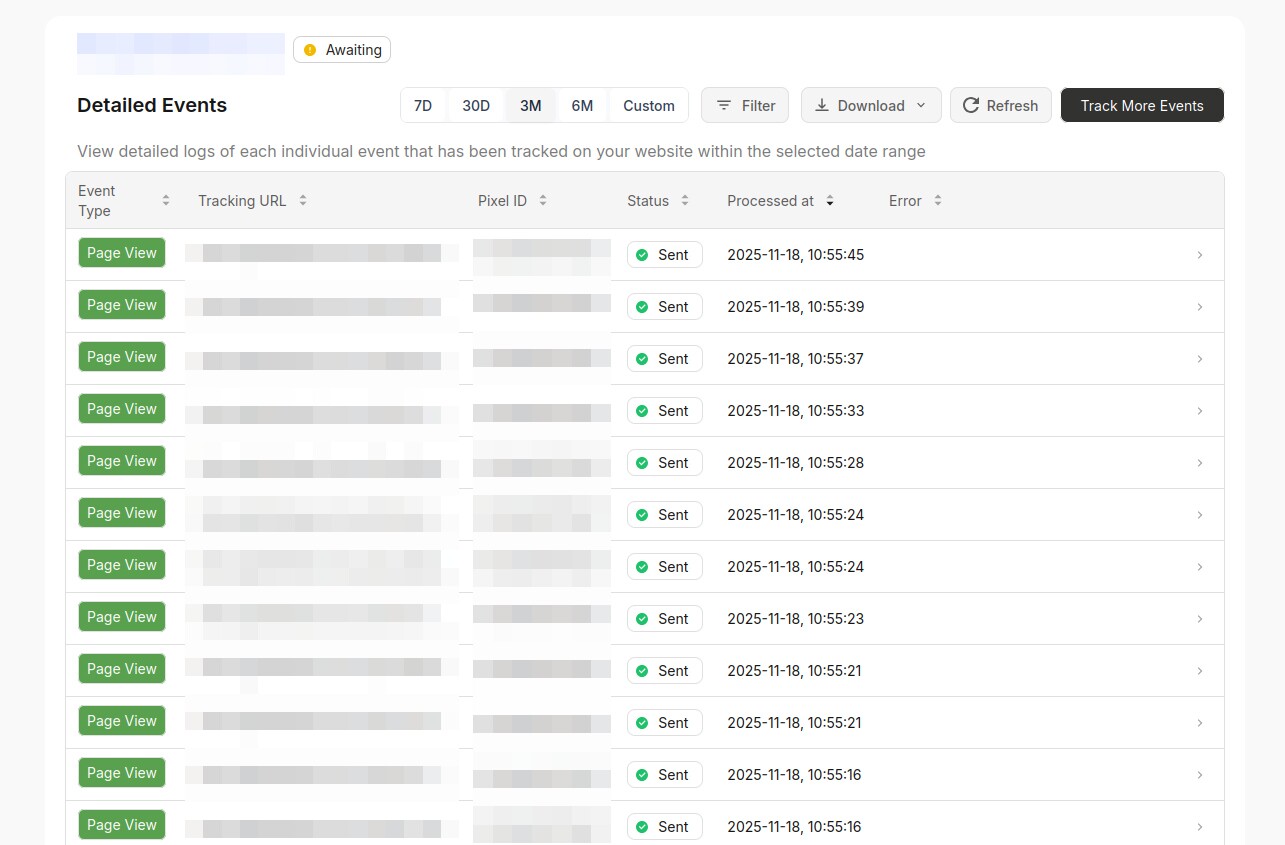
Events in the Pixelflow dashboard
Changelog
0.1.21
Replaced ob_ usage with javascript to add classes
0.1.20
Updated the way how the script is injected
0.1.19
Added button to quickly copy site ID (on the login screen)
Fixed Woo settings global variable name
Updated UI components
0.1.18
Main developer changed
Option name changed from pixelflow_script_code to pixelflow_code
0.1.17
Improved pixel id form field validation to prevent invalid values from submitting
0.1.16
- Added links to docs and PixelFlow Dashboard
- UX improved
0.1.15
- Initial public release
- Automatic PixelFlow tracking code insertion
- WooCommerce integration with auto-class assignment
- Settings page for configuration
- User role exclusion feature
- Debug mode for testing
- Support for all major PixelFlow event classes